Get LibreOffice to Recognize Your Java Runtime

Install a compatible Java runtime, enable it in LibreOffice, and troubleshoot an empty JRE list without changing unrelated settings.
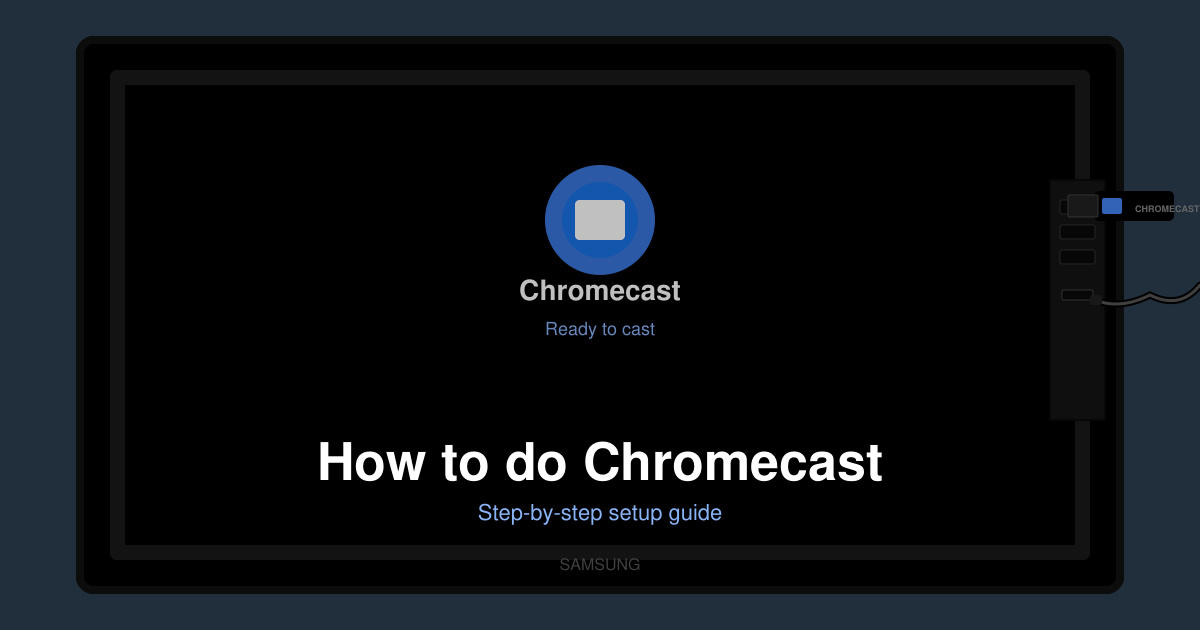
If you want to know exactly how to do Chromecast, this guide gives you the precise steps to connect your device and start streaming to a TV. The process works with phones, tablets, and computers once the hardware is installed correctly. Follow the instructions below to complete setup and begin casting without delays.
Before casting begins, the Chromecast dongle must be plugged into your television and connected to the same Wi-Fi network as your phone or computer. Locate an HDMI port on the back or side of the TV and insert the Chromecast. Plug the USB power cable into the dongle and connect it to a power outlet or the TV's USB port. Download the Google Home app on your mobile device from the App Store or Google Play Store, then open the app and sign in with your Google account.
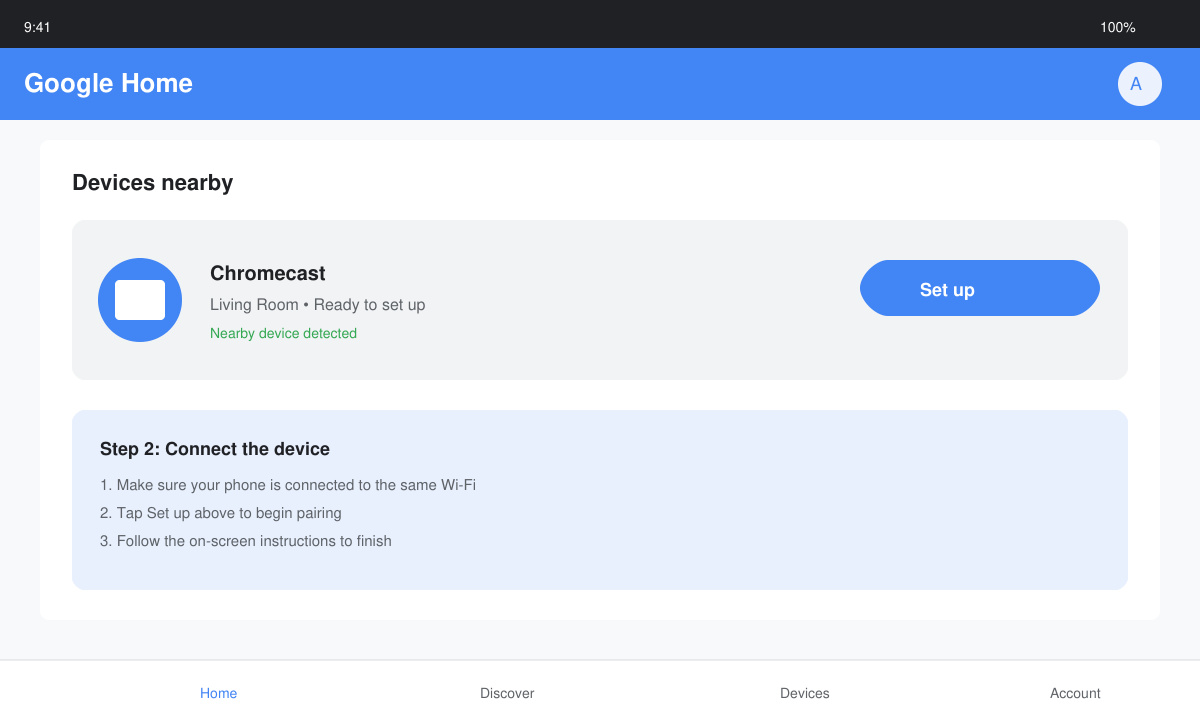
Open the Google Home app and tap the plus icon in the top left corner. Select "Set up device" and choose "New devices." The app scans for nearby Chromecast hardware; tap the detected device and follow the on-screen prompts to name it and link it to your Wi-Fi network.
Open an app such as YouTube, Netflix, or Spotify on your phone. Look for the Cast icon, which appears as a rectangle with Wi-Fi waves. Tap the icon, select your named Chromecast device from the list, and the video or audio will begin playing on the TV while your phone acts as a remote.
Return to the casting app and tap the Cast icon again. Choose "Stop casting" to disconnect the stream and return playback to your phone screen. This keeps the Chromecast ready for the next session without restarting the TV.
On a Windows or Mac computer, open the Chrome browser and navigate to a supported site such as YouTube or a video platform. Click the three-dot menu in the top right, select "Cast," and choose your Chromecast device from the list. The tab or entire desktop can be mirrored depending on the option selected in the cast menu. To end the session, click the Cast icon in the browser toolbar and select "Stop casting."
No. Chromecast requires a stable Wi-Fi connection for both setup and streaming; it does not support direct Bluetooth or wired connections from phones.
Yes. The Google Home app on iOS handles setup, and many video apps include the Cast button for iPhone users once the device is configured.
Only one device can cast to a single Chromecast at a time. Additional devices must wait until the current stream ends or is stopped.
Following these exact steps makes how to do Chromecast straightforward on any compatible device. Once the hardware is installed and the first cast succeeds, future sessions take only a few taps.
Install a compatible Java runtime, enable it in LibreOffice, and troubleshoot an empty JRE list without changing unrelated settings.
Build a small LibreOffice container, convert office documents without a GUI, and verify PDF output while limiting host-file access.
Reduce oversized LibreOffice presentation files by compressing embedded photos, choosing sensible image settings, and checking slide quality before sharing.
Match LibreOffice’s page dimensions to your printer, check printable margins, and correct scaling before printing a custom-size document.
Replace repeated cell access with bulk range reads and writes, then benchmark the result and protect formulas in large Calc workbooks.
Split a long manuscript into chapters, assemble them in Writer, and keep styles, contents, and export checks consistent.
Use Base’s direct PostgreSQL option to enter your server details, sign in, save an ODB connection file, and troubleshoot common access errors.
Install a font in your Linux user font folder, restart LibreOffice Flatpak, and confirm it appears in Writer without weakening the app sandbox.
Protect your work and isolate network-drive save crashes in LibreOffice on macOS Sonoma with a local-first workflow, permission checks, and targeted tests.
Preserve leading zeros in Calc by setting ID columns to Text during CSV import, checking the preview, and verifying the saved data.








