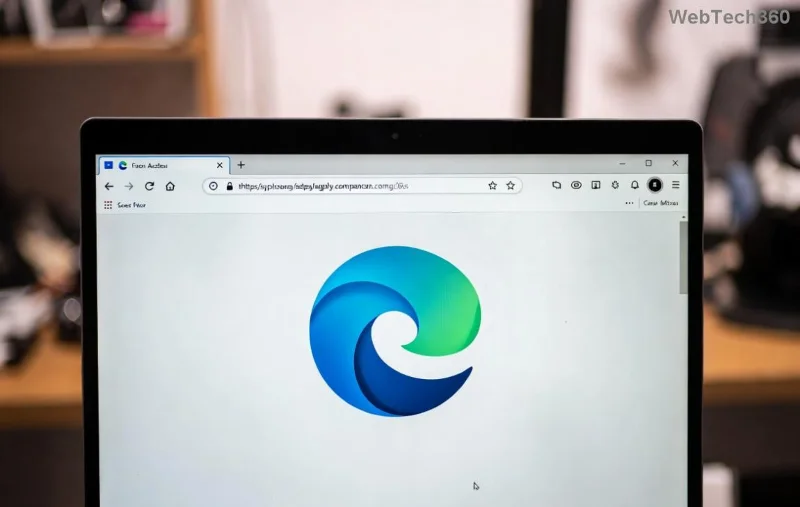
Are you tired of laggy videos, choppy animations, and sluggish page loads in Microsoft Edge? 🚀 Enabling Hardware Acceleration can transform your browsing experience by offloading graphics tasks to your GPU. This feature leverages your computer's graphics power for silkier scrolling, crisp 4K playback, and snappier web apps. In this ultimate guide, we'll walk you through enabling Hardware Acceleration in Microsoft Edge effortlessly—keeping it simple, safe, and super effective.
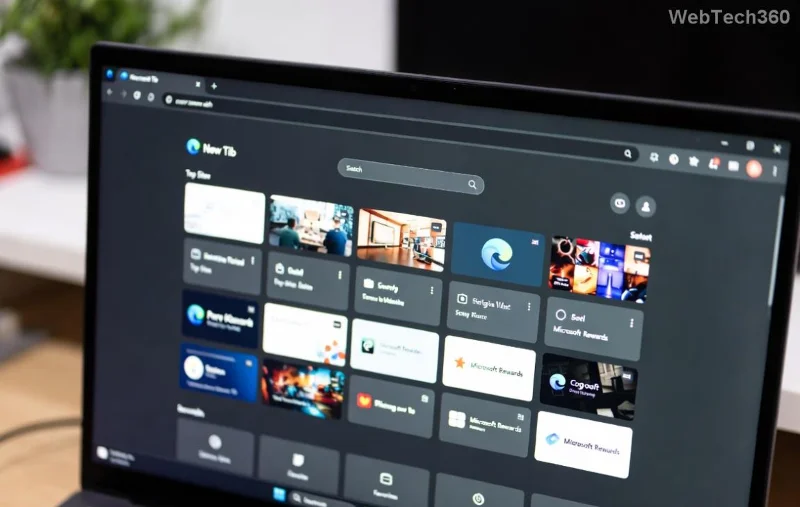
What is Hardware Acceleration in Microsoft Edge?
Hardware Acceleration shifts intensive rendering tasks—like drawing web pages, decoding videos, and running animations—from your CPU to the GPU. Built on Chromium, Microsoft Edge uses this to deliver desktop-class performance in a browser. It's enabled by default in recent versions, but toggling it manually ensures optimal setup, especially on high-end rigs or after updates.
Pro tip: If your system feels sluggish, this tweak could cut load times by up to 50% on graphics-heavy sites! ⭐
Key Benefits of Enabling Hardware Acceleration
- 🖥️ Smoother Scrolling & Animations: No more janky CSS effects.
- 🎥 Flawless Video Playback: Netflix, YouTube, and 4K streams shine brighter.
- ⚡ Faster Web Apps: Tools like Photoshop online or games load lightning-quick.
- 🔋 Better Battery Life on laptops (GPU efficiency wins).
- 📈 Overall Speed Boost: Ideal for multitasking or creative work.
Step-by-Step: How to Enable Hardware Acceleration in Microsoft Edge
Ready to turbocharge? Follow these easy steps. Works on Windows, macOS, and Linux. Restart Edge after changes for instant results! 👆
- 1️⃣ Open Edge Settings
Launch Microsoft Edge, click the three-dot menu (⋮) in the top-right, and select Settings.
- 2️⃣ Navigate to System Section
In the left sidebar, click System and performance. Scroll to find Use hardware acceleration when available.
- 3️⃣ Toggle It On
Flip the switch to On. Edge will prompt a restart—hit Restart to apply.
- 4️⃣ Verify It's Working
Type edge://gpu/ in the address bar. Look for "Graphics Feature Status"—green checks mean success! 🎉
![Edge GPU status page confirming Hardware Acceleration enabled]()
Advanced Tweaks for Power Users
For extra oomph, dive into experimental flags (use cautiously):
- Enter
edge://flags/.
- Search for #ignore-gpu-blocklist or hardware-acceleration-mode.
- Set to Enabled and relaunch.
Warning: Flags can be unstable—reset if issues arise via the "Reset all" button. 😊
Hardware Acceleration on Different Operating Systems
| OS |
Steps |
Notes |
| Windows 10/11 |
Same as above. Ensure latest GPU drivers via Device Manager. |
Best for NVIDIA/AMD/Intel GPUs. Update via GeForce Experience or Adrenalin. |
| macOS |
Settings > System > Toggle on. Check edge://gpu/. |
Apple Silicon (M1+) excels here. Ventura+ optimized. |
| Linux (Ubuntu/Fedora) |
Via edge://settings/system. Install GPU drivers (e.g., mesa for Intel). |
Enable via sudo apt install mesa-va-drivers for video accel. |
Troubleshooting: Fix Common Hardware Acceleration Issues
Not seeing improvements? Here's a quick diagnostic table:
| Problem |
Solution |
Icon Check |
| Toggle grayed out |
Update Edge: ⋮ > Help > About Microsoft Edge. |
❌ |
| Black screens/crashes |
Disable via settings, update GPU drivers. |
⚠️ |
| Slow on integrated graphics |
Switch to discrete GPU in NVIDIA/AMD control panel. |
🔧 |
| edge://gpu/ shows errors |
Run Hardware Acceleration troubleshooter or check drivers. |
✅ After fix |
For driver updates, visit your GPU maker's site—like NVIDIA or Microsoft's official guide.
When Should You Disable Hardware Acceleration?
Not always a win: Older GPUs or buggy drivers might cause glitches. Signs to disable:
- ❌ Crashing tabs
- ❌ Flickering visuals
- ❌ High fan noise without gains
Toggle off the same way—your CPU handles it reliably. Test both and pick what feels best!
Maximize Your Edge Experience Post-Enable
Pair Hardware Acceleration with these for god-tier performance:
- Clear cache:
edge://settings/clearBrowserData
- Enable Efficiency Mode for battery savers
- Use Sleeping Tabs to tame memory hogs
- Install extensions sparingly—Performance Booster helps! ⭐
Now your Microsoft Edge is a beast. Notice the difference on YouTube or heavy sites? Share your speed gains below! Ready for more tweaks? Stick around for our next guide on Edge's hidden gems. 🚀