Get LibreOffice to Recognize Your Java Runtime

Install a compatible Java runtime, enable it in LibreOffice, and troubleshoot an empty JRE list without changing unrelated settings.
Make sure you have a working keyboard and mouse. Note your Microsoft account password because some recovery paths require it. Back up important files if possible before forcing a restart. Windows 11 must be installed on the device you are troubleshooting.
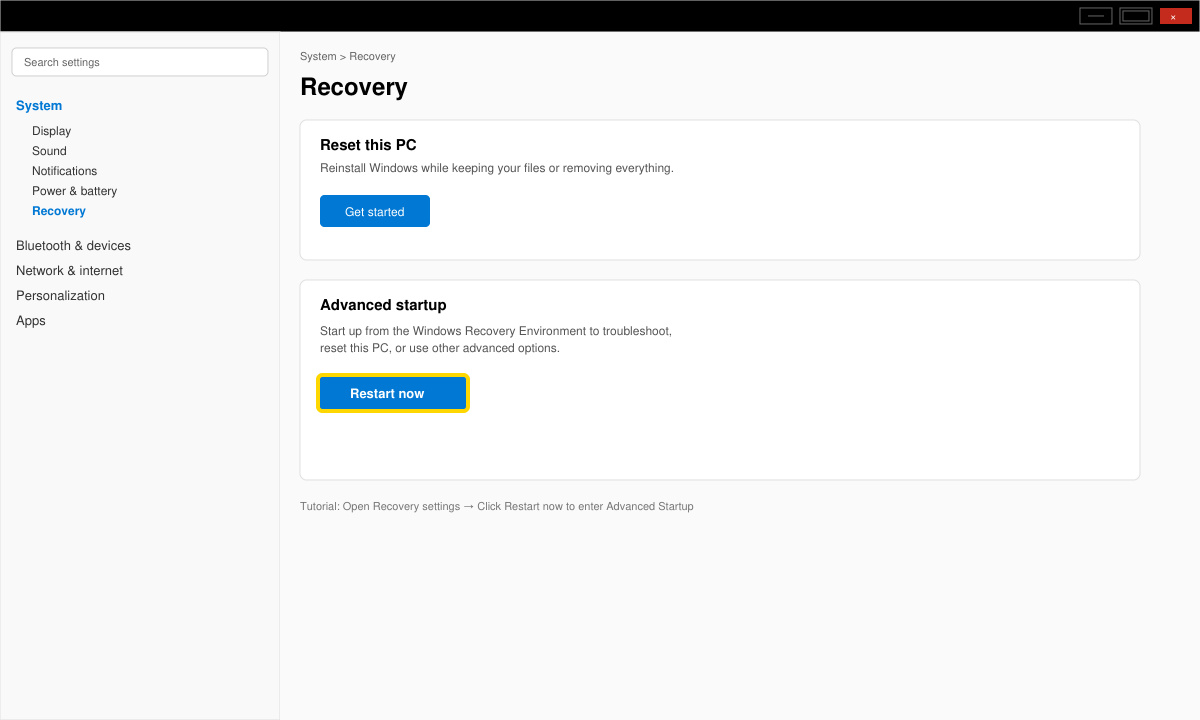
Click the Start button, select Settings, then choose System in the left sidebar. Scroll down and click Recovery. Under Advanced startup, click the Restart now button.
After restart, the blue recovery screen appears. Select Troubleshoot, then Advanced options, then Startup Settings, and finally click Restart.
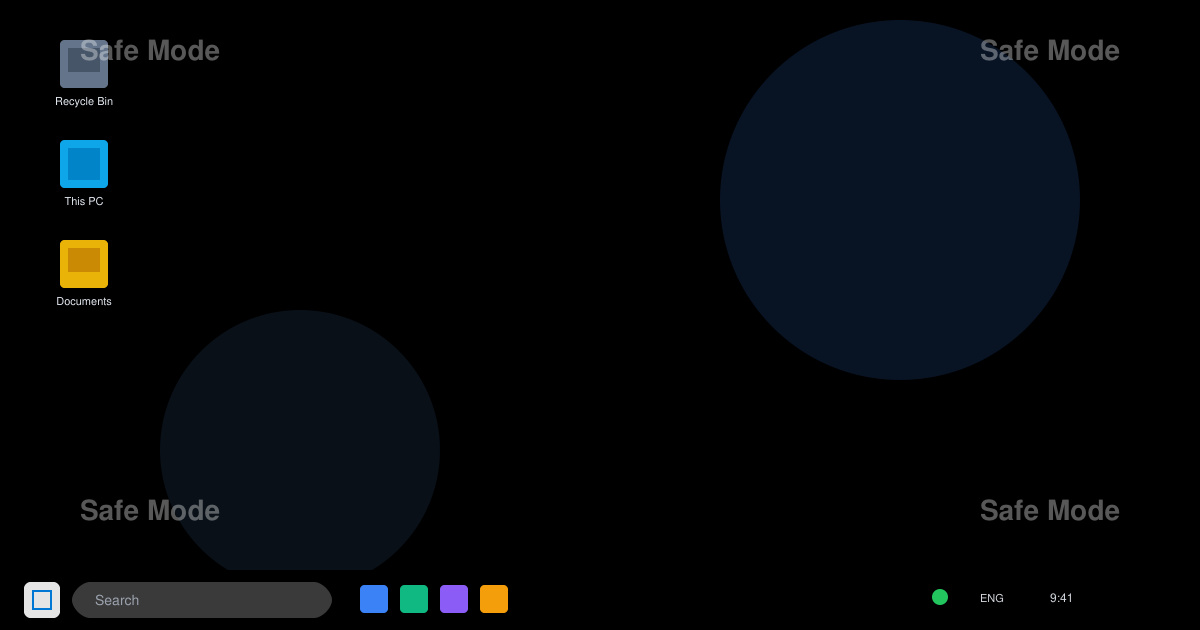
Press the number 4 or F4 on your keyboard to boot into Safe Mode. For Safe Mode with Networking, press 5 or F5 instead.
Press Windows key + R, type msconfig, and press Enter. Switch to the Boot tab.
Check the Safe boot box and select Minimal. Click OK and restart when prompted.
Yes. Hold the Shift key while clicking the power icon on the login screen, then choose Restart. Continue with the Troubleshoot path described above.
No. Safe Mode only changes which drivers and services load. All personal files remain untouched.
Create a Windows 11 installation USB on another computer, boot from it, and select Repair your computer to reach the same recovery options.
Mastering how to enter Safe Mode Windows 11 gives you direct access to the tools needed for effective troubleshooting without third-party software.
Install a compatible Java runtime, enable it in LibreOffice, and troubleshoot an empty JRE list without changing unrelated settings.
Build a small LibreOffice container, convert office documents without a GUI, and verify PDF output while limiting host-file access.
Reduce oversized LibreOffice presentation files by compressing embedded photos, choosing sensible image settings, and checking slide quality before sharing.
Match LibreOffice’s page dimensions to your printer, check printable margins, and correct scaling before printing a custom-size document.
Replace repeated cell access with bulk range reads and writes, then benchmark the result and protect formulas in large Calc workbooks.
Split a long manuscript into chapters, assemble them in Writer, and keep styles, contents, and export checks consistent.
Use Base’s direct PostgreSQL option to enter your server details, sign in, save an ODB connection file, and troubleshoot common access errors.
Install a font in your Linux user font folder, restart LibreOffice Flatpak, and confirm it appears in Writer without weakening the app sandbox.
Protect your work and isolate network-drive save crashes in LibreOffice on macOS Sonoma with a local-first workflow, permission checks, and targeted tests.
Preserve leading zeros in Calc by setting ID columns to Text during CSV import, checking the preview, and verifying the saved data.








