Sent an email to the wrong person or spotted a typo right after hitting Send? Outlook lets you recall a sent email — but only if both you and the recipient use Microsoft Exchange or Microsoft 365, and the message hasn't been read yet. Here's how to do it in under two minutes. How to Erase Search History on Chromebook helps you remove unwanted records from the built-in Chrome browser that powers every Chromebook.
Understanding Search History on Chromebook
Chromebooks store search and browsing activity inside the Chrome browser. This data includes visited sites, search terms typed into the address bar, and cached form entries. Clearing it improves privacy on shared devices or when you want a fresh start. The process uses the built-in Clear browsing data tool and works the same on every Chrome OS version.
Make sure your Chromebook is connected to Wi-Fi and updated before you begin, because the settings menu can change slightly after system updates.
Step-by-Step Guide to Erase Search History on Chromebook
-
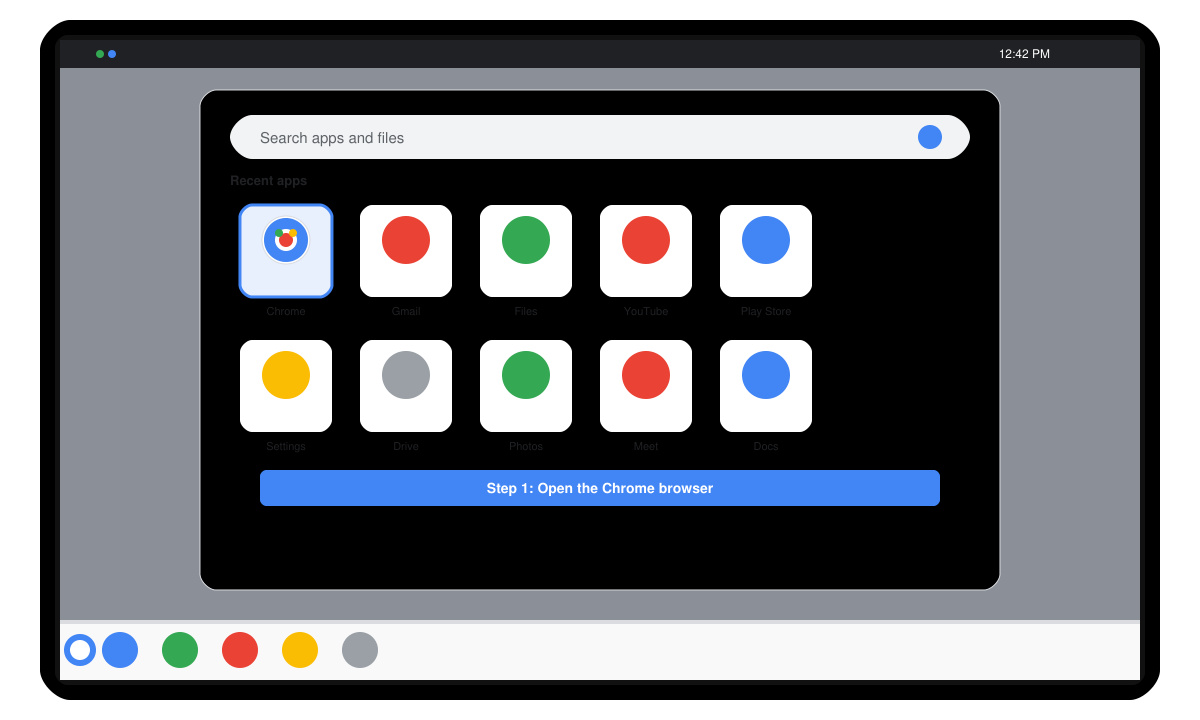
Open the Chrome browser
Click the circular Launcher icon in the bottom-left corner of the screen, type Chrome, and select the Google Chrome app from the results. This launches the only browser available on Chrome OS.
-
Access browsing history
Click the three-dot menu in the top-right corner of the Chrome window, then select History followed by History again. You can also press Ctrl+H on the keyboard to open the history page directly.
-
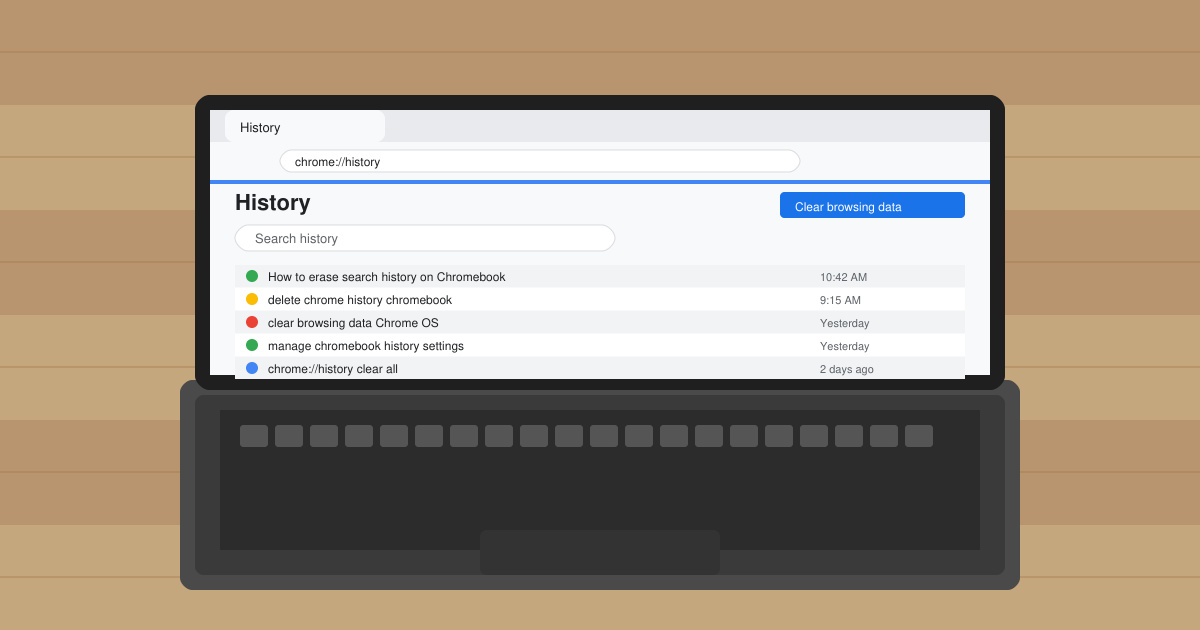
Open the Clear browsing data window
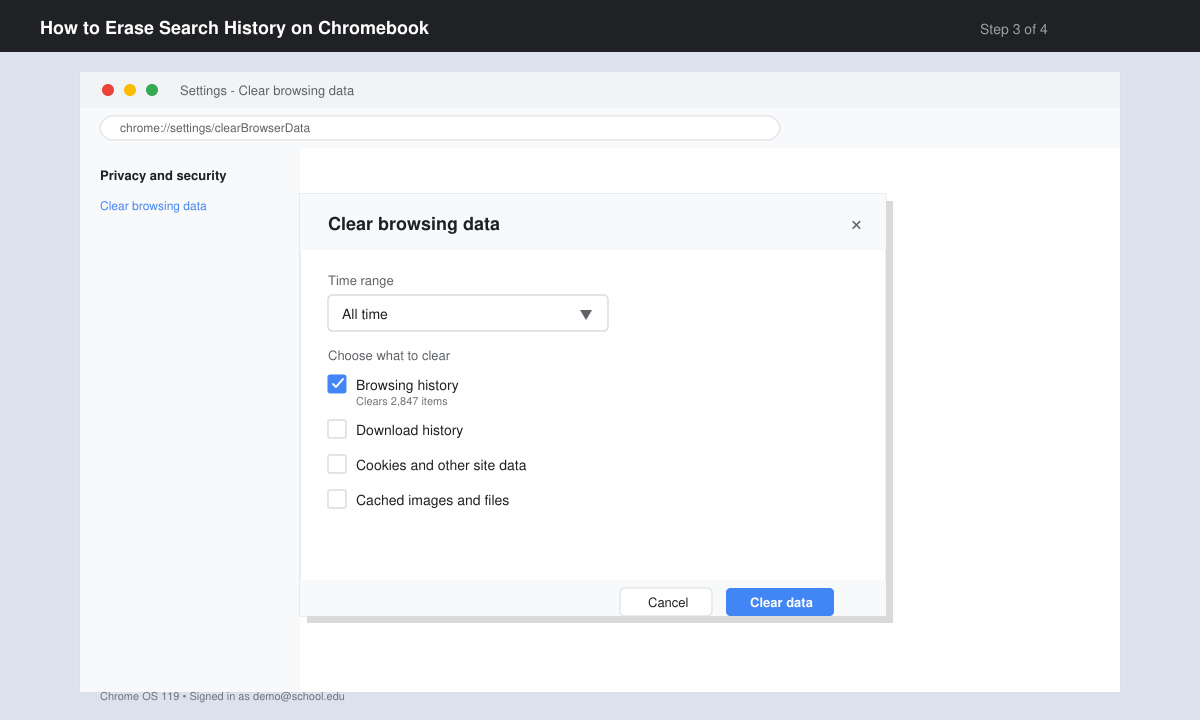
On the History page, click the Clear browsing data button on the left sidebar. A new dialog box appears with time-range options and data-type checkboxes.
-
Choose data types and time range
Select Browsing history, Cookies and other site data, and Cached images and files. Set the Time range to All time if you want to remove everything, or choose a shorter period such as Last 24 hours.
-
Confirm and finish
Click the Clear data button at the bottom. Chrome immediately deletes the selected items. Restart the browser or sign out of your Google account to complete the process on synced devices.
Common Issues When You Erase Search History on Chromebook
- If the Clear data button is grayed out, sign in with the owner account instead of a secondary user profile.
- Some search suggestions may still appear because they come from your Google Account. Visit myactivity.google.com in Chrome and delete activity there separately.
- After clearing, websites may ask you to log in again because cookies were removed.
Frequently Asked Questions
Does erasing search history on Chromebook also delete it from my phone?
No. History stored only on the Chromebook is removed, but synced data across other devices requires separate clearing in those browsers or through your Google Account activity page.
Can I erase only specific search terms instead of everything?
Yes. On the History page, hover over individual entries and click the three-dot menu next to each item, then choose Delete.
Will clearing history free up storage space on my Chromebook?
It removes small amounts of cached files, but the main storage savings come from deleting downloaded files in the Downloads folder rather than browser history alone.
Conclusion
Following these steps lets you erase search history on Chromebook whenever you need a clean slate or better privacy control.