Encountering the frustrating Microsoft Edge "Multiple Profiles" Sync Conflict? 😩 You're not alone! This common issue pops up when Edge detects multiple profiles trying to sync the same Microsoft account data, causing bookmarks, passwords, and settings to clash. Don't worry – our straightforward guide will get you back to smooth browsing fast. We'll cover causes, fixes, and prevention tips with precise steps for the latest Edge versions. Let's dive in and fix it now! ⭐
What is Microsoft Edge Multiple Profiles Sync Conflict?
The Microsoft Edge "Multiple Profiles" Sync Conflict error occurs during sync when Edge identifies duplicate or conflicting profiles linked to your Microsoft account. Symptoms include:
- Bookmarks or tabs not syncing properly across devices.
- Password manager glitches or missing logins.
- Notifications like "Sync conflict detected: Multiple profiles."
- Slow performance or failed sync attempts.
This happens because Edge ties sync to your Microsoft account, and old or forgotten profiles can interfere. Good news: It's fully fixable without losing data! 👍
Common Causes of Edge Multiple Profiles Sync Conflict
Before fixing, understand the triggers:
| 🔍 Cause |
Why It Happens |
| Multiple sign-ins |
Different devices or browsers using the same account with varied profiles. |
| Work/personal mix-up |
Switching between profiles without proper sign-out. |
| Corrupted sync data |
Outdated cache or server-side glitches from recent updates. |
| Shared accounts |
Family or team accounts with overlapping profiles. |
Step-by-Step: How to Fix Microsoft Edge Multiple Profiles Sync Conflict
Ready to resolve it? Follow these proven steps. We'll prioritize non-destructive methods first. Time: Under 10 minutes! ⏱️
1️⃣ Verify and Manage Profiles in Edge
- Open Microsoft Edge and click your profile icon (top-right).
- Select Manage profile settings.
- Review listed profiles. Remove duplicates by clicking the three dots next to extras > Delete.
- Go to
edge://settings/profiles/sync for sync status.
Pro Tip: Only keep essential profiles like Work and Personal.
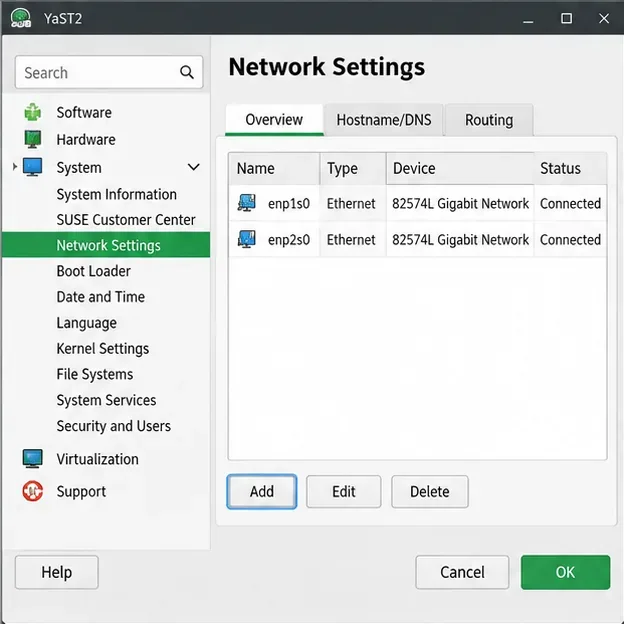
2️⃣ Pause and Resume Sync
- In edge://settings/profiles/sync, toggle Sync off.
- Wait 30 seconds, then toggle back on.
- Sign out of your Microsoft account (Settings > Profiles > Sign out).
- Restart Edge and sign back in.
![Step-by-step Edge sync settings interface for fixing Multiple Profiles Sync Conflict]()
3️⃣ Clear Sync Data from Microsoft Servers
If conflicts persist:
- Visit account.microsoft.com.
- Go to Devices > Synced devices > Remove Edge instances.
- In Edge, use edge://settings/reset > Restore settings to default (keeps bookmarks/passwords).
- Re-enable sync.
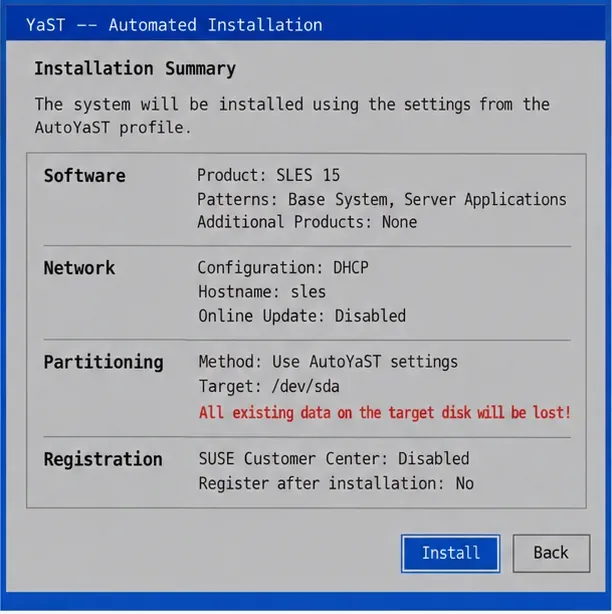
4️⃣ Advanced Fix: Sync Diagnostics Tool
- Type
edge://sync-internals/ in the address bar.
- Click Run Diagnostics > Trigger Sync.
- Check for errors and follow on-screen resolutions.
This built-in tool catches hidden conflicts effortlessly! 🔧
![Edge sync diagnostics tool for resolving Multiple Profiles Sync Conflict]()
5️⃣ Last Resort: Reset Edge Completely
Only if needed:
- Close Edge.
- Go to Windows Settings > Apps > Microsoft Edge > Repair or Reset.
- Reinstall from microsoft.com/edge if issues linger.
Prevention Tips to Avoid Future Edge Sync Conflicts
- Use unique profiles: One per purpose (e.g., Personal, Work). ⭐
- Sign out before switching accounts.
- Enable two-factor authentication on your Microsoft account.
- Regularly check
edge://settings/profiles/sync for status.
- Update Edge automatically via Settings > About Microsoft Edge.
Still Stuck? Quick Troubleshooting Table
| ❌ Issue |
✅ Quick Fix |
| No sync progress |
Check internet; toggle VPN off. |
| Error persists post-reset |
Clear browser cache: edge://settings/clearBrowserData. |
| Mobile Edge affected |
Repeat steps in Edge Android/iOS app. |
If all fails, reach Microsoft Support via support.microsoft.com/edge. They've optimized fixes for recent Chromium updates.
Wrap-Up: Enjoy Flawless Edge Sync Again! 🎉
Congrats! You've conquered the Microsoft Edge "Multiple Profiles" Sync Conflict. Your bookmarks, tabs, and passwords should now sync perfectly across devices. Feel the relief of seamless browsing? Share your success in comments below – did Step 2 work for you? Stay tuned for more Edge tips to supercharge your experience. Happy browsing! 🚀