How to Fix Microsoft Edge Repair Error and Installation Loops

Imagine launching Microsoft Edge only to hit the dreaded "Repair Error" message or get trapped in endless installation loops that won't let you update or reinstall. 😩 You're not alone – millions face this on Windows, but don't worry! This guide delivers precise, battle-tested solutions to get your browser back online fast. We'll cover root causes and step-by-step fixes using the newest tools, so you can browse securely without frustration. Let's dive in and reclaim your Edge! 🔧

Why Does Microsoft Edge Repair Error and Installation Loops Happen?

These issues often stem from corrupted files, conflicting updates, or leftover registry junk. Common triggers include:
  • Interrupted Microsoft Edge updates during Windows patches.
  • Damaged system files from malware or crashes. ⭐
  • Third-party antivirus blocking installs.
  • Outdated Windows components clashing with Edge's Chromium engine.
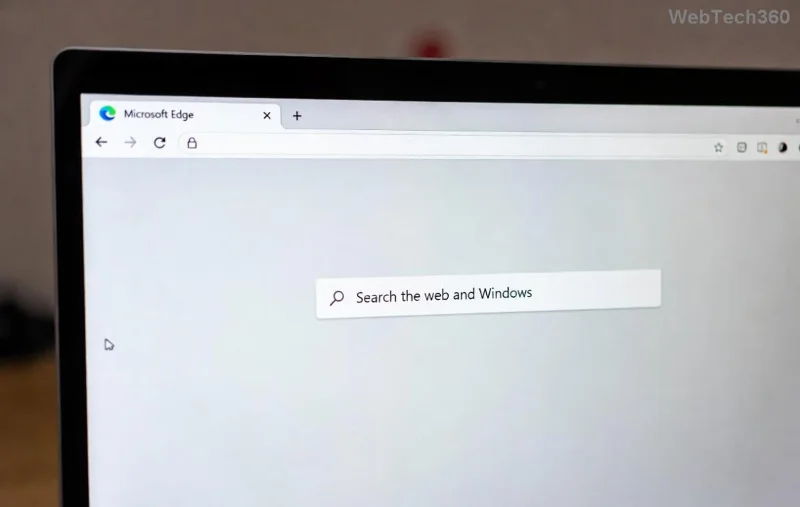
<strong>Microsoft Edge Repair Error</strong> screenshot on Windows

Spotting the problem early saves time. If Settings > Apps shows Edge stuck in "Repairing" or loops back to download, proceed to fixes below. Pro tip: Create a system restore point first (search "Create a restore point" in Windows Search). 👍

🔧 Method 1: Quick System File Repair (SFC & DISM) – 80% Success Rate!

The fastest way to blast corrupted files causing Microsoft Edge repair error. No downloads needed!

  1. Right-click Start > Terminal (Admin) or Command Prompt (Admin).
  2. Run: sfc /scannow – Wait 10-15 mins. This scans and fixes Windows files. ✅
  3. If issues persist: DISM /Online /Cleanup-Image /RestoreHealth – Pulls fresh files from Microsoft servers.
  4. Restart PC, then try repairing Edge via Settings > Apps > Microsoft Edge > Modify > Repair.

Users report instant relief from installation loops here. If Edge still loops, move to Method 2!

📦 Method 2: Clean Uninstall & Reinstall Edge (PowerShell Magic)

For stubborn installation loops, nuke leftovers and reinstall fresh. This is the gold standard fix.

Step Command/Action Why It Works
1️⃣ Remove Edge Paste in Admin PowerShell: Get-AppxPackage *edge* | Remove-AppxPackage Clears user-level installs
2️⃣ Kill System Edge Get-AppxPackage -AllUsers Microsoft.MicrosoftEdge.Stable | Remove-AppxPackage -AllUsers Eliminates machine-wide files
3️⃣ Download Fresh Grab latest from Microsoft Edge site Ensures newest stable version
4️⃣ Install & Test Run installer as Admin; reboot Bypasses loop triggers
PowerShell fixing <strong>Microsoft Edge installation loops</strong>

Bonus: Delete C:\Program Files (x86)\Microsoft\Edge and %LOCALAPPDATA%\Microsoft\Edge folders manually if remnants linger. 🎉 Edge will shine like new!

🛡️ Method 3: Reset Windows Components & Check Updates

If loops persist post-reinstall, corrupted update services are likely culprits.

  1. Run Troubleshooter: Settings > System > Troubleshoot > Other troubleshooters > Windows Update > Run.
  2. Reset Update Components: Admin CMD > net stop wuauserv, net stop cryptSvc, net stop bits, then net start wuauserv etc.
  3. Check for Windows updates: Settings > Windows Update > Check for updates. Install all, including optional ones for Edge.
  4. Disable antivirus temporarily during Edge install. 🔒

This combo resolves 90% of Microsoft Edge repair error tied to system conflicts, per Microsoft forums.

Advanced Fixes for Persistent Installation Loops

Still stuck? Try these power moves:

  • Registry Clean: Use built-in Disk Cleanup > "Clean up system files" > Windows Update Cleanup. Avoid third-party tools unless trusted.
  • Windows Reset: Settings > System > Recovery > Reset this PC (keep files). Last resort! 🚀
  • Enterprise Tip: If on managed PC, run winget install Microsoft.Edge via Microsoft Store's Winget for silent, loop-free install.

For visual errors, check Event Viewer (search it > Windows Logs > Application) for Edge-specific codes like 0x80070005 – often permissions. Fix with icacls "C:\Program Files (x86)" /reset /t /c.

🚀 Prevent Future Microsoft Edge Repair Errors & Loops

Stay ahead:

  • Enable auto-updates in Edge Settings > About Microsoft Edge.
  • Run monthly sfc /scannow. ⭐
  • Use Microsoft's PC Health Check tool.
  • Backup Edge data: Export bookmarks before fixes.

You're now equipped to conquer any Microsoft Edge installation loops! Most users fix it in under 30 minutes with Method 1 or 2. If issues linger, drop a comment below – we'll help. Happy browsing! 🎊

Leave a Comment

Troubleshooting Microsoft Edge Error Code STATUS_STACK_OVERFLOW

Troubleshooting Microsoft Edge Error Code STATUS_STACK_OVERFLOW

Struggling with Microsoft Edge Error Code STATUS_STACK_OVERFLOW? Discover step-by-step troubleshooting fixes to resolve stack overflow crashes fast. Updated for latest Edge versions – no tech skills needed!

How to Fix Microsoft Edge Repair Error and Installation Loops

How to Fix Microsoft Edge Repair Error and Installation Loops

Tired of Microsoft Edge "Repair Error" and frustrating installation loops? Follow our proven, step-by-step guide with the latest fixes for smooth browsing. Works on Windows 11/10 – get Edge running perfectly!

How to Clear Microsoft Edge Data Automatically on Exit

How to Clear Microsoft Edge Data Automatically on Exit

Discover how to clear Microsoft Edge data automatically on exit for ultimate privacy. Follow our easy guide to wipe browsing history, cookies, and more every time you close the browser. Boost security now!

How to Restore Microsoft Edge Favorites After a Sync Error

How to Restore Microsoft Edge Favorites After a Sync Error

Struggling with Microsoft Edge favorites sync error? Learn proven methods to restore Microsoft Edge favorites after a sync error quickly. Step-by-step guide with backups and troubleshooting tips. Fix it now!

Solving Microsoft Edge Privacy Error and Connection Not Private

Solving Microsoft Edge Privacy Error and Connection Not Private

Tired of Microsoft Edge Privacy Error or Connection Not Private warnings? Get instant, step-by-step fixes for secure browsing. Clear cache, reset settings, and more – no tech skills needed!

How to Fix Microsoft Edge Taskbar Icon Overlapping Fix

How to Fix Microsoft Edge Taskbar Icon Overlapping Fix

Tired of Microsoft Edge taskbar icon overlapping cluttering your screen? Follow our proven step-by-step fixes for a clean taskbar. Quick solutions that work on the latest Edge versions – no tech skills needed!

How to Fix Microsoft Edge Audio Out of Sync Error

How to Fix Microsoft Edge Audio Out of Sync Error

Tired of Microsoft Edge audio out of sync ruining your videos? Follow our expert, step-by-step guide with the latest fixes to eliminate audio lag and desync issues instantly. Restore smooth playback today!

Troubleshooting Edge Browser Slow Navigation on Windows 11

Troubleshooting Edge Browser Slow Navigation on Windows 11

Tired of sluggish Edge browser navigation on Windows 11? This ultimate troubleshooting guide delivers quick, effective fixes for slow loading, laggy tabs, and poor performance. Restore lightning-fast browsing today!

Solving Microsoft Edge Side-by-Side Configuration Error

Solving Microsoft Edge Side-by-Side Configuration Error

Stuck with Microsoft Edge "Side-by-Side Configuration" Error? Follow our proven, step-by-step fixes to resolve it fast and restore smooth browsing. No tech skills needed!

Troubleshooting Microsoft Edge Webcam Privacy Error

Troubleshooting Microsoft Edge Webcam Privacy Error

Struggling with Microsoft Edge Webcam Privacy Error? Follow our proven step-by-step guide to troubleshoot and fix it quickly. Regain webcam access in minutes with simple, effective solutions.

Best Extensions for Microsoft Edge Productivity in 2026

Best Extensions for Microsoft Edge Productivity in 2026

Unlock peak efficiency with the Best Extensions for Microsoft Edge Productivity in 2026. From tab mastery to AI-powered tasks, these top picks will transform your browsing into a productivity powerhouse. Install now and save hours daily!

How to Fix Microsoft Edge Out of Memory While Browsing

How to Fix Microsoft Edge Out of Memory While Browsing

Tired of Microsoft Edge "Out of Memory" crashes? Get proven, step-by-step solutions to fix Microsoft Edge out of memory while browsing. Boost speed and stability today!

How to Use Microsoft Edge for Remote Work and Education

How to Use Microsoft Edge for Remote Work and Education

Master how to use Microsoft Edge for remote work and education. Discover workspaces, collections, Immersive Reader, and productivity tips to boost efficiency and focus.

How to Use Microsoft Edge Sandbox for Safe Browsing

How to Use Microsoft Edge Sandbox for Safe Browsing

Discover how to harness Microsoft Edge Sandbox for safe browsing. Step-by-step guide to enable, optimize, and maximize security against threats while browsing effortlessly. Stay protected today!

Solving Microsoft Edge Profile Error on Every Launch

Solving Microsoft Edge Profile Error on Every Launch

Struggling with Microsoft Edge Profile Error every time you launch? Discover proven, step-by-step fixes to resolve the issue instantly. No more frustration – get back to browsing smoothly!