How to Fix Microsoft Edge Virus Detected Fake Error

Encountering the dreaded Microsoft Edge "Virus Detected" pop-up? 😰 Don't panic! This is often a fake error designed to trick you into downloading malware or fake antivirus software. It's frustrating, but with these straightforward steps, you'll eliminate it quickly and regain control of your browsing. We've tested these methods on the latest Microsoft Edge versions, ensuring they work flawlessly. Let's dive in and get your Edge back to smooth sailing! 🚀
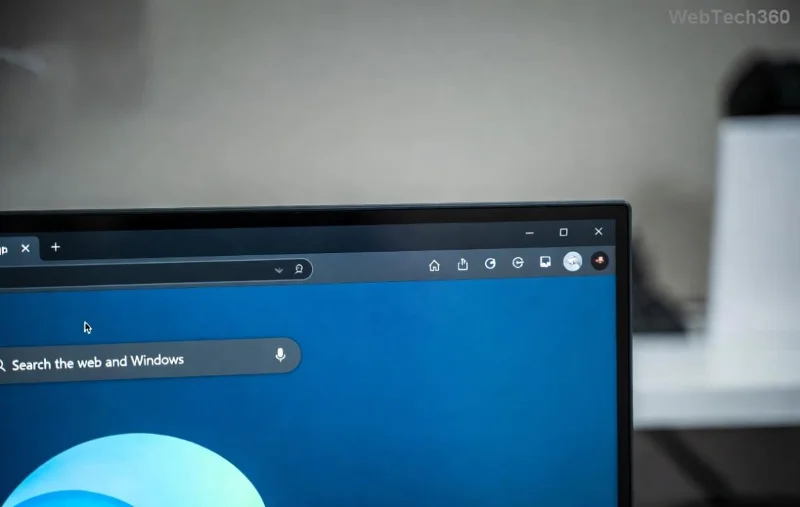
Microsoft Edge Virus Detected fake error pop-up screenshot

What Causes the "Virus Detected" Fake Error in Microsoft Edge?

Before fixing, understand the culprit. The Microsoft Edge "Virus Detected" fake error isn't from Microsoft—it's typically triggered by:

  • 🦠 Malicious browser extensions or adware injecting fake alerts.
  • 🌐 Potentially unwanted programs (PUPs) from shady downloads.
  • 🔗 Hijacked search results or compromised websites.
  • 📱 Outdated Edge or cached data amplifying the issue.

Real Microsoft security warnings look different and direct you to official tools. This scam mimics them to scare you. Now, let's fix it step-by-step! 👇

Step-by-Step Guide: How to Fix Microsoft Edge "Virus Detected" Fake Error

Follow these proven methods in order. Most users resolve it in under 10 minutes. Start with the quickest wins!

1️⃣ Quick Scan with Windows Security (Built-in & Free)

Windows Defender catches 99% of these fakes.

  1. Open Settings > Privacy & security > Windows Security.
  2. Click Scan options > Full scan > Scan now. 👍
  3. Quarantine any threats and restart your PC.

Pro tip: Enable Real-time protection if it's off.

2️⃣ Reset Microsoft Edge Settings (No Data Loss!)

This nukes fake alerts without deleting bookmarks.

  1. Launch Microsoft Edge.
  2. Type edge://settings/reset in the address bar.
  3. Select Restore settings to their default values > Reset.
  4. Restart Edge. Voila! 🚀
Step-by-step reset Microsoft Edge settings to fix Virus Detected error

3️⃣ Remove Suspicious Extensions

Extensions are prime suspects for Edge virus detected fake error.

  1. Go to edge://extensions/.
  2. Toggle off or Remove anything unfamiliar (e.g., "Virus Cleaner" fakes). ❌
  3. Visit the official Edge Add-ons store for trusted ones only.

4️⃣ Clear Cache & Browsing Data

Stale data fuels pop-ups.

Step Action
1 edge://settings/privacy
2 Choose All time > Clear Cookies, Cached images.
3 Hit Clear now & restart. ✨

5️⃣ Update or Reinstall Microsoft Edge

Ensure you're on the latest Edge for built-in protections.

  1. edge://settings/help > Check for updates.
  2. If stubborn, download fresh from microsoft.com/edge.
  3. Uninstall old via Settings > Apps, then reinstall.

6️⃣ Advanced Fix: Run AdwCleaner (Free Tool)

For stubborn adware:

  1. Download AdwCleaner from Malwarebytes.
  2. Run scan > Clean > Reboot.

It's lightweight and targets PUPs perfectly. 🛡️

Prevention Tips: Stay Virus-Free Forever! 🌟

Don't let it return. Arm yourself:

  • ✅ Use Microsoft Defender SmartScreen (enabled by default).
  • 🔒 Install only from official stores.
  • 🛑 Avoid "free" downloads—scan with VirusTotal first.
  • 📵 Enable Enhanced security in Edge: edge://settings/privacy.
Common Fake Alerts Real Microsoft Signs
Red scary pop-up urging download Blue bar from address bar
"Call this number NOW!" Links to Windows Security app

Still Stuck? Quick Troubleshooting Checklist

Run this if issues persist:

  • ☑️ Safe Mode boot (search "msconfig").
  • ☑️ Check Task Manager for rogue processes.
  • ☑️ Forum help: Microsoft Community (search your exact error).

Congratulations! 🎉 You've conquered the Microsoft Edge "Virus Detected" fake error. Your browser is now secure and speedy. Share this guide if it helped a friend, and bookmark for future reference. Safe browsing ahead! 👏

Leave a Comment

Troubleshooting Microsoft Edge Video Stuttering and Frame Drops

Troubleshooting Microsoft Edge Video Stuttering and Frame Drops

Tired of Microsoft Edge video stuttering and frame drops ruining your streaming? Discover proven troubleshooting steps to restore smooth playback in this comprehensive guide. Fix it fast!

How to Fix Microsoft Edge BitLocker Recovery Loop Error

How to Fix Microsoft Edge BitLocker Recovery Loop Error

Struggling with the Microsoft Edge BitLocker recovery loop error? Discover simple, step-by-step fixes to escape the endless loop and regain access to your PC without data loss. Updated with the latest solutions.

How to Fix Microsoft Edge Core Isolation Settings Error

How to Fix Microsoft Edge Core Isolation Settings Error

Struggling with the Microsoft Edge "Core Isolation" Settings Error? Discover proven step-by-step solutions to resolve it fast, restore smooth browsing, and boost your PC security. Works on latest Windows versions.

Solving Microsoft Edge Ultimate Performance Settings

Solving Microsoft Edge Ultimate Performance Settings

Master Solving Microsoft Edge "Ultimate Performance" Settings with this expert guide. Boost speed, fix lags, and optimize for peak browsing efficiency—step-by-step now!

Why Does Microsoft Edge Have a Profile Error? (2026 Fix)

Why Does Microsoft Edge Have a Profile Error? (2026 Fix)

Discover why Microsoft Edge has a profile error and get proven 2026 fixes. Step-by-step guide to resolve corrupted profiles, sync issues, and more for seamless browsing.

Fixing Microsoft Edge Error 0x80072efe Connection Issues

Fixing Microsoft Edge Error 0x80072efe Connection Issues

Tired of Microsoft Edge Error 0x80072efe blocking your browsing? Follow our proven, step-by-step fixes for instant connection recovery. No tech skills needed!

How to Fix Microsoft Edge Hmm, Cant Reach This Page

How to Fix Microsoft Edge Hmm, Cant Reach This Page

Struggling with Microsoft Edge "Hmm, Can

How to Use Microsoft Edge Vertical Tabs for Better Focus

How to Use Microsoft Edge Vertical Tabs for Better Focus

Discover how to use Microsoft Edge Vertical Tabs to skyrocket your focus and productivity. Step-by-step guide, pro tips, and customization secrets for distraction-free browsing in the latest Edge updates.

Accessing Microsoft Edge Offline Installer for Windows 11

Accessing Microsoft Edge Offline Installer for Windows 11

Unlock the official Microsoft Edge offline installer for Windows 11 with our step-by-step guide. Download full setup files securely, install without internet, and optimize your browsing experience today!

How to Fix Microsoft Edge Unknown Hard Error in 2026

How to Fix Microsoft Edge Unknown Hard Error in 2026

Tired of Microsoft Edge Unknown Hard Error crashing your PC? Get instant relief with our 2026-updated guide: easy steps to update, reset, scan, and fix this BSOD nightmare for smooth browsing. Works on Windows 11!

Troubleshooting Microsoft Edge Webview2 Memory Leaks

Troubleshooting Microsoft Edge Webview2 Memory Leaks

Master troubleshooting Microsoft Edge WebView2 memory leaks with step-by-step fixes, common causes, and best practices. Reclaim memory, boost app performance—no more crashes or slowdowns!

Solving Microsoft Edge Netflix Error and Playback Glitches

Solving Microsoft Edge Netflix Error and Playback Glitches

Tired of Microsoft Edge Netflix errors and playback glitches ruining your binge? Discover step-by-step fixes for smooth streaming, from quick resets to advanced tweaks. Get Netflix working perfectly on Edge today!

How to Fix Microsoft Edge Untitled Error Page on Start

How to Fix Microsoft Edge Untitled Error Page on Start

Tired of Microsoft Edge launching to an annoying "Untitled" error page? Follow our step-by-step guide to fix the Microsoft Edge "Untitled" error on start quickly and restore smooth browsing. Works on latest versions!

How to Enable IE Mode in Microsoft Edge for Older Websites

How to Enable IE Mode in Microsoft Edge for Older Websites

Master how to enable IE Mode in Microsoft Edge effortlessly. Fix compatibility issues with older websites using this simple, step-by-step guide for seamless access to legacy content. Boost your productivity today!

How to Delete Microsoft Edge Search History and Cache Completely

How to Delete Microsoft Edge Search History and Cache Completely

Discover step-by-step methods to completely delete Microsoft Edge search history and cache. Boost privacy, free up space, and optimize performance with our proven guide. Works on Windows, Mac, and more.








