Stop Unwanted Printing and Downloads in ONLYOFFICE
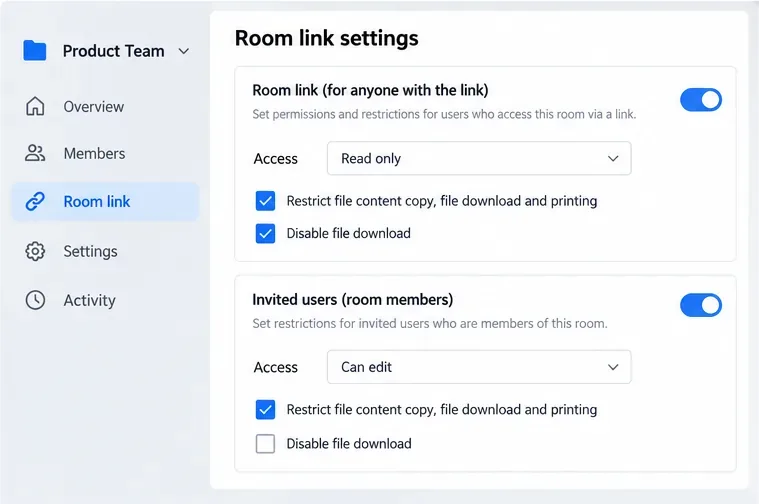
Set print and download limits for ONLYOFFICE links, room members, or Docs API sessions, then verify the restrictions from a recipient account.
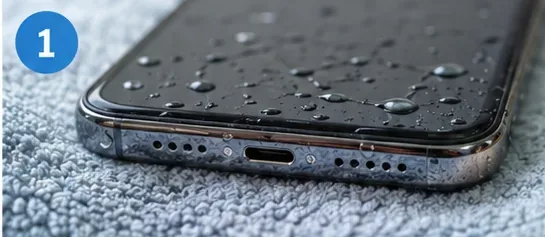
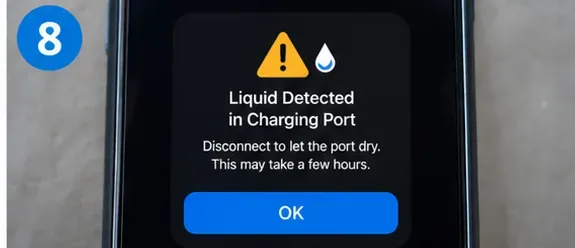
If your phone suddenly says “Liquid Detected,” “Moisture Detected,” or “Liquid or debris in USB port,” the safest first move is not to find a faster way to force the water out. It is to stop using the wired connector and give the port time to dry without adding heat, pressure, or foreign objects.
The practical complication is that there is no single drying time that fits every phone. As checked in September 2026, Apple says an iPhone can be retried after at least 30 minutes but may need up to 24 hours to dry fully. Samsung says moisture may naturally evaporate in roughly 1–2 hours on supported Galaxy devices. Google Pixel tells users to wait until the phone reports that the USB port is okay to use and to contact support if the “Liquid or debris” message lasts two hours or more. Those differences matter more than a generic internet rule such as “wait exactly two hours.”
| Option | Best for | Advantage | Tradeoff |
|---|---|---|---|
| Room-temperature air drying | Almost every wet charging-port situation | Lowest risk and consistent with major manufacturer guidance | Can take from minutes to many hours depending on the device and moisture |
| Wireless charging | Supported phones that need power before the port is ready | Does not use the wet connector | The phone’s exterior/back still must be dry, and wireless charging does not dry the port |
| Emergency liquid-detection override on iPhone | A genuine emergency when power is urgently needed | Can restore wired charging immediately | Apple warns that charging through a wet connector can corrode pins and cause permanent damage |
| Professional service | Persistent warnings, corrosion, heat, damage, or charging failure after drying | Reduces the risk of damaging the port through DIY probing | Costs time and possibly money |
Unplug the cable from the phone immediately. If the cable is connected to a wall adapter, disconnect the power side as well. Apple’s liquid-detection guidance for iPhone says not to reconnect the cable until both the phone connector and cable are dry. Google’s Pixel USB-port guidance similarly starts by unplugging charging and USB-C accessories.
Google specifically tells Pixel users to turn the phone off if the USB-C port or charging cable is wet. Other manufacturers may phrase the instruction differently, so do not assume every model has an identical shutdown procedure.
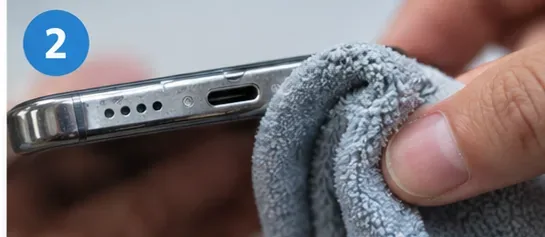
Use a clean, soft cloth to remove water from the phone’s exterior and from the outside of the cable connector. The goal is to keep more liquid from running toward the port while avoiding damage to its small electrical contacts.
Do not push paper towel, cotton swabs, toothpicks, metal tools, or other objects into the port. Apple explicitly warns against inserting cotton swabs or paper towels into the connector, Samsung warns not to insert objects into a wet charging port, and Google says not to put anything into the USB-C port or cable.
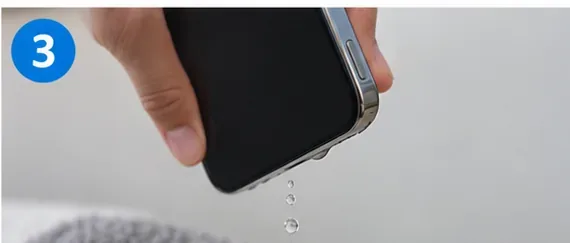
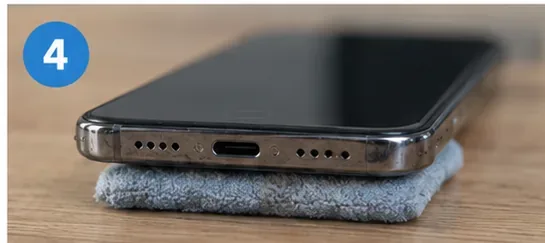
Hold the phone with the charging connector facing downward. Apple recommends gently tapping the iPhone against your hand with the connector down. Samsung recommends gently shaking a Galaxy device to help remove moisture. Use small, controlled movements rather than hard impacts.
This option is useful because it can remove free droplets without touching the connector. Its limitation is equally important: gravity will not instantly remove moisture trapped under contacts or inside the connector assembly.
Set the phone in a dry, well-ventilated place. Apple recommends a dry area with some airflow. Samsung says water will naturally evaporate and also recommends a well-ventilated area with cool air. Google tells Pixel users to place the phone on a flat surface and let it dry at room temperature.
A normal room fan can improve general airflow around the device, but avoid directing hot air or high-pressure air into the port. Apple explicitly says not to use an external heat source or compressed air. That makes a hair dryer, heat gun, oven, radiator, or compressed-air can a poor tradeoff: they may seem faster, but the manufacturer-supported option is slower and safer.
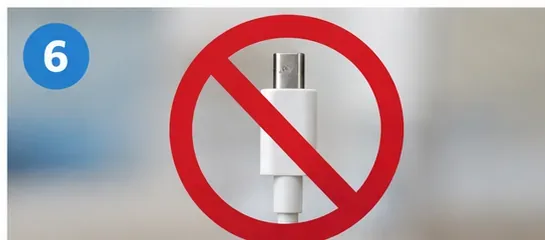
Connecting a charger repeatedly “just to check” can be counterproductive. Apple explains that charging while the Lightning or USB-C connector is wet can corrode the pins and cause permanent damage or connectivity problems. Samsung likewise blocks charging when moisture is detected to help prevent corrosion.
If you have enough battery to wait, waiting is the best low-risk choice. If the battery is nearly empty, skip ahead to the wireless-charging option rather than treating a liquid alert as an inconvenience to bypass.
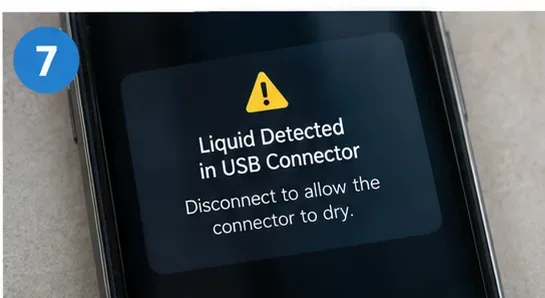
Do not rely only on a clock. On iPhone, Apple says you can try again after at least 30 minutes; if the alert returns, the connector or cable still contains liquid, and drying can take up to 24 hours. Samsung says many moisture cases evaporate in approximately 1–2 hours. Pixel may display an “OK to use USB port” message when it is ready again.
Those are not contradictory instructions; they reflect different hardware, sensors, connector designs, and support policies. Follow the warning system and official guidance for your specific device.
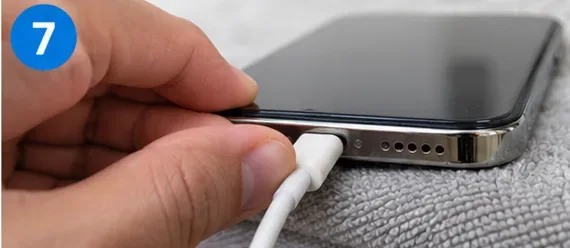
When the warning is gone and both the port and cable connector appear dry, reconnect a known-good cable. If the alert immediately returns, disconnect it and allow more drying time.
Also consider the cable itself. Apple notes that liquid may be on the connector, cable, or accessory—not only inside the phone. Google tells users to inspect the cable for moisture and to stop using damaged cables. If only one cable repeatedly triggers a warning after everything is dry, the cable or accessory may be the problem.
Persistent alerts are where the tradeoff changes. More DIY attempts become less attractive because the issue may be debris, corrosion, a damaged cable, or a damaged USB port rather than remaining water.
Google tells Pixel users to contact support if the “Liquid or debris in USB port” message lasts two hours or more, and to seek repair if the port appears burned, melted, or corroded. Samsung’s U.S. moisture-in-port guidance recommends service if the drying steps do not work. Apple says that repeated alerts with Apple cables or accessories after drying may mean the iPhone needs service.
If the phone supports wireless charging, this is the main alternative to a wet connector. Apple says an iPhone can be charged wirelessly while the port dries, provided the back of the phone is dry before placing it on a Qi-certified charger. Samsung gives similar guidance for supported Galaxy devices and says to make sure the device is thoroughly dry before placing it on the wireless charger.
The benefit is clear: the wet USB or Lightning port stays unused. The tradeoff is that wireless charging is not available on every phone, and it does not solve the moisture problem. You still need to wait before using the wired port.
Some iPhones provide an emergency option to override liquid detection and continue wired charging. Apple documents the feature, but it also warns that charging while the connector is wet can corrode the pins and cause permanent damage.
That makes the override a risk-management decision, not a normal drying method. If the situation is not genuinely urgent, waiting or using wireless charging is the better option. If communication is critical and you have no other way to power the phone, the override exists—but you should understand the hardware risk before using it.
| Device guidance | What the official support page says | Practical interpretation |
|---|---|---|
| Apple iPhone | Retry after at least 30 minutes; full drying may take up to 24 hours | A short retry is possible, but a returning alert means more drying is needed |
| Samsung Galaxy | Moisture may naturally evaporate in approximately 1–2 hours | Useful estimate, not a guarantee; keep waiting if the alert remains |
| Google Pixel | Wait for the “OK to use USB port” state; contact support if the liquid/debris message persists for two hours or more | Use the device message as the primary indicator |
Temperature, humidity, how much liquid entered the connector, and whether the cable is also wet can all change the drying time. A port that looks dry from the outside may still have moisture around its contacts.
Heat is tempting because it seems faster, but Apple explicitly advises against external heat. Room-temperature drying avoids exposing seals, adhesives, plastics, and the battery area to unnecessary temperature stress.
Apple specifically says not to use compressed air. High-pressure airflow can move moisture or debris deeper into the connector instead of removing it cleanly.
The contacts inside USB-C and Lightning connectors are small and easy to damage. Apple, Samsung, and Google all warn against putting objects into the port. Even a “soft” object can leave fibers behind or bend contacts.
Apple explicitly warns against placing an iPhone in a bag of rice because small particles can enter and damage the phone. Rice also does not give you a reliable indication that moisture under the connector pins is gone.
This is one area where manufacturer-specific instructions matter. Samsung says that if a liquid other than fresh water enters the charging port of a water-resistant Galaxy device, users should rinse it with fresh water and dry it thoroughly with a soft cloth. That instruction should not be generalized to every phone.
If your device is not water-resistant, has cracks or impact damage, or its manufacturer does not specifically tell you to rinse the connector, do not deliberately add more water. Use the support instructions for that exact model or move to professional service, especially after salt water, sugary drinks, or other residue-forming liquids.
Water resistance is not permission to charge through a wet connector. A phone can survive a splash and still disable its charging port because energized wet contacts can corrode or short. Moisture detection is therefore a protective feature rather than evidence that the phone has already failed.
Water resistance can also change with age, wear, repairs, drops, or damaged seals. Treat a liquid warning seriously even if the phone carries an IP water-resistance rating.
If those checks pass, normal wired charging can resume. If the alert returns, charging is intermittent, the port is visibly damaged, or the connector becomes unusually hot, stop testing and arrange service.
The safest way to get water out of a charger port is not to “extract” it with tools. Disconnect power, dry the exterior, let gravity remove free droplets, and allow the connector to air-dry at room temperature. Use wireless charging on supported phones if you need power before the port is ready. Treat emergency wired overrides as a last-resort tradeoff, not a shortcut.
This guide was checked in September 2026 against current support information from Apple, Samsung, and Google Pixel Help.
Set print and download limits for ONLYOFFICE links, room members, or Docs API sessions, then verify the restrictions from a recipient account.
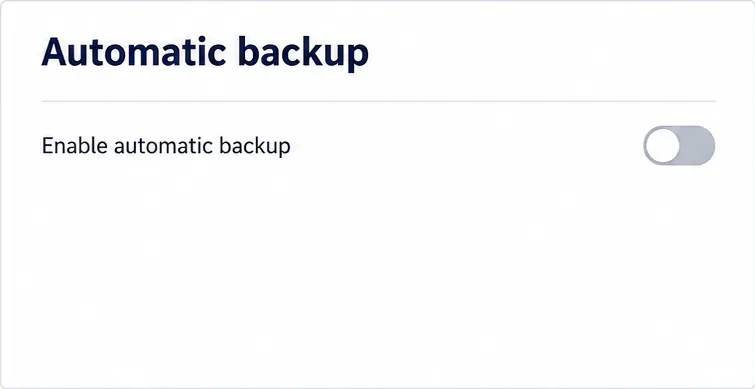
Set a backup destination, schedule, Mail coverage, and retention limit in ONLYOFFICE Workspace, then verify the archive is ready to restore.
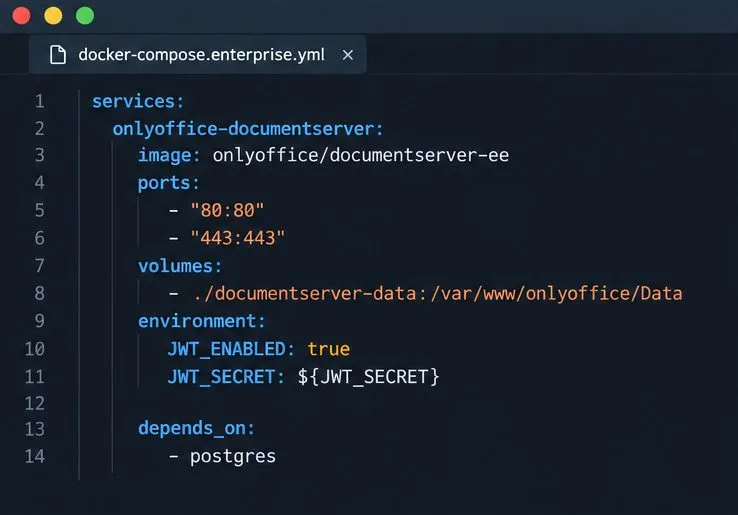
Start the Enterprise Docker Compose stack, persist its license and data, configure JWT safely, and confirm the editors are ready to integrate.
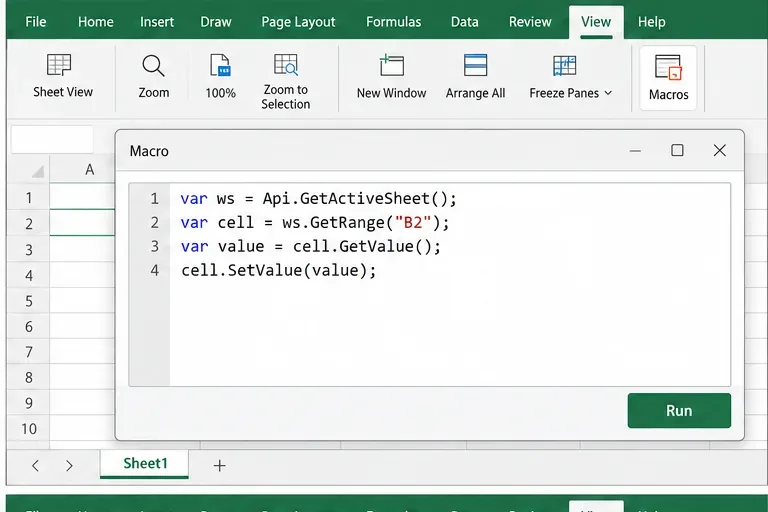
Use an ONLYOFFICE JavaScript macro to remove nonprinting characters and trim extra spaces from a defined spreadsheet range, with a safe review workflow.
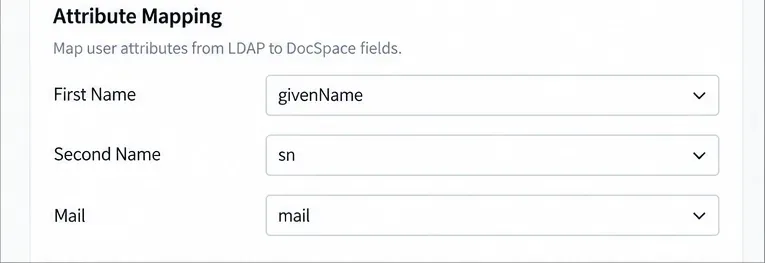
Connect ONLYOFFICE DocSpace to Active Directory or OpenLDAP, import users and groups safely, map account fields, and schedule reliable synchronization.
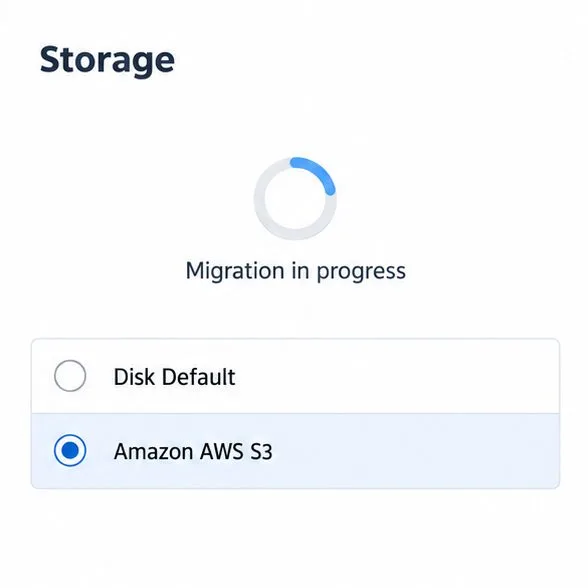
Move portal data from Disk Default to a supported cloud storage provider, or relocate Docker data safely by changing its host volume mapping.
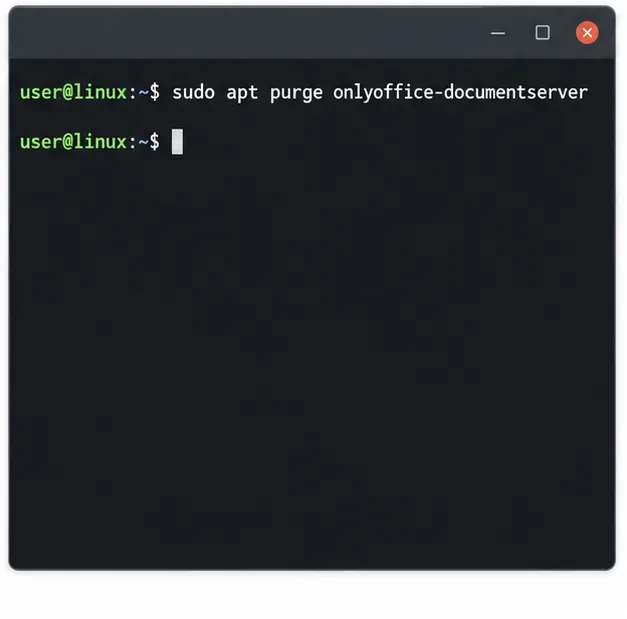
Identify whether Document Server uses a Linux package or Docker, remove only its components, and check remaining data without deleting shared services by mistake.
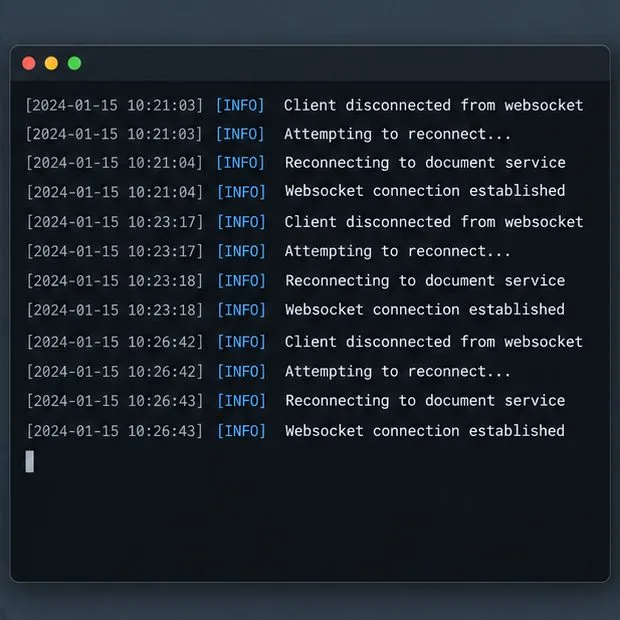
Trace slow collaborative editing to Docker resource pressure, proxy connections, or document load, then choose the fix that matches your measurements.
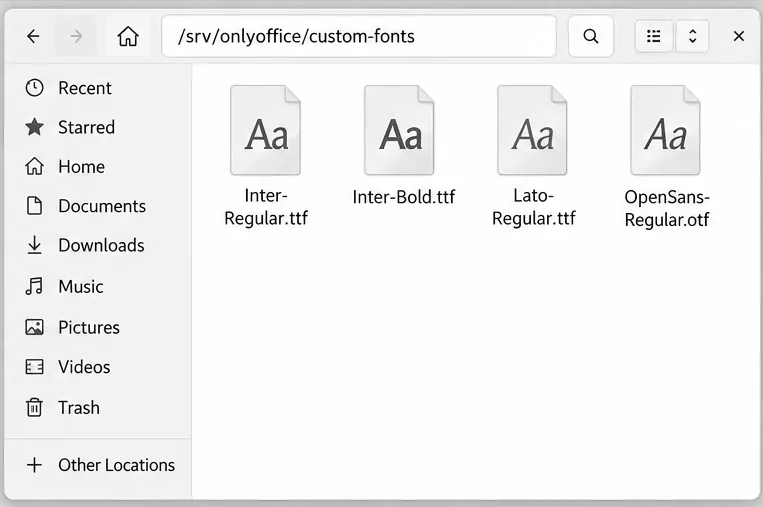
Install custom fonts in ONLYOFFICE Document Server, compare persistent Docker mounts with direct copies, rebuild the font list, and verify the result.
Choose where TLS should terminate, mount a trusted certificate and private key safely, and verify HTTPS access to a Dockerized ONLYOFFICE Docs server.