Get LibreOffice to Recognize Your Java Runtime

Install a compatible Java runtime, enable it in LibreOffice, and troubleshoot an empty JRE list without changing unrelated settings.
Creating your own signature directly inside Adobe Acrobat lets you sign documents electronically without printing or scanning. This article explains how to make a signature in Adobe using the built-in Fill & Sign tools so the signature appears consistently on every PDF you open.
Make sure you have Adobe Acrobat Pro or Acrobat Reader DC installed on your computer. The free Reader version supports basic signature creation, while Pro offers more certificate options. Have a clear photo or scan of your handwritten signature ready if you prefer to import it instead of drawing with a mouse.
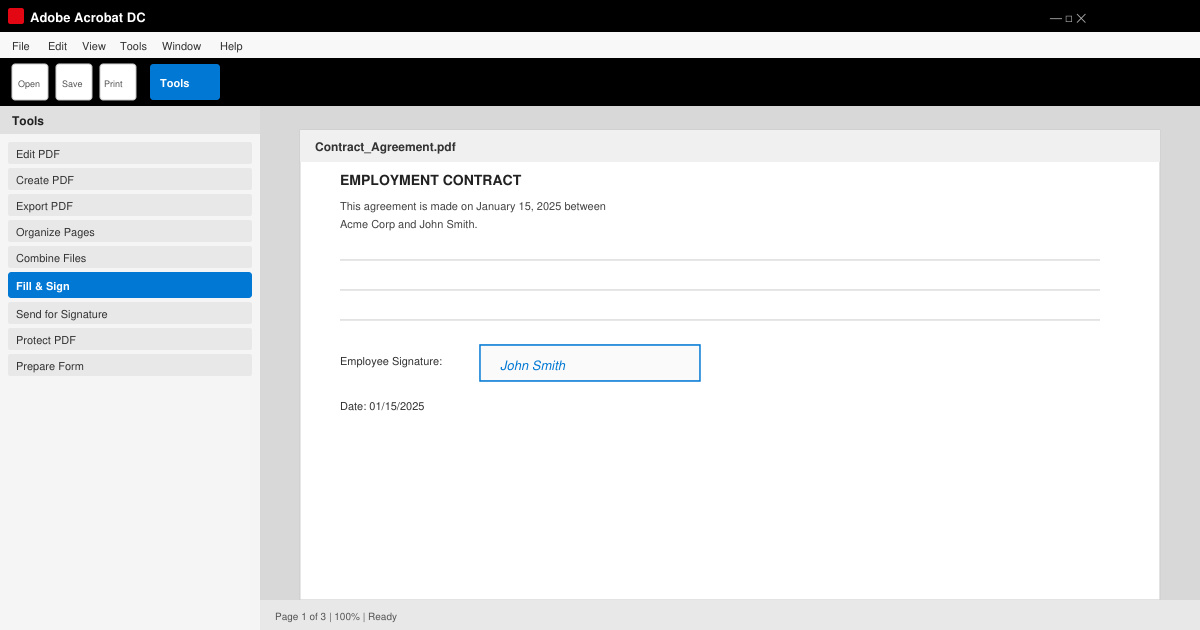
Launch Adobe Acrobat and open the PDF file you need to sign. Click Tools in the top menu, then choose Fill & Sign from the list of available tools. The toolbar with signature options appears at the top of the document window.
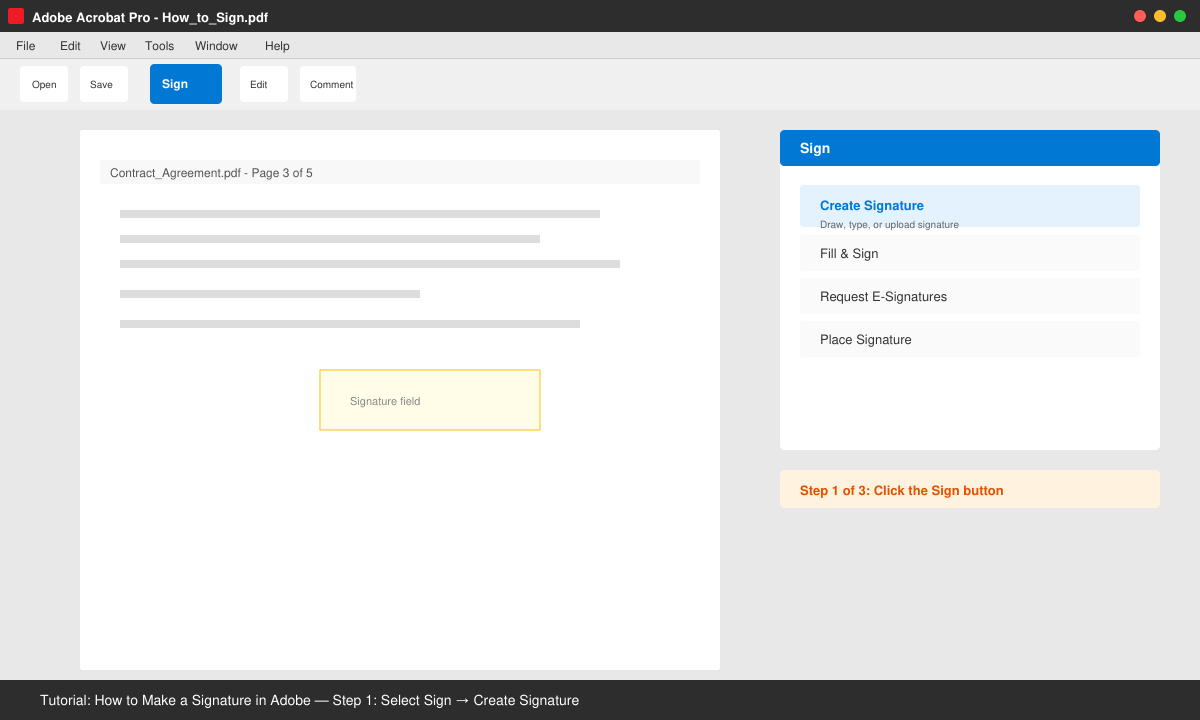
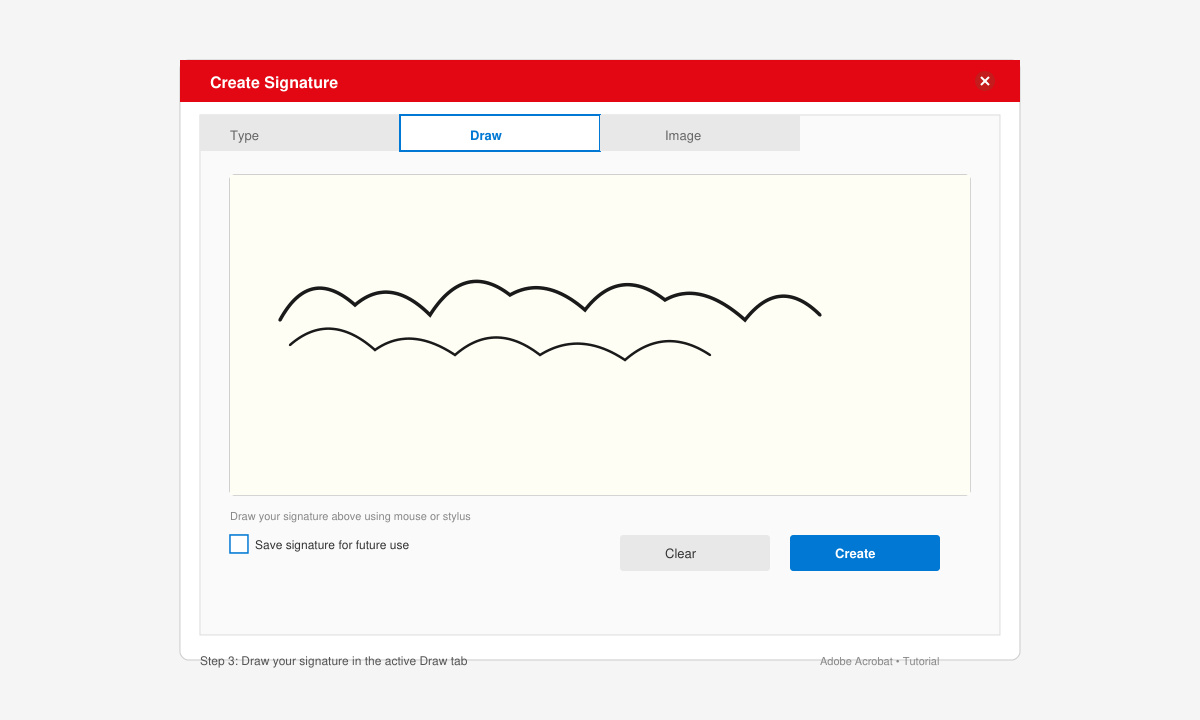
In the Fill & Sign toolbar, click the Sign button. Select Create Signature from the dropdown menu. A new window opens with three options: Type, Draw, or Image.
Choose Draw to use your mouse or trackpad to sign your name, or select Image to upload a clear photo or scan of your handwritten signature. Adjust the size and position of the signature preview until it matches your usual style, then click Apply.
After the signature appears on the page, right-click it and choose Save Signature. Name the signature file and confirm the save location. Adobe Acrobat now stores the signature so you can insert it on any future document with two clicks.
Yes. The free Adobe Acrobat Reader DC includes the Fill & Sign tool and lets you create and reuse a basic signature on any PDF.
A signature made in Adobe Acrobat meets most electronic signature laws when both parties agree to its use, but high-security contracts may still require a certificate-based digital ID instead of a drawn signature.
Go to Edit > Preferences > Signatures > More, then select the saved signature and click Delete or Edit to replace it with a new version.
Once you know how to make a signature in Adobe Acrobat, signing PDFs becomes a fast, repeatable process that works on every device where Acrobat is installed.
Install a compatible Java runtime, enable it in LibreOffice, and troubleshoot an empty JRE list without changing unrelated settings.
Build a small LibreOffice container, convert office documents without a GUI, and verify PDF output while limiting host-file access.
Reduce oversized LibreOffice presentation files by compressing embedded photos, choosing sensible image settings, and checking slide quality before sharing.
Match LibreOffice’s page dimensions to your printer, check printable margins, and correct scaling before printing a custom-size document.
Replace repeated cell access with bulk range reads and writes, then benchmark the result and protect formulas in large Calc workbooks.
Split a long manuscript into chapters, assemble them in Writer, and keep styles, contents, and export checks consistent.
Use Base’s direct PostgreSQL option to enter your server details, sign in, save an ODB connection file, and troubleshoot common access errors.
Install a font in your Linux user font folder, restart LibreOffice Flatpak, and confirm it appears in Writer without weakening the app sandbox.
Protect your work and isolate network-drive save crashes in LibreOffice on macOS Sonoma with a local-first workflow, permission checks, and targeted tests.
Preserve leading zeros in Calc by setting ID columns to Text during CSV import, checking the preview, and verifying the saved data.








