Ever felt overwhelmed by a cluttered browser slowing you down? You're not alone! Microsoft Edge extensions supercharge your browsing with tools like ad blockers, password managers, and productivity boosters. But without proper management, they can drain resources, compromise privacy, or even pose security risks. That's where learning how to manage Microsoft Edge extensions and permissions becomes a game-changer. 🚀
In this concise guide, we'll walk you through every step to take control—boosting speed, enhancing security, and customizing your setup. Ready to transform your Edge experience? Let's dive in!
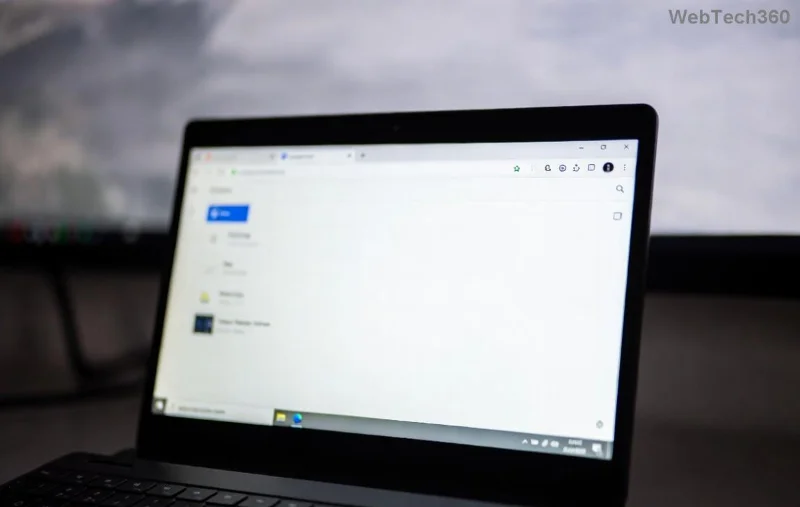
Step 1: Access Your Microsoft Edge Extensions Hub
Getting started is as easy as typing a URL. Here's your quick path:
- 🔍 Open Microsoft Edge and navigate to
edge://extensions/in the address bar. - ⭐ Toggle Developer mode (top-right) if you need advanced options like loading unpacked extensions.
- 👆 Use the search bar to find specific add-ons instantly.
This central dashboard lists all installed Microsoft Edge extensions, their status, and quick controls. Pro tip: Pin your favorites to the toolbar for one-click access via the puzzle icon (Extensions menu) → Manage extensions.
Why Permissions Matter: Secure Your Browsing
Permissions define what an extension can access—like your tabs, location, or storage. Mismanaged ones? They could track you or hog RAM. Microsoft Edge's latest updates make auditing them straightforward, prioritizing user privacy.
Imagine revoking unnecessary access to "Read and change all your data on websites"—instant peace of mind! Keep reading to learn exactly how to manage Microsoft Edge extensions and permissions.
Step 2: Install and Add New Extensions Safely
Before managing, you need great ones. Head to the Microsoft Edge Add-ons store.
- ✅ Search for trusted extensions (e.g., uBlock Origin ⭐ for ads, LastPass for passwords).
- 📱 Click "Get" → Review permissions popup carefully before approving.
- ⚠️ Stick to high-rated ones with millions of users—safety first!

Step 3: How to Manage Microsoft Edge Extensions Daily
Now, the fun part—hands-on control:
| Action | How-To | Benefit |
|---|---|---|
| Enable/Disable | Toggle switch next to extension name | Test performance impact instantly |
| Remove | Click "Remove" → Confirm | Free up memory & reduce risks |
| Update | Click "Update" or enable auto-updates | Latest security patches |
| Pin/Unpin | Drag to toolbar or use menu | Quick access to essentials |
Feeling empowered? Wait—there's more on permissions mastery ahead. 👇
Step 4: Deep Dive into Microsoft Edge Permissions Management
Extensions shine with granular control in Edge's latest features:
- 1️⃣ In
edge://extensions/, click "Details" on any extension. - 2️⃣ Scroll to Permissions section—review site access lists.
- 3️⃣ Revoke selectively: Toggle off "All sites" for broad access.
- 🛡️ Use "Site access" dropdown: Options like "On click," "On specific sites," or "Off."
For enterprise users, Policies (via edge://policy/) enforce group-wide rules. Troubleshooting? Clear extension data via Details → "Repair" or reset via Settings → Reset settings.
Advanced Tips: Optimize for Speed & Security
- ⭐ Performance Audit: Disable 5+ extensions and benchmark page load times (Tools → More tools → Task Manager).
- 🔒 Enhanced Security: Enable "Strict" site isolation in
edge://flags/for extension isolation. - 📱 Mobile Sync: Sign in with Microsoft account—extensions sync across devices seamlessly.
- ⚠️ Red Flags: Distrust extensions requesting "Read all history" without reason. Check reviews!
Bonus: For developers, sideload via Developer mode—perfect for custom tools. Dive deeper with official docs: Microsoft Edge Policies.
Common Pitfalls & Quick Fixes
Encounter issues? Here's your cheat sheet:
| Issue | Fix |
|---|---|
| Extension not loading | Update Edge → Restart browser |
| Permission denied errors | Check Details → Adjust site access |
| Slow browsing | Disable non-essentials → Use Task Manager |
Wrap-Up: Take Control Today!
Congratulations—you're now equipped to master how to manage Microsoft Edge extensions and permissions! A lean, secure setup means faster browsing, fewer headaches, and total control. Start by auditing your extensions right now—what's the first one you'll tweak? Share in the comments! 👏
Stay tuned for more Edge tips. Your optimized browser awaits!