Get LibreOffice to Recognize Your Java Runtime

Install a compatible Java runtime, enable it in LibreOffice, and troubleshoot an empty JRE list without changing unrelated settings.
Sent a message in Outlook and immediately realized it contained a mistake or went to the wrong person? How to Recall a Mail in Outlook is possible if you and the recipient both use Microsoft Exchange or Microsoft 365 and the message remains unread. This guide walks through the exact process using the desktop version of Outlook.
The recall feature is not available in Outlook for web or when sending to Gmail, Yahoo, or other non-Exchange accounts. Both the sender and every recipient must be on the same Exchange server or Microsoft 365 tenant. The original message must still sit unread in the recipient’s Inbox. If any of these conditions are missing, the recall attempt will fail and you will receive a notification explaining why.
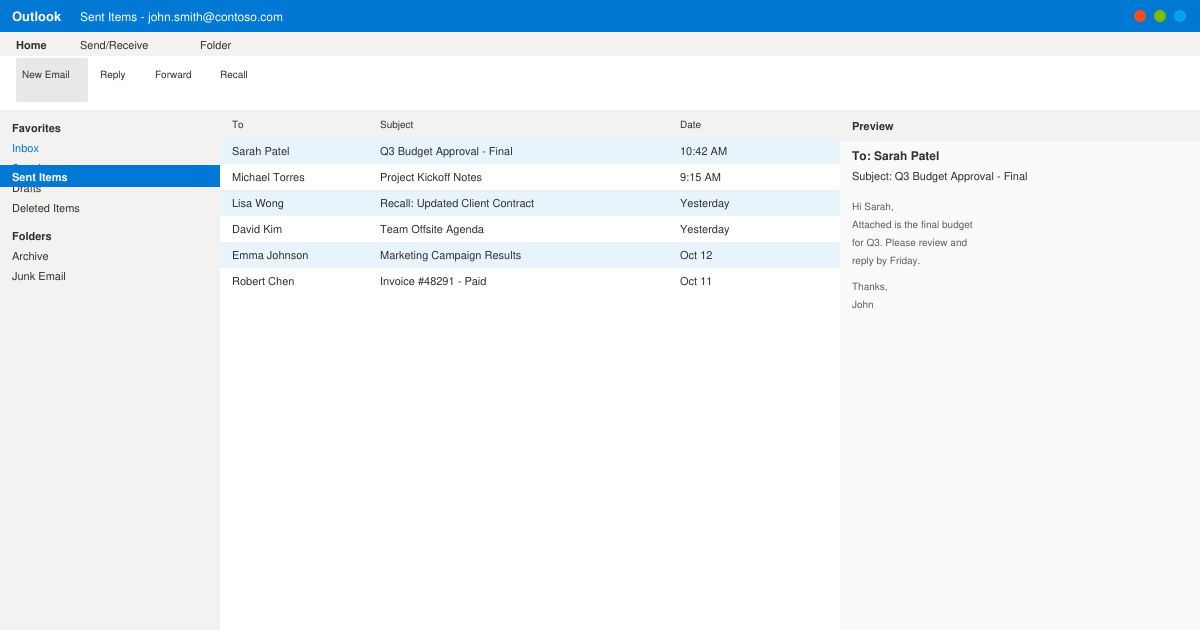
Launch the Outlook desktop application on Windows. In the left navigation pane, click Sent Items. Scroll or use the search bar at the top to locate the message you want to recall.
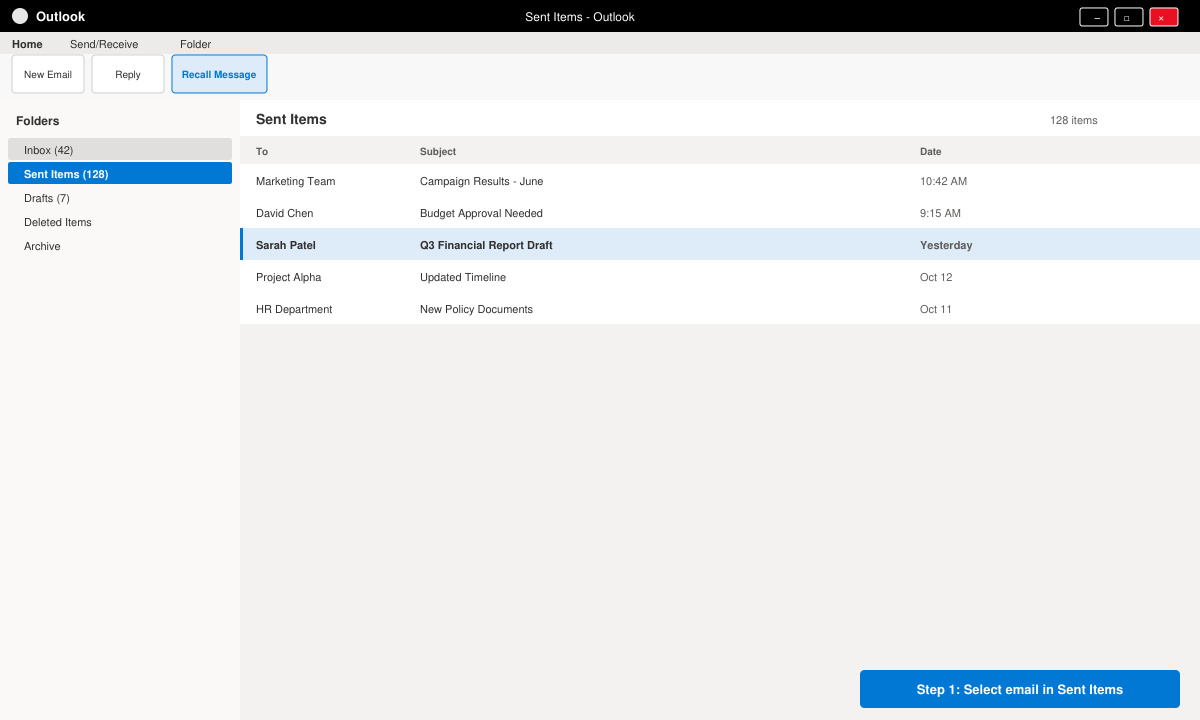
Double-click the email so it opens in a separate window instead of the reading pane. This step is required for the recall command to appear.
Click the Message tab at the top of the open window. In the Move group, select Actions, then choose Recall This Message from the drop-down menu.
In the dialog box that appears, select either “Delete unread copies of this message” or “Delete unread copies and replace with a new message.” If replacing, compose the corrected version and click Send.
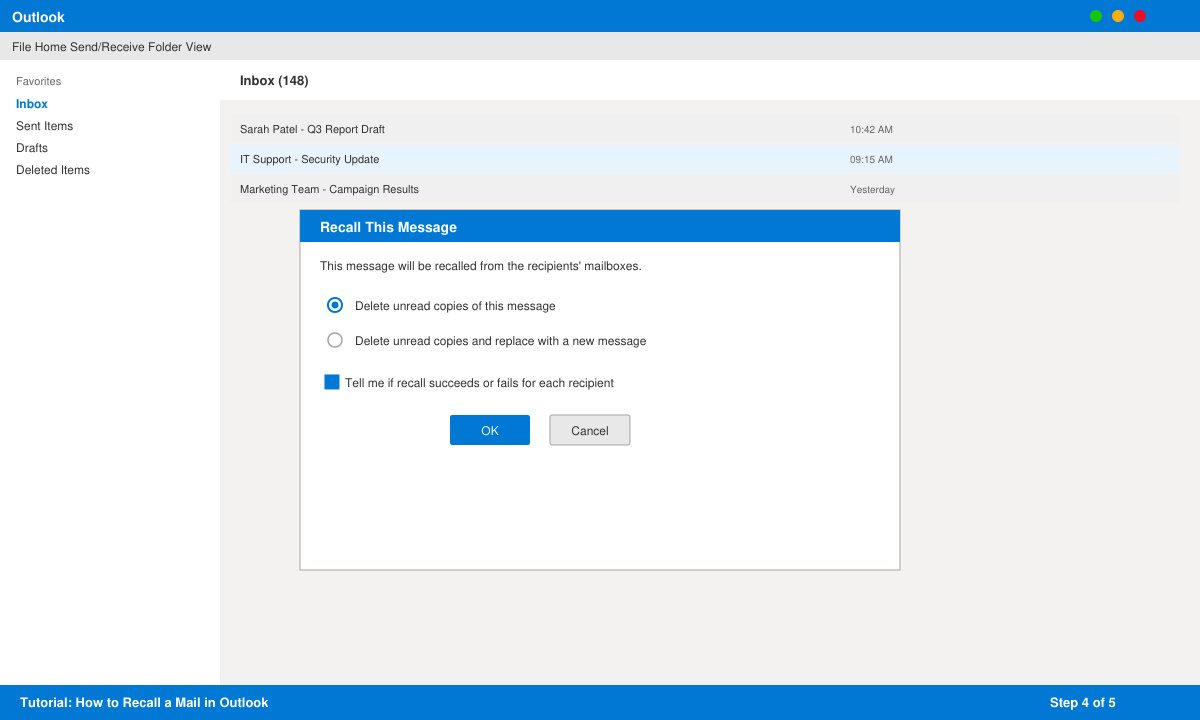
Click OK. Outlook will attempt the recall and display a report showing success or failure for each recipient.
If the recipient has already opened the message, recall fails. Mobile devices and Outlook on the web often prevent successful recall even when the desktop version reports success. Always check the recall report that arrives in your Inbox a few moments later. If you regularly need to retract messages, enable the Undo Send delay in File > Options > Mail > Undo Send and set it to the maximum of 30 seconds as a first line of defense.
No. The recall feature is available only in the Windows desktop version of Outlook.
It works when the shared mailbox is on the same Exchange tenant and the message was sent from that mailbox using the desktop client.
Recall usually fails because the message is no longer in the Inbox when the recall request arrives.
Knowing how to recall a mail in Outlook can save you from sending errors when the conditions are right. Use the steps above and verify the outcome through the recall report every time.
Install a compatible Java runtime, enable it in LibreOffice, and troubleshoot an empty JRE list without changing unrelated settings.
Build a small LibreOffice container, convert office documents without a GUI, and verify PDF output while limiting host-file access.
Reduce oversized LibreOffice presentation files by compressing embedded photos, choosing sensible image settings, and checking slide quality before sharing.
Match LibreOffice’s page dimensions to your printer, check printable margins, and correct scaling before printing a custom-size document.
Replace repeated cell access with bulk range reads and writes, then benchmark the result and protect formulas in large Calc workbooks.
Split a long manuscript into chapters, assemble them in Writer, and keep styles, contents, and export checks consistent.
Use Base’s direct PostgreSQL option to enter your server details, sign in, save an ODB connection file, and troubleshoot common access errors.
Install a font in your Linux user font folder, restart LibreOffice Flatpak, and confirm it appears in Writer without weakening the app sandbox.
Protect your work and isolate network-drive save crashes in LibreOffice on macOS Sonoma with a local-first workflow, permission checks, and targeted tests.
Preserve leading zeros in Calc by setting ID columns to Text during CSV import, checking the preview, and verifying the saved data.








