Get LibreOffice to Recognize Your Java Runtime

Install a compatible Java runtime, enable it in LibreOffice, and troubleshoot an empty JRE list without changing unrelated settings.
If files stop updating or show errors in OneDrive, you need to know how to resync OneDrive. This forces a clean connection between your local folders and the Microsoft cloud storage. The steps below work on Windows 10 and Windows 11 using the current OneDrive app.
Common signs include the green checkmarks failing to appear, files stuck on "syncing," or error codes in the OneDrive activity center. Resyncing is useful after changing Microsoft accounts, moving large folder structures, or recovering from interrupted internet connections. Always close any open Office files before starting.
Make sure you have your Microsoft account password ready and a stable internet connection. The process does not delete files but may require re-downloading some content.
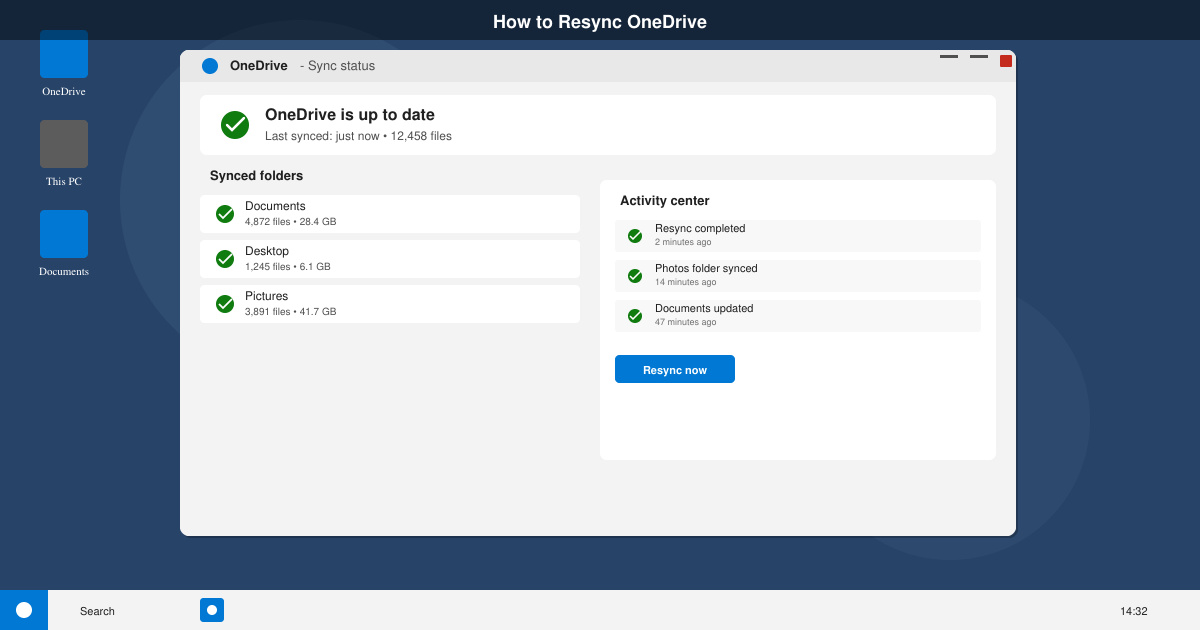
Click the white or blue cloud icon in the system tray at the bottom right of your screen. If the icon is hidden, click the arrow to show hidden icons. Select the gear icon, then choose Settings.
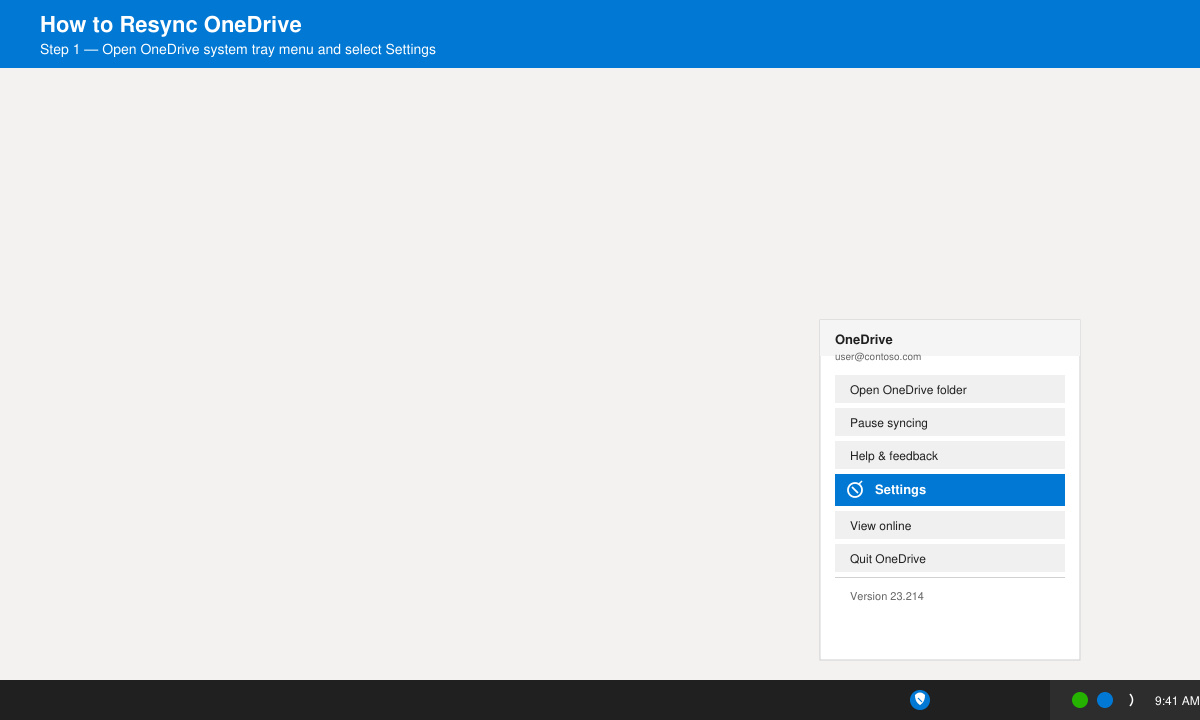
In the Settings window, go to the Account tab and click Pause syncing. Choose 2 hours, wait 30 seconds, then click the same menu again and select Resume syncing. This clears minor cache glitches without a full reset.
Press Windows key + R to open the Run dialog. Type %localappdata%\Microsoft\OneDrive\onedrive.exe /reset and press Enter. The cloud icon will disappear for up to two minutes, then reappear and begin scanning all files again.
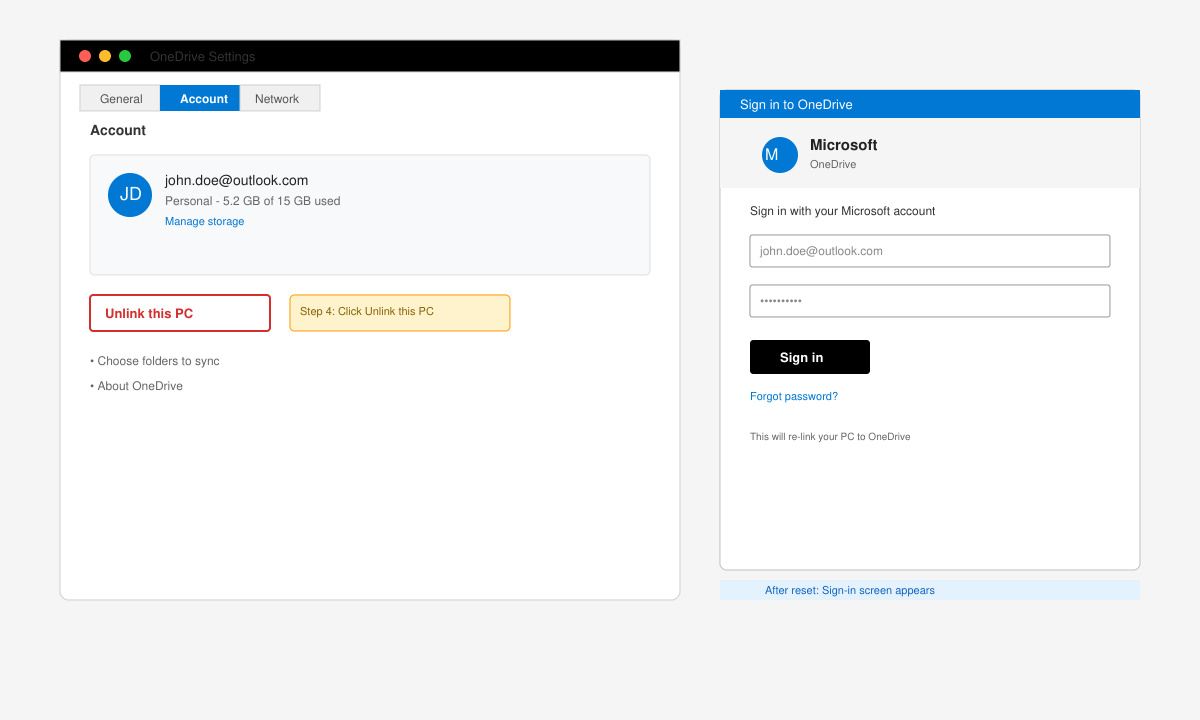
If the reset does not finish the job, return to OneDrive Settings and click Unlink this PC on the Account tab. Confirm the action, then sign in again with your Microsoft account. Choose the folders you want to sync during the setup wizard.
Open File Explorer and navigate to your OneDrive folder. Look for the blue cloud or green checkmark icons on files. Open the activity center from the system tray to confirm no errors remain.
No. Resyncing only rebuilds the connection. All files remain safe in the cloud and on your device once the process completes.
Time depends on the number and size of files. A few hundred small files finish in minutes while multi-gigabyte libraries can take several hours.
Yes. Quit the OneDrive app, open Terminal, and run killall OneDrive followed by reopening the app from Applications. Use the same unlink option inside Preferences if needed.
Following these steps restores normal file synchronization in OneDrive without data loss. Run the reset command first in most cases, then unlink the account only if errors persist.
Install a compatible Java runtime, enable it in LibreOffice, and troubleshoot an empty JRE list without changing unrelated settings.
Build a small LibreOffice container, convert office documents without a GUI, and verify PDF output while limiting host-file access.
Reduce oversized LibreOffice presentation files by compressing embedded photos, choosing sensible image settings, and checking slide quality before sharing.
Match LibreOffice’s page dimensions to your printer, check printable margins, and correct scaling before printing a custom-size document.
Replace repeated cell access with bulk range reads and writes, then benchmark the result and protect formulas in large Calc workbooks.
Split a long manuscript into chapters, assemble them in Writer, and keep styles, contents, and export checks consistent.
Use Base’s direct PostgreSQL option to enter your server details, sign in, save an ODB connection file, and troubleshoot common access errors.
Install a font in your Linux user font folder, restart LibreOffice Flatpak, and confirm it appears in Writer without weakening the app sandbox.
Protect your work and isolate network-drive save crashes in LibreOffice on macOS Sonoma with a local-first workflow, permission checks, and targeted tests.
Preserve leading zeros in Calc by setting ID columns to Text during CSV import, checking the preview, and verifying the saved data.








