Add Fonts to ONLYOFFICE Document Server: Docker vs Linux
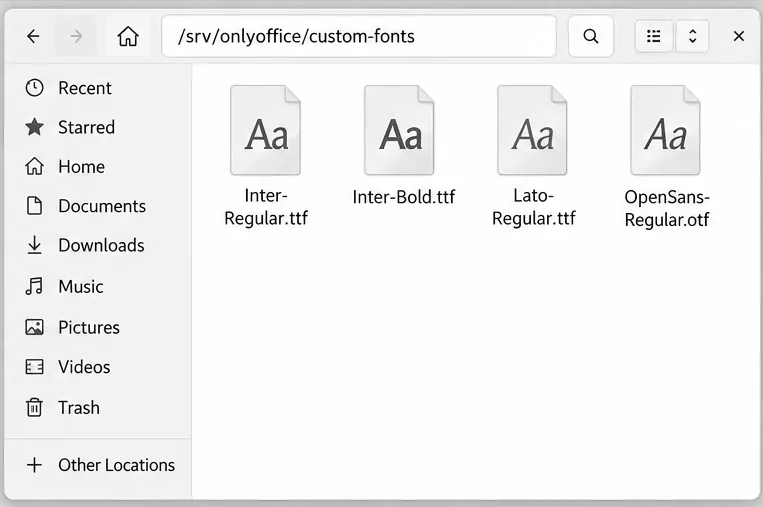
Install custom fonts in ONLYOFFICE Document Server, compare persistent Docker mounts with direct copies, rebuild the font list, and verify the result.
Want to watch Netflix together with friends who live far away? How to Stream Netflix on Discord works through the built-in screen sharing tool, letting you broadcast your playback window directly into a voice channel. The process takes just a few minutes once both apps are running, though Netflix copy protection sometimes blocks the video feed for other participants. This article shows the exact steps, fixes for black screens, and tips to improve the experience.
Make sure you have an active Netflix subscription and the latest version of the Discord desktop app installed, because the browser version of Discord offers fewer screen-sharing controls. Close any bandwidth-heavy programs and connect to a stable internet connection with at least 10 Mbps upload speed. Test your microphone and camera settings inside Discord first so you can talk while the movie plays.
Decide whether you will stream from the Netflix website in a browser or from the Netflix Windows app. The browser method usually gives better control over which window you share.
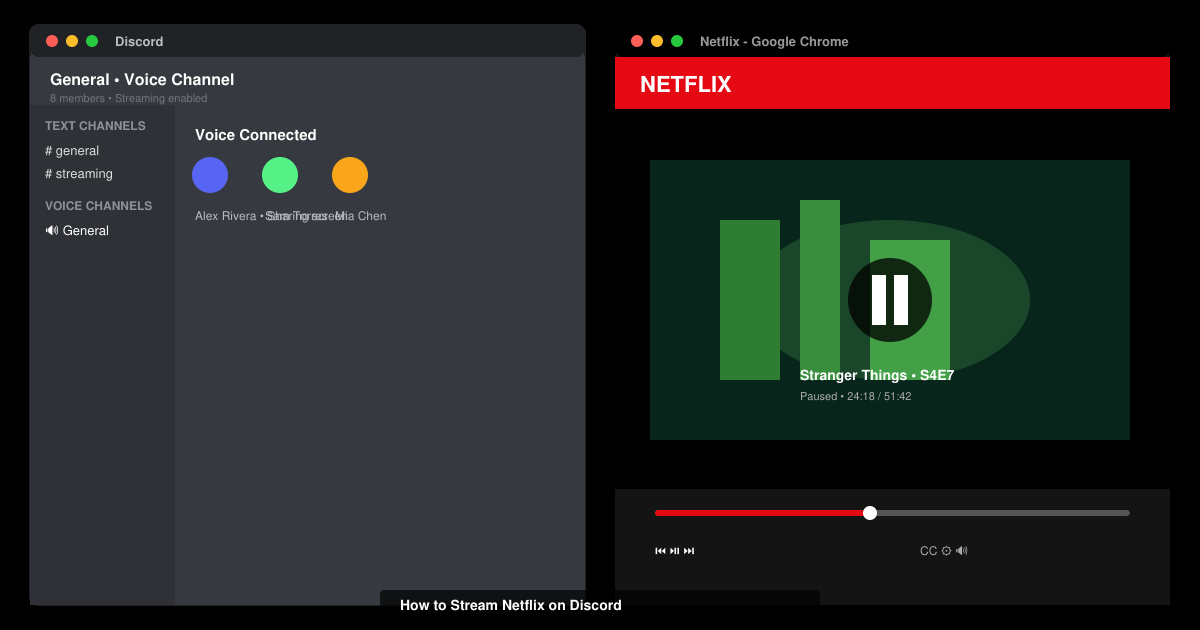
Launch the Discord desktop application and log in. Either join an existing server or create a new private server, then enter a voice channel where everyone who wants to watch is already present. Keep the Discord window visible on your second monitor or minimized so you can adjust settings quickly.
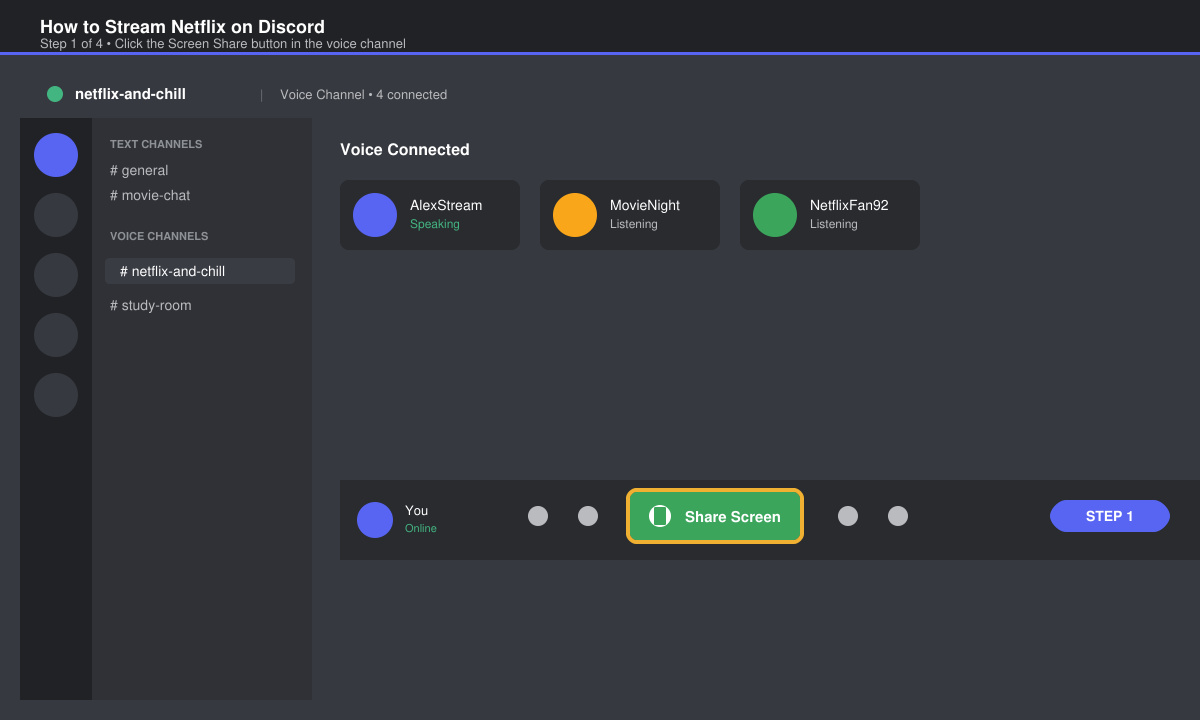
Open your preferred browser and go to netflix.com, or launch the Netflix desktop app. Sign in, choose the title you want to watch, and begin playback. Pause the video immediately so the first frame is visible on screen and the player controls appear.
Click the "Share Your Screen" button located at the bottom of the voice channel panel. In the pop-up window select the "Application Window" tab, choose the exact Netflix browser tab or app window, and confirm the selection. Set the stream quality to 1080p if your computer and connection support it, then click Go Live.
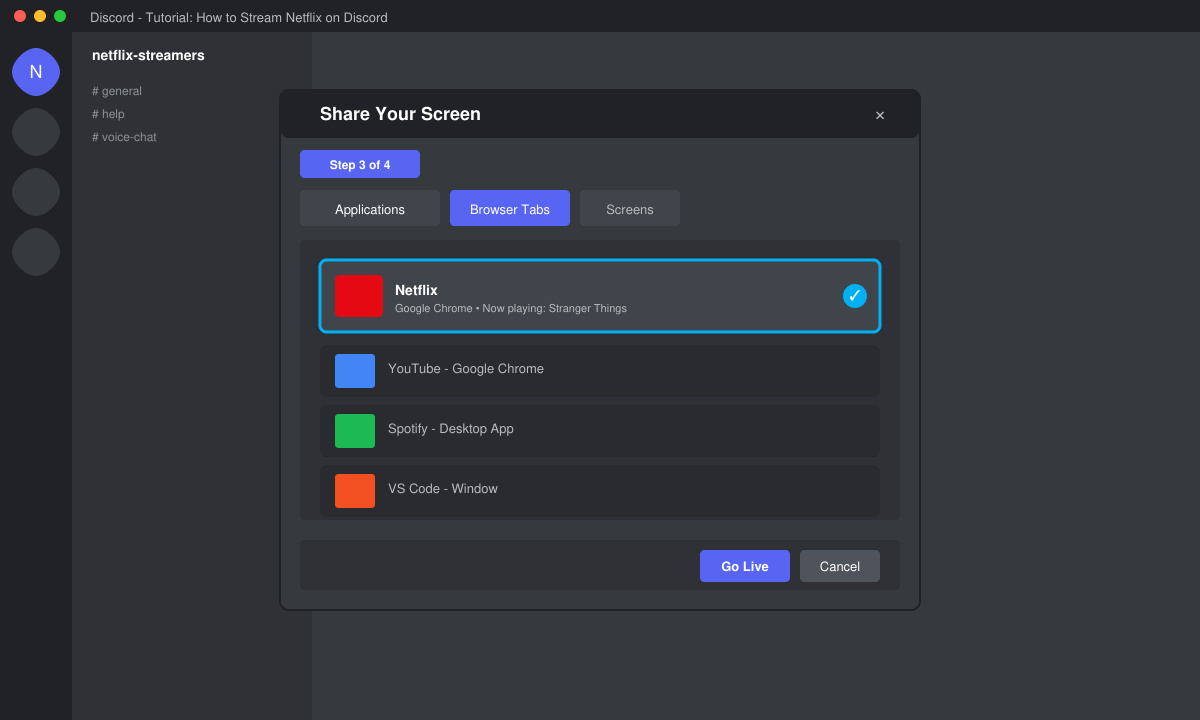
Tell participants to join the same voice channel. They will see your shared screen appear automatically. If they cannot hear the movie audio, right-click your name in the channel, select "Video" settings, and make sure "Include computer sound" is enabled before you start sharing again.
When the movie ends, click the red "Stop Streaming" button at the top of Discord. This returns the voice channel to normal and prevents accidental continued broadcasting of your desktop.
Netflix often displays a black screen for viewers because of Widevine DRM protection. The most reliable workaround is to share only the browser tab instead of the entire monitor and to disable hardware acceleration in your browser settings. Another frequent problem is choppy video; lowering the stream resolution to 720p inside Discord usually solves this. If friends report no sound, double-check that you enabled application audio capture when starting the share.
Keep in mind that multiple people sharing at once can overload the channel. Only one person should stream at a time, and everyone else should mute their own microphones to reduce background noise.
Netflix terms prohibit sharing account access with non-household members, so streaming to friends outside your home may violate those rules even if Discord itself allows the screen share.
Discord mobile apps do not support screen sharing of video content, so you must use the desktop version of Discord on a computer to broadcast Netflix successfully.
Discord compresses the stream based on available bandwidth. Ask viewers to switch to a wired connection or lower the stream quality setting in your share options before going live again.
Mastering how to stream Netflix on Discord lets you enjoy movies together without leaving your homes. Follow the steps above, test the share before the main event, and you will have a reliable group viewing session every time.
Install custom fonts in ONLYOFFICE Document Server, compare persistent Docker mounts with direct copies, rebuild the font list, and verify the result.
Choose where TLS should terminate, mount a trusted certificate and private key safely, and verify HTTPS access to a Dockerized ONLYOFFICE Docs server.
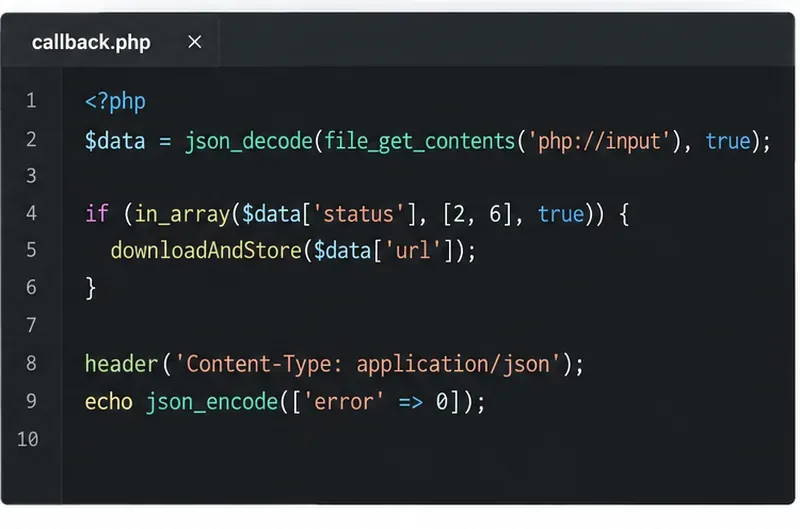
Embed the ONLYOFFICE editor in your PHP app, sign its configuration with JWT, and save edited files through a secure callback.
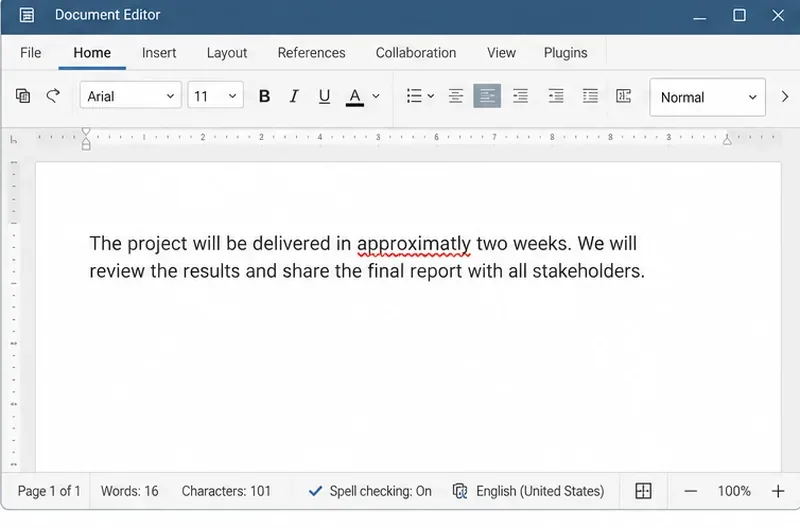
Set the proofing language for the whole document or selected text, confirm spell checking is active, and identify when a server dictionary is missing.
Enable persistent Track Changes for everyone in one ONLYOFFICE document, verify edits are recorded, and understand the limits of this setting.
Find whether Nginx, Docker networking, or an internal ONLYOFFICE service is returning 502, then verify the corrected upstream and health check.
Diagnose failed ONLYOFFICE saves by checking the Nextcloud callback route, proxy redirects, and storage logs, then verify the edited file persists.
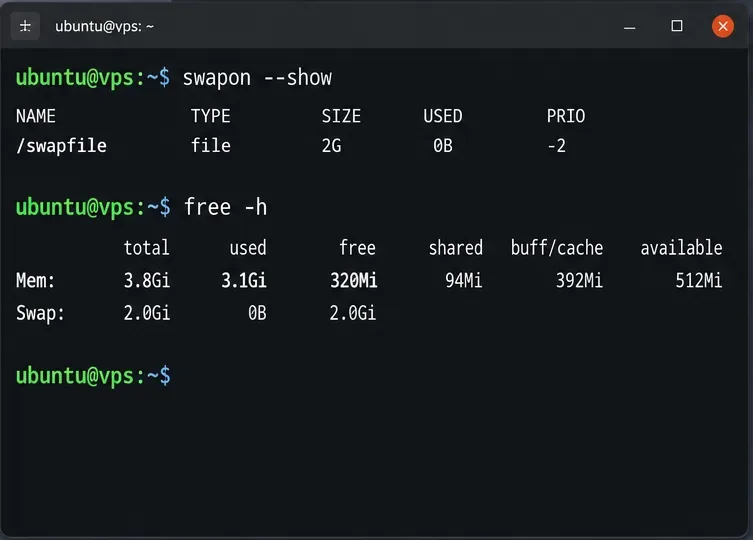
Find the cause of ONLYOFFICE memory crashes, check Docker limits, size VPS RAM correctly, add swap safely, and verify that documents open and save.
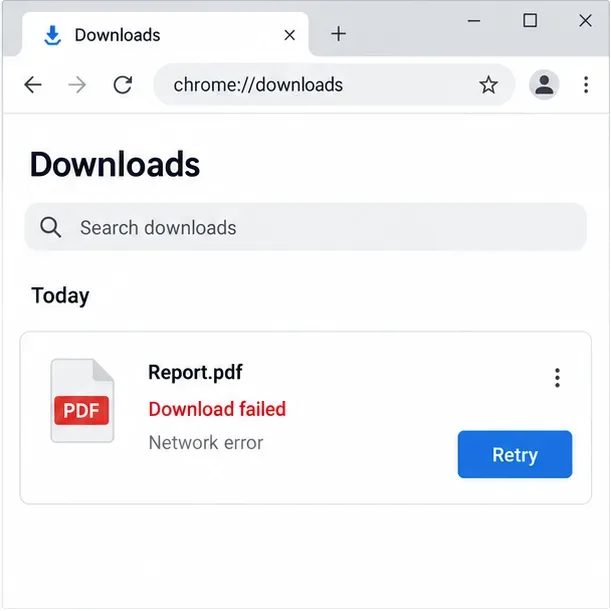
Separate browser download problems from server-side conversion errors and use the right log or access check to get your PDF export working.
Match the JWT secret used by ONLYOFFICE Docs and Nextcloud, apply it safely for Docker or Linux installs, and verify the connection without weakening authentication.