Get LibreOffice to Recognize Your Java Runtime

Install a compatible Java runtime, enable it in LibreOffice, and troubleshoot an empty JRE list without changing unrelated settings.
The recall option appears only in the full Outlook desktop client on Windows when both sender and recipient connect to the same Exchange server or Microsoft 365 tenant. Web versions of Outlook and the new Outlook app lack this native recall button. The recipient must also not have opened or moved the message for the recall to complete without leaving a trace. If these conditions are not met, the message stays in the recipient inbox and you receive a notification about the failure.
Before starting, confirm you are running a supported version of Outlook connected to Exchange. Check your account type in File > Account Settings > Account Settings to verify Exchange or Microsoft 365 appears as the account type.
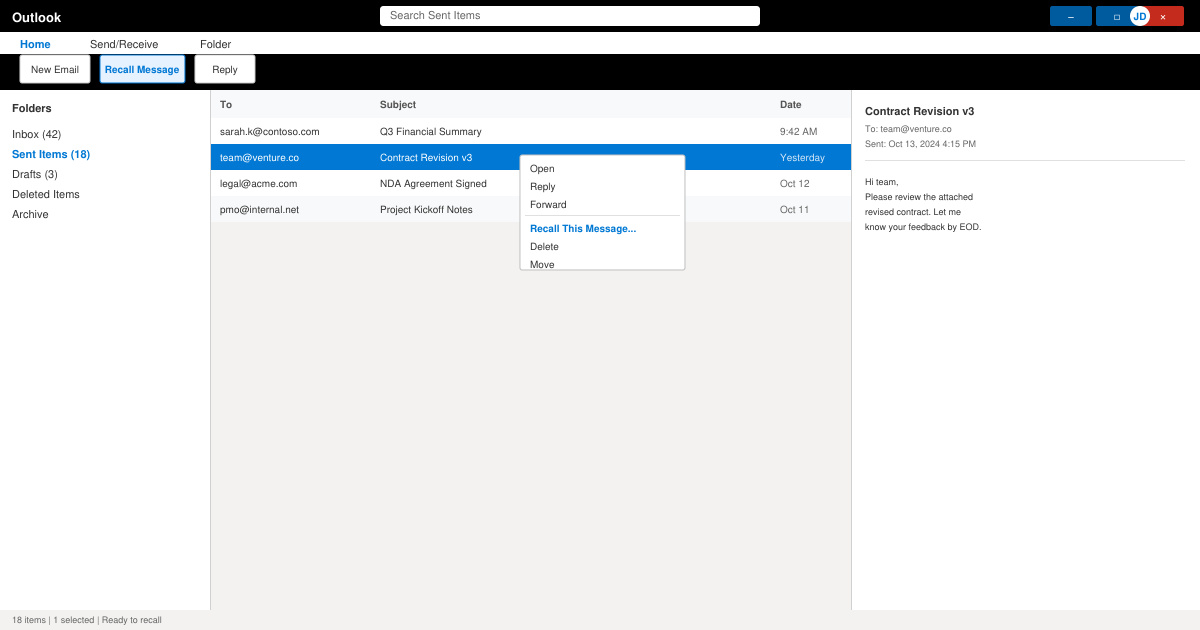
In Outlook, click Sent Items in the left navigation pane. Scroll or use the search bar at the top to find the email you want to retract. Double-click the message so it opens in its own window rather than the reading pane.
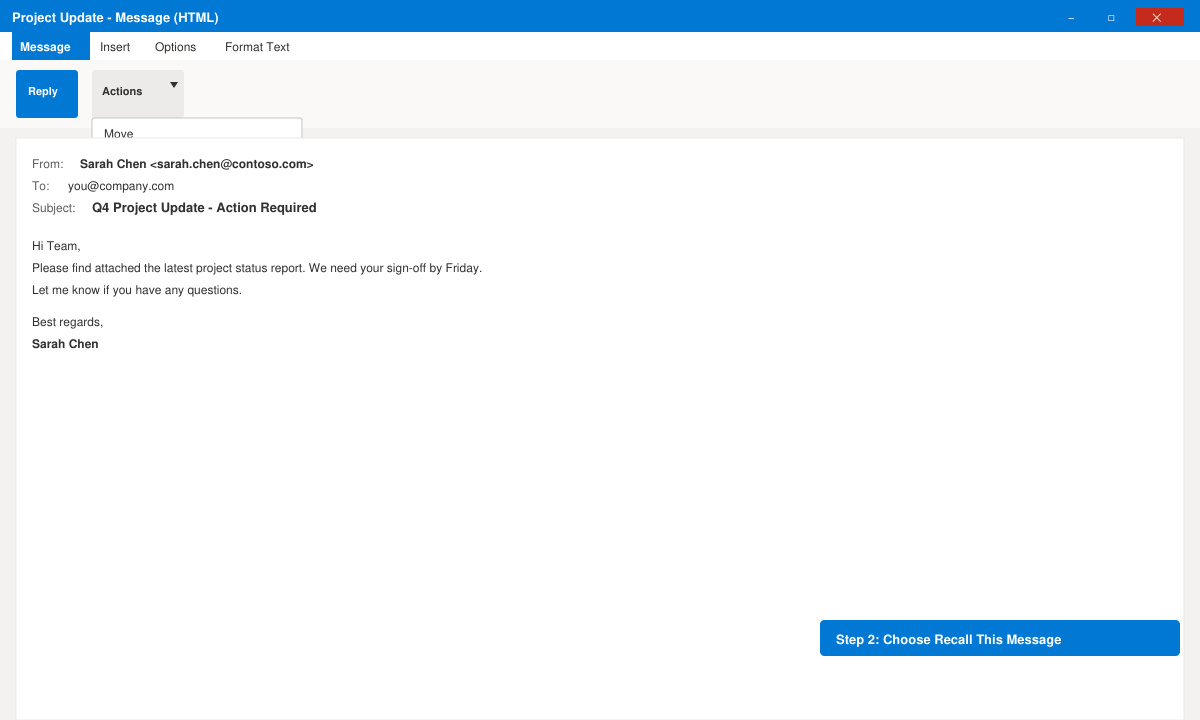
With the message window active, click the Message tab on the ribbon. In the Move group, select Actions, then choose Recall This Message from the drop-down menu. If the command is missing, the account type or Outlook version does not support recall.
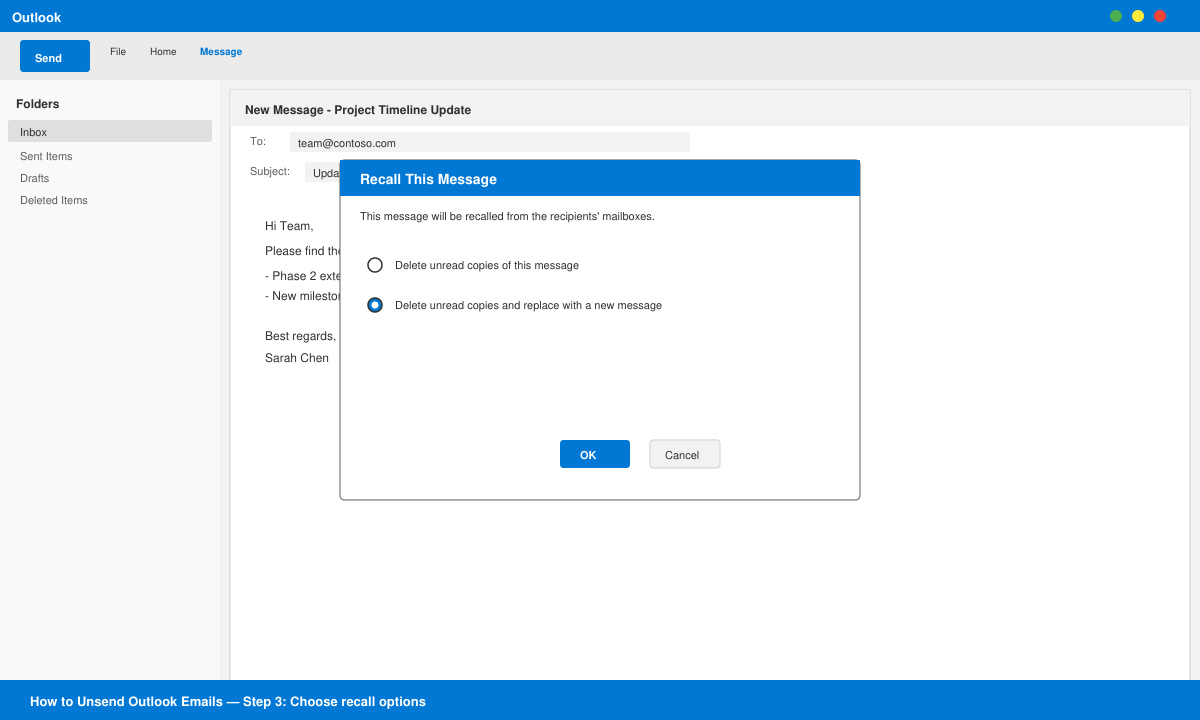
In the Recall This Message dialog, select “Delete unread copies of this message” to remove it completely, or choose “Delete unread copies and replace with a new message” if you want to send a corrected version immediately. Click OK to proceed.
If you chose the replace option, compose the corrected email in the new window that appears and click Send. Outlook then attempts the recall on the original message. Check the notification area later for a delivery report that confirms whether the recall succeeded for each recipient.
No. The recall feature is limited to the classic Outlook desktop app. In Outlook on the web, enable Undo Send under Settings > Mail > Compose and reply to retract messages within a short window after sending.
When recall succeeds, the original message disappears without any notification to the recipient. If it fails, you receive a report but the recipient is not alerted.
Outlook for Mac does not include the recall command. Mac users must rely on the Undo Send delay setting or ask recipients to delete the message manually.
Mastering how to unsend Outlook emails prevents small mistakes from becoming larger problems when you act quickly inside the desktop client and both parties share the same Exchange environment.
Install a compatible Java runtime, enable it in LibreOffice, and troubleshoot an empty JRE list without changing unrelated settings.
Build a small LibreOffice container, convert office documents without a GUI, and verify PDF output while limiting host-file access.
Reduce oversized LibreOffice presentation files by compressing embedded photos, choosing sensible image settings, and checking slide quality before sharing.
Match LibreOffice’s page dimensions to your printer, check printable margins, and correct scaling before printing a custom-size document.
Replace repeated cell access with bulk range reads and writes, then benchmark the result and protect formulas in large Calc workbooks.
Split a long manuscript into chapters, assemble them in Writer, and keep styles, contents, and export checks consistent.
Use Base’s direct PostgreSQL option to enter your server details, sign in, save an ODB connection file, and troubleshoot common access errors.
Install a font in your Linux user font folder, restart LibreOffice Flatpak, and confirm it appears in Writer without weakening the app sandbox.
Protect your work and isolate network-drive save crashes in LibreOffice on macOS Sonoma with a local-first workflow, permission checks, and targeted tests.
Preserve leading zeros in Calc by setting ID columns to Text during CSV import, checking the preview, and verifying the saved data.








