Get LibreOffice to Recognize Your Java Runtime

Install a compatible Java runtime, enable it in LibreOffice, and troubleshoot an empty JRE list without changing unrelated settings.
Sent an email to the wrong person or spotted a typo right after hitting Send? Outlook lets you recall a sent email — but only if both you and the recipient use Microsoft Exchange or Microsoft 365, and the message hasn't been read yet. Here's how to do it in under two minutes.
Outdated drivers cause crashes, poor performance, and security gaps on Windows 11. Updating them regularly fixes compatibility issues with new hardware and patches vulnerabilities that attackers can exploit. Microsoft recommends checking drivers after major feature updates or when you notice stuttering, blue screens, or missing devices.
Windows 11 includes several built-in methods that do not require third-party software. The most reliable approach uses Device Manager because it lets you target a single component without affecting the rest of the system.
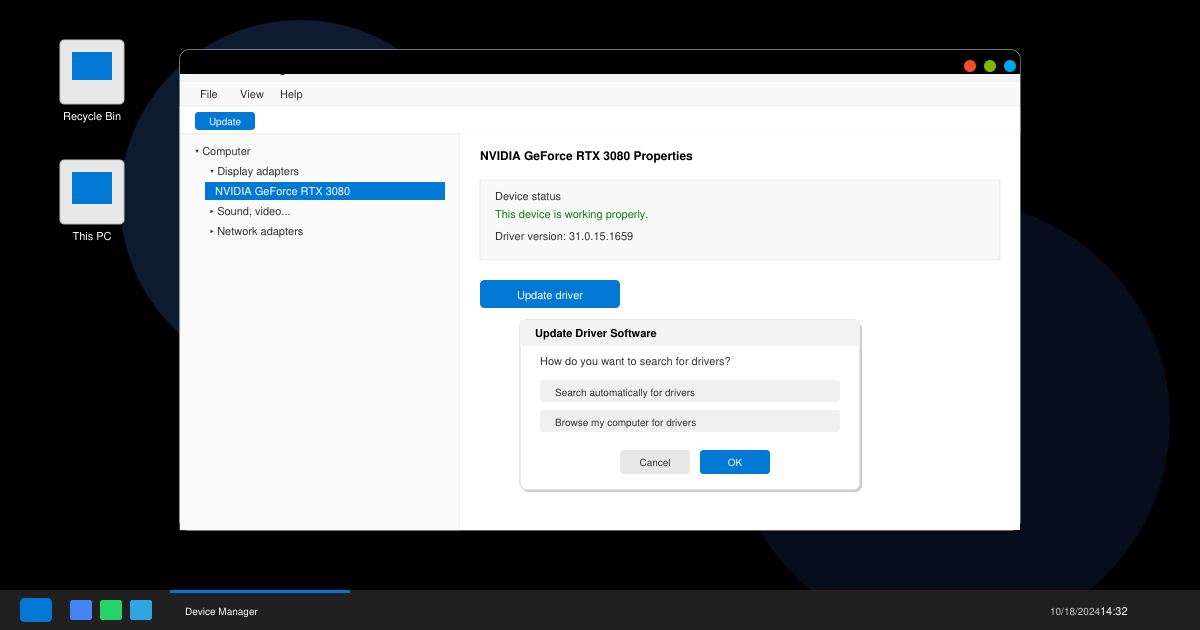
Right-click the Start button and select Device Manager from the context menu. If you prefer the keyboard, press Windows key + X and then press M. The Device Manager window lists every piece of hardware Windows 11 recognizes.
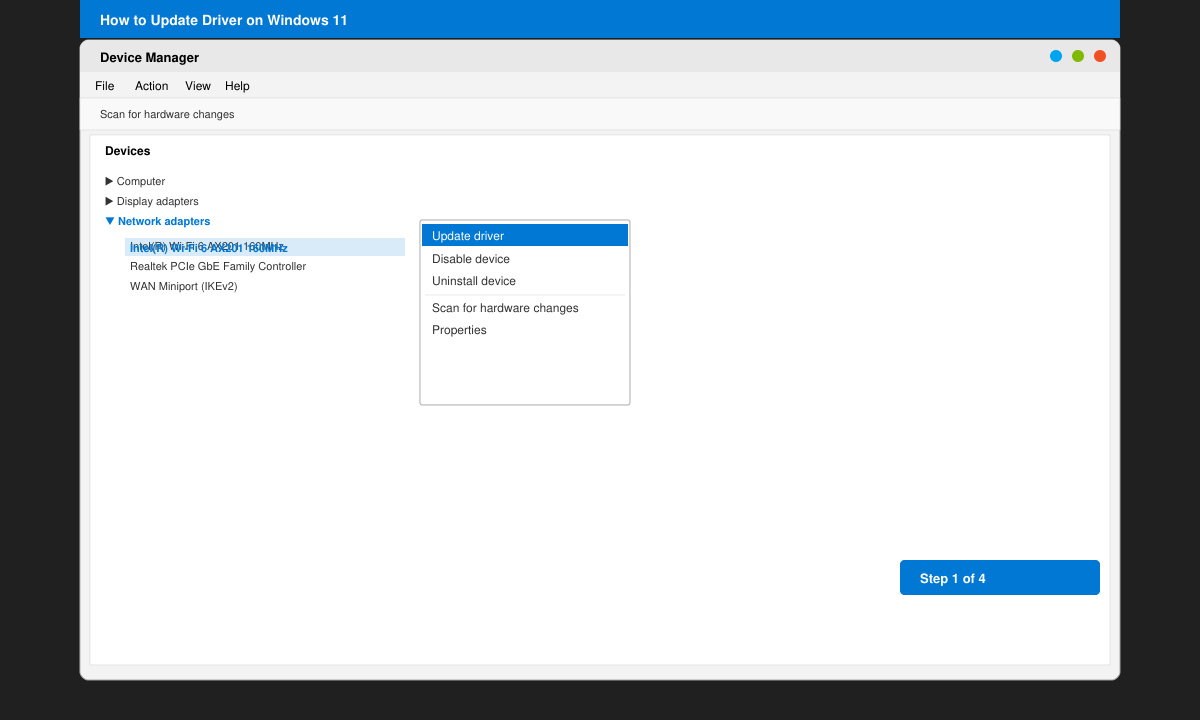
Expand the category that matches the hardware you want to update. Common choices include Display adapters for graphics, Network adapters for Wi-Fi or Ethernet, or Sound, video and game controllers. Double-click the specific device name to open its Properties window.
Click the Driver tab, then click the Update Driver button. Choose “Search automatically for drivers” first. Windows 11 will check both the local driver store and Windows Update. If it finds a newer version, it installs automatically and prompts for a restart.
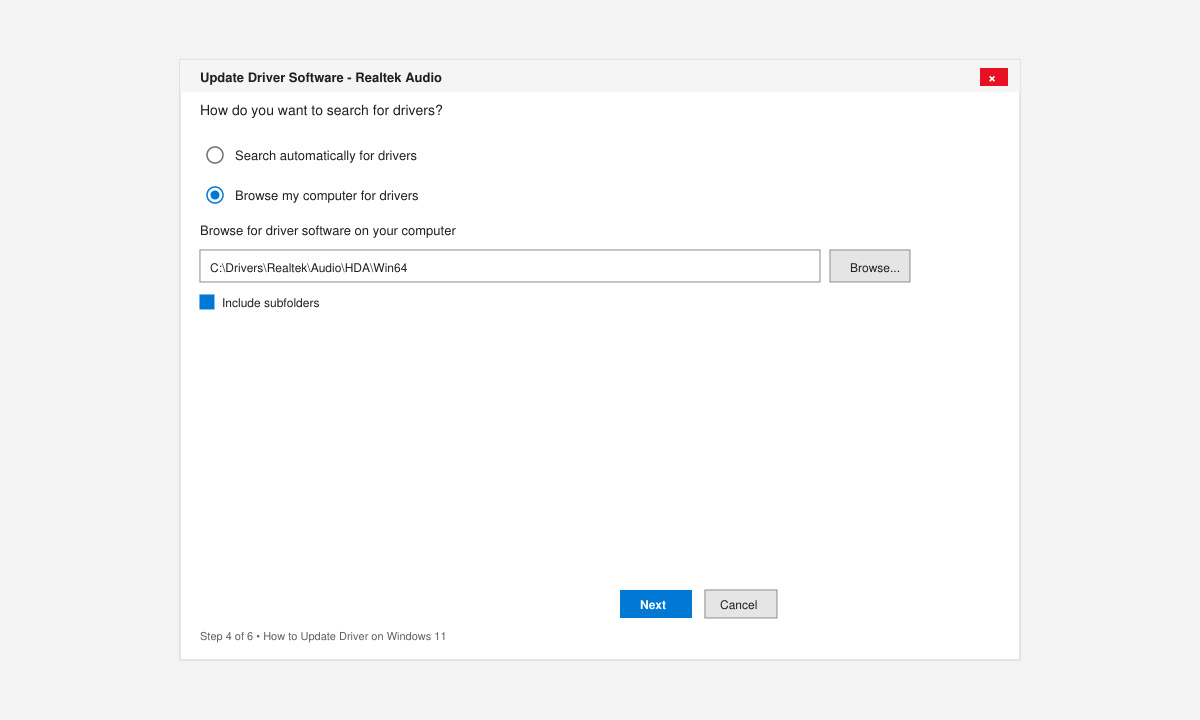
If Windows does not find an update, return to the Update Driver window and select “Browse my computer for drivers.” Navigate to the folder containing the .inf file you downloaded from the manufacturer. Click Next and follow the on-screen prompts to complete installation.
Windows Update itself can push driver updates. Go to Settings > Windows Update > Advanced options > Optional updates and look under the Driver updates section. Installing these updates keeps the system consistent without opening Device Manager.
For specialized hardware such as NVIDIA or AMD graphics cards, the manufacturer’s app often provides more frequent updates than Windows Update. Download GeForce Experience or AMD Software directly from the vendor site and run the scan feature inside the app.
Windows 11 installs many drivers through Windows Update, but it does not always fetch the newest versions from hardware manufacturers. Manual checks in Device Manager remain necessary for optimal performance.
You can install previously downloaded driver packages from a USB drive, but Windows 11 cannot search online for newer versions without network access.
Microsoft discourages generic driver updater utilities because they sometimes install incorrect or unsigned drivers that cause instability. Stick to Device Manager or the hardware maker’s official software.
Following the steps above keeps your Windows 11 machine stable and secure by ensuring every driver stays current.
Install a compatible Java runtime, enable it in LibreOffice, and troubleshoot an empty JRE list without changing unrelated settings.
Build a small LibreOffice container, convert office documents without a GUI, and verify PDF output while limiting host-file access.
Reduce oversized LibreOffice presentation files by compressing embedded photos, choosing sensible image settings, and checking slide quality before sharing.
Match LibreOffice’s page dimensions to your printer, check printable margins, and correct scaling before printing a custom-size document.
Replace repeated cell access with bulk range reads and writes, then benchmark the result and protect formulas in large Calc workbooks.
Split a long manuscript into chapters, assemble them in Writer, and keep styles, contents, and export checks consistent.
Use Base’s direct PostgreSQL option to enter your server details, sign in, save an ODB connection file, and troubleshoot common access errors.
Install a font in your Linux user font folder, restart LibreOffice Flatpak, and confirm it appears in Writer without weakening the app sandbox.
Protect your work and isolate network-drive save crashes in LibreOffice on macOS Sonoma with a local-first workflow, permission checks, and targeted tests.
Preserve leading zeros in Calc by setting ID columns to Text during CSV import, checking the preview, and verifying the saved data.








