Get LibreOffice to Recognize Your Java Runtime

Install a compatible Java runtime, enable it in LibreOffice, and troubleshoot an empty JRE list without changing unrelated settings.
Sent an email to the wrong person or spotted a typo right after hitting Send? No, wait — keeping Google Chrome current protects you from security risks and gives access to performance improvements. This article explains exactly how to update Google Chrome on Windows, macOS, Android, and iOS with precise menu paths and button names.
Google releases Chrome updates every few weeks to patch vulnerabilities and add features. Running an outdated version leaves your device exposed to exploits that target known weaknesses. Checking the version number in the About section confirms whether an update is pending or already applied.
Launch Google Chrome on your Windows or Mac computer. Click the three vertical dots in the top-right corner of the browser window to open the main menu.
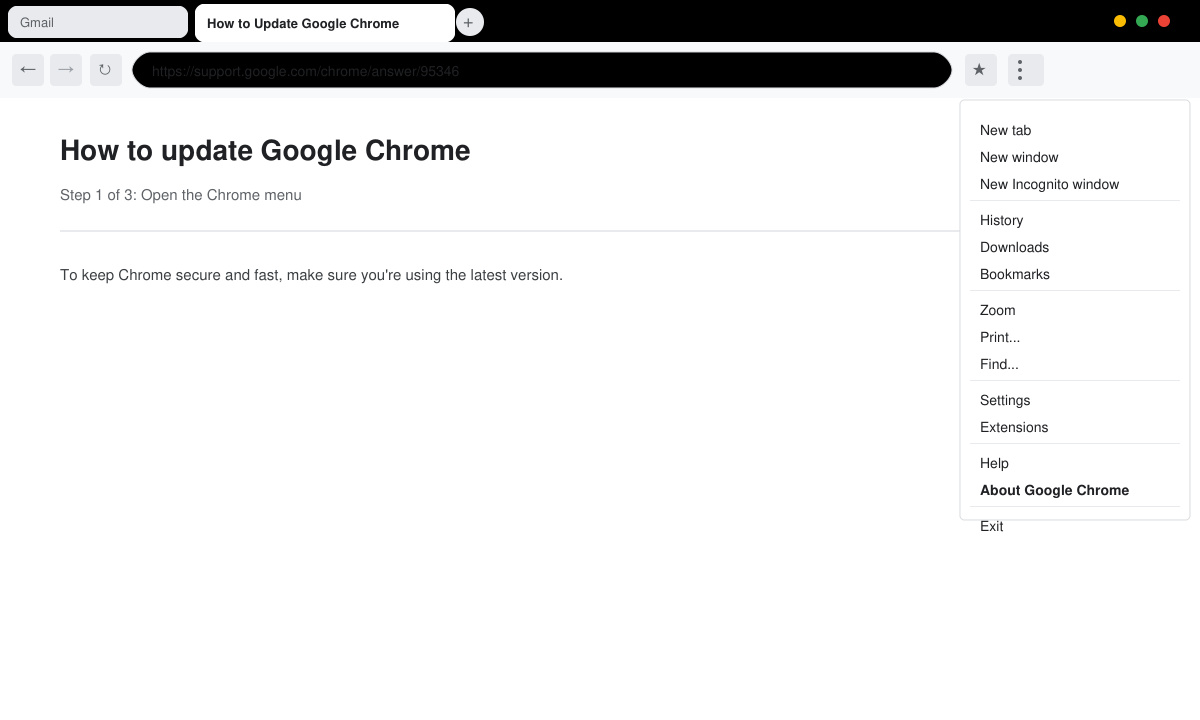
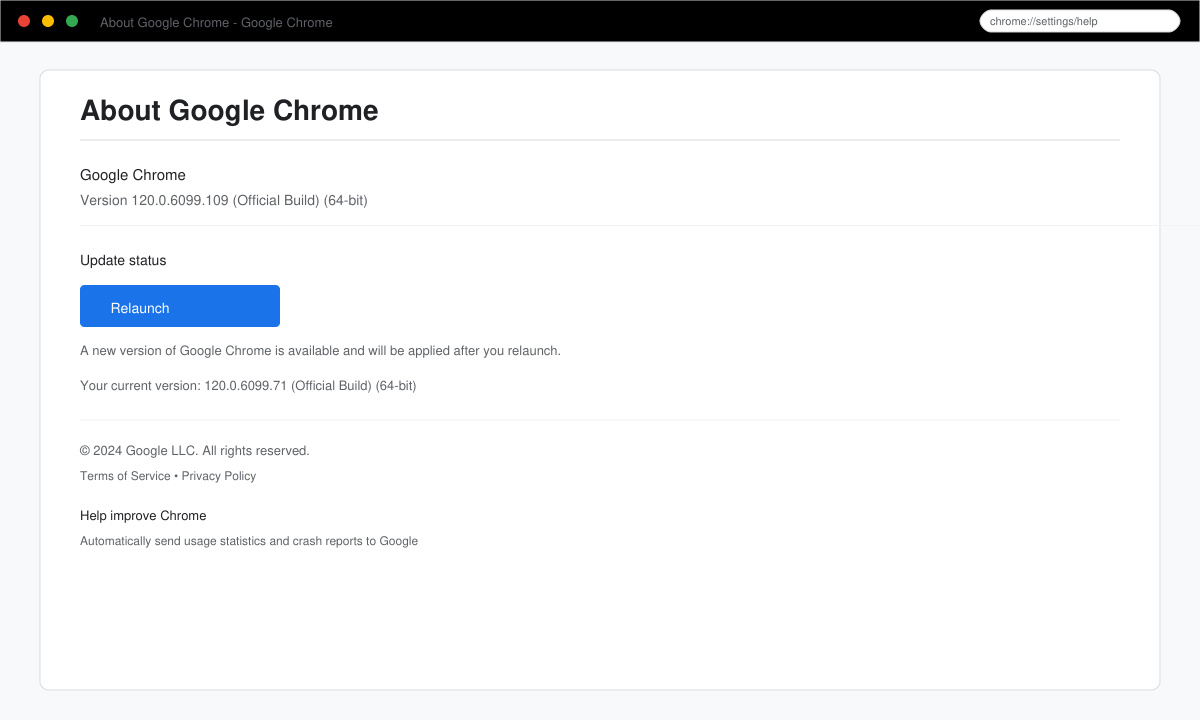
Hover over Help in the menu, then click About Google Chrome. A new tab opens and Chrome immediately checks for updates automatically.
If an update exists, click the Relaunch button that appears. Chrome downloads and installs the new version, then restarts the browser with the update applied. Your open tabs reload automatically after the restart.
On Android, open the Google Play Store app, search for Google Chrome, and tap Update if a newer version is listed. On iOS, open the App Store, tap your profile icon, scroll to pending updates, and tap Update next to Google Chrome. Both stores also offer automatic updates in their settings if you prefer background installation.
Yes. Chrome must connect to Google servers to download the update files. Without internet access the check fails and no new version installs.
No. The final step always requires a restart so the new code loads into memory. You can delay the restart up to eight hours if needed, but the update remains incomplete until you relaunch.
No. All user data stays intact. Bookmarks, passwords, and extensions carry over to the new version automatically.
Following the steps above ensures you always run the newest version of Google Chrome with the latest security fixes and improvements.
Install a compatible Java runtime, enable it in LibreOffice, and troubleshoot an empty JRE list without changing unrelated settings.
Build a small LibreOffice container, convert office documents without a GUI, and verify PDF output while limiting host-file access.
Reduce oversized LibreOffice presentation files by compressing embedded photos, choosing sensible image settings, and checking slide quality before sharing.
Match LibreOffice’s page dimensions to your printer, check printable margins, and correct scaling before printing a custom-size document.
Replace repeated cell access with bulk range reads and writes, then benchmark the result and protect formulas in large Calc workbooks.
Split a long manuscript into chapters, assemble them in Writer, and keep styles, contents, and export checks consistent.
Use Base’s direct PostgreSQL option to enter your server details, sign in, save an ODB connection file, and troubleshoot common access errors.
Install a font in your Linux user font folder, restart LibreOffice Flatpak, and confirm it appears in Writer without weakening the app sandbox.
Protect your work and isolate network-drive save crashes in LibreOffice on macOS Sonoma with a local-first workflow, permission checks, and targeted tests.
Preserve leading zeros in Calc by setting ID columns to Text during CSV import, checking the preview, and verifying the saved data.








