Get LibreOffice to Recognize Your Java Runtime

Install a compatible Java runtime, enable it in LibreOffice, and troubleshoot an empty JRE list without changing unrelated settings.
Keeping your browser current protects you from security vulnerabilities and unlocks performance gains. This guide explains exactly how to update your Chrome on Windows, Mac, Android, and iOS with precise menu paths and button clicks.
Google releases Chrome updates every few weeks. Each release patches security holes, improves tab management, and adds features such as better password management. Skipping updates leaves your device exposed to known exploits that malware actively targets. Users who keep Chrome current also benefit from faster JavaScript execution and reduced memory usage.
Chrome usually downloads updates in the background, but manual checks become necessary after long periods offline or when an update fails silently.
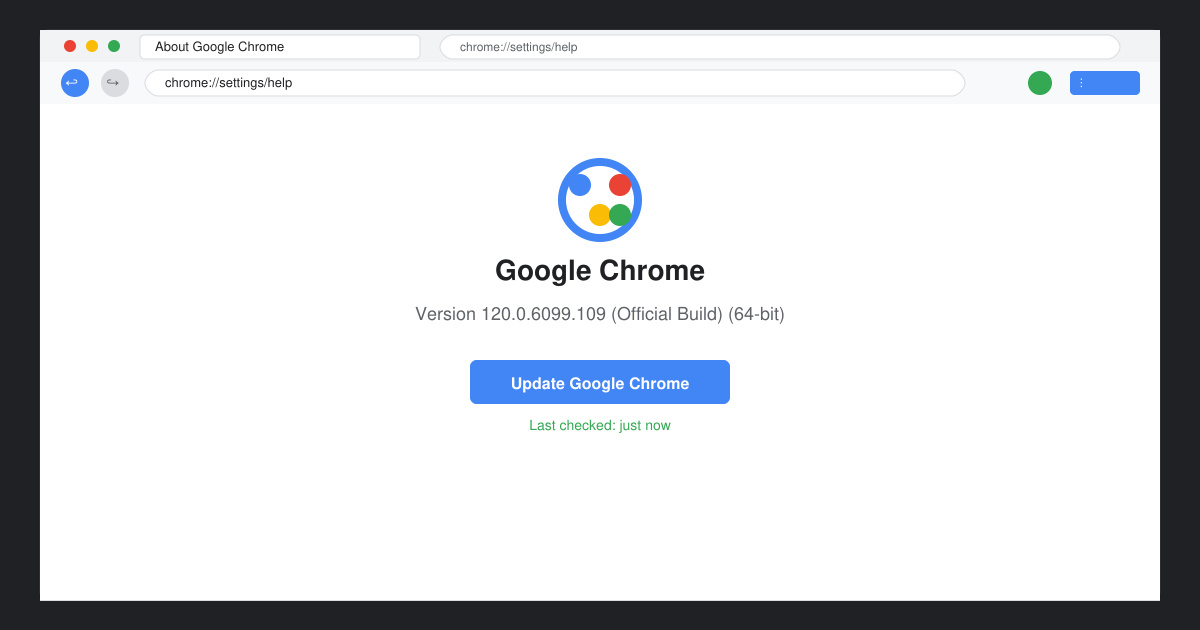
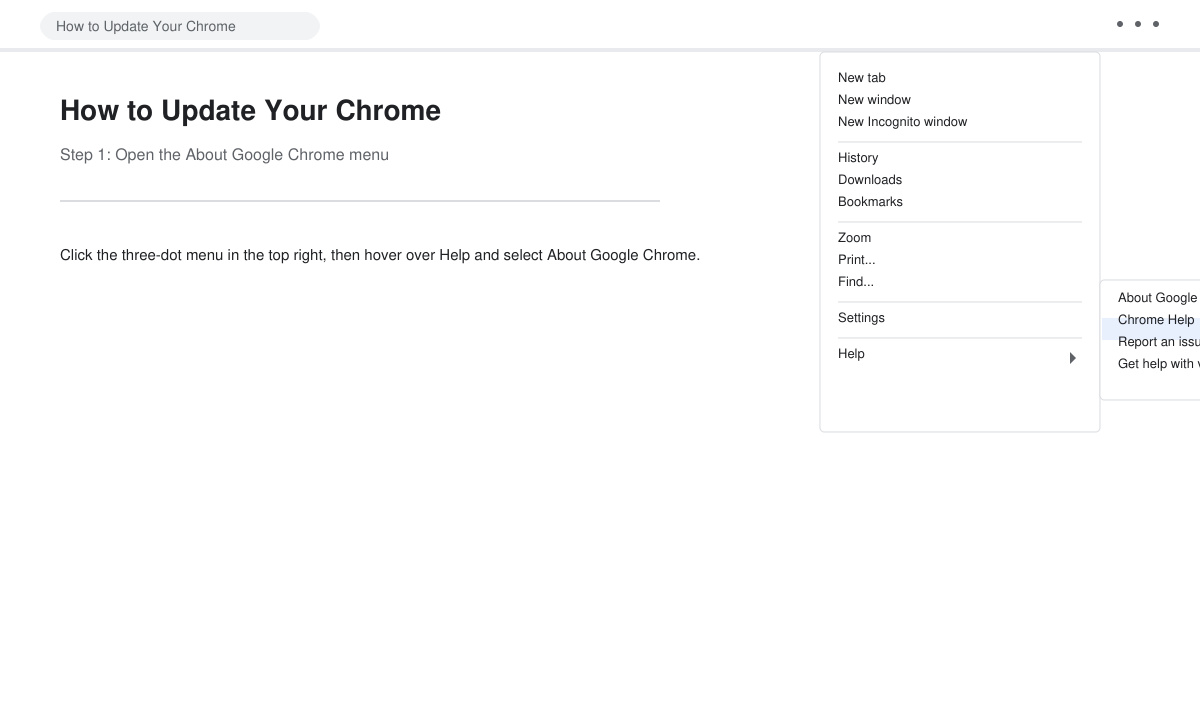
Launch Chrome, click the three-dot menu in the top-right corner, hover over Help, then click About Google Chrome. The page immediately checks for updates and displays the current version number.
If an update is found, click the Relaunch button that appears. Chrome closes all windows, installs the new version, and reopens your previous tabs automatically.
Return to the same About Google Chrome page. Confirm the version number has increased. If it matches the latest stable release listed on the official Chrome release blog, the update succeeded.
Open the Play Store app, tap your profile icon, select Manage apps & device, then tap Updates available. Locate Google Chrome in the list and tap Update. The store downloads and installs the patch without further input.
Open the App Store, tap your profile picture in the top right, scroll to available updates, and find Chrome. Tap the Update button next to it. Enter your Apple ID password or use Face ID when prompted.
Yes. Chrome checks for updates every few hours while the browser runs and installs them silently when the computer restarts or when you relaunch the browser.
No. The browser must reach Google servers to download the update package. Connect to Wi-Fi or mobile data first.
No. All data remains intact. Updates only replace program files and do not touch your user profile.
Following the exact steps above ensures you always run the newest stable version of Chrome with the latest protections and features.
Install a compatible Java runtime, enable it in LibreOffice, and troubleshoot an empty JRE list without changing unrelated settings.
Build a small LibreOffice container, convert office documents without a GUI, and verify PDF output while limiting host-file access.
Reduce oversized LibreOffice presentation files by compressing embedded photos, choosing sensible image settings, and checking slide quality before sharing.
Match LibreOffice’s page dimensions to your printer, check printable margins, and correct scaling before printing a custom-size document.
Replace repeated cell access with bulk range reads and writes, then benchmark the result and protect formulas in large Calc workbooks.
Split a long manuscript into chapters, assemble them in Writer, and keep styles, contents, and export checks consistent.
Use Base’s direct PostgreSQL option to enter your server details, sign in, save an ODB connection file, and troubleshoot common access errors.
Install a font in your Linux user font folder, restart LibreOffice Flatpak, and confirm it appears in Writer without weakening the app sandbox.
Protect your work and isolate network-drive save crashes in LibreOffice on macOS Sonoma with a local-first workflow, permission checks, and targeted tests.
Preserve leading zeros in Calc by setting ID columns to Text during CSV import, checking the preview, and verifying the saved data.








