How to Upload Font to Canva

Learning how to upload font to Canva gives you full control over typography in every project. The feature sits inside the Brand Kit and requires a Canva Pro subscription. This guide walks through the exact steps to add and apply your own fonts without extra tools.

Requirements Before You Upload Font to Canva

Canva only accepts TrueType (.ttf) or OpenType (.otf) font files. You need an active Canva Pro plan because free accounts cannot upload custom fonts. Make sure the fonts are licensed for commercial use and that you have already created or opened a Brand Kit for your team or personal account.
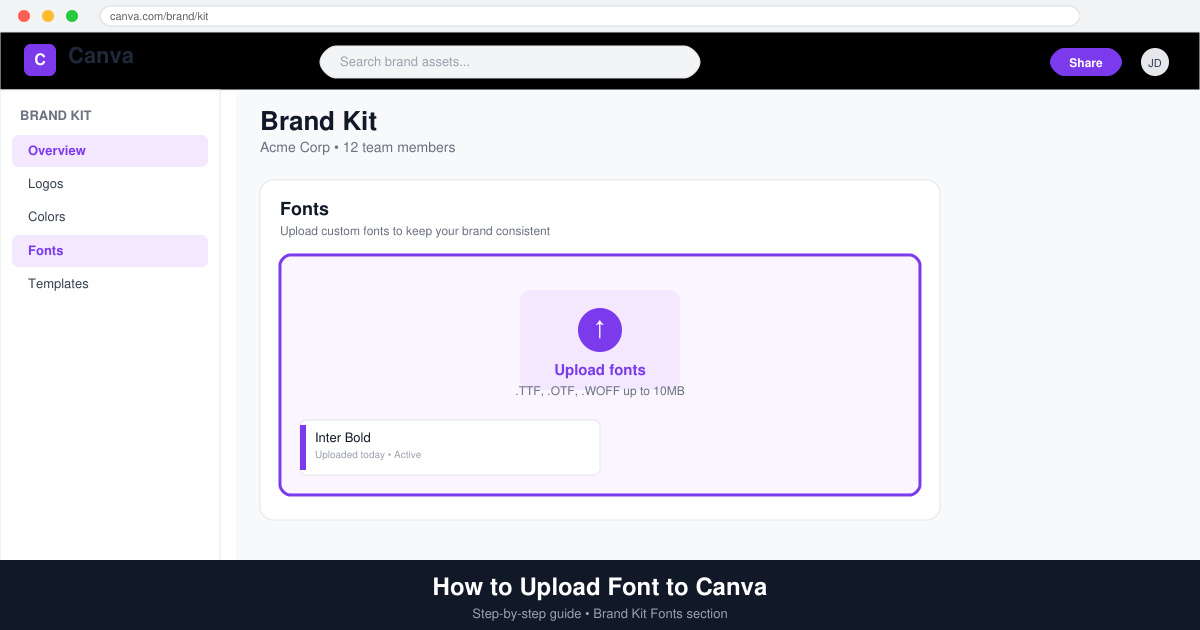
How to Upload Font to Canva hero image showing Brand Kit interface

How to Upload Font to Canva

  1. Access the Brand Kit

    Open Canva and click the three-dot menu next to your account avatar in the top-right corner. Select “Brand Kit” from the dropdown. If you have multiple Brand Kits, choose the one where you want the new fonts to appear.
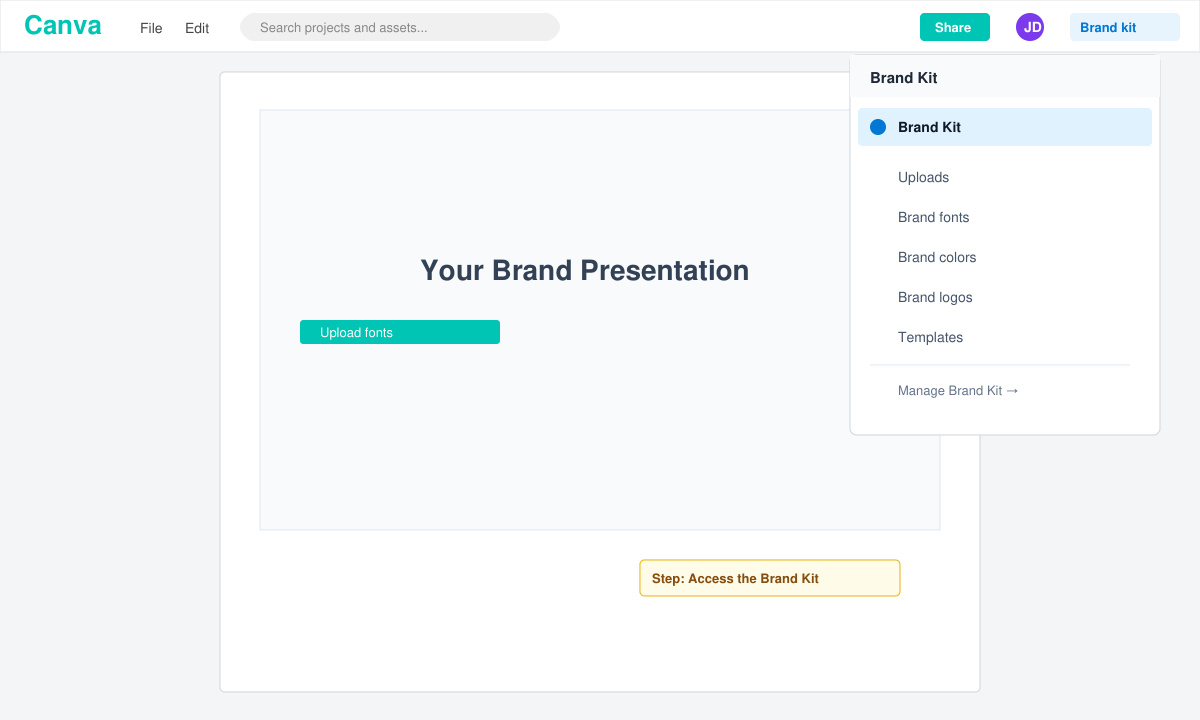
    Step showing Brand Kit menu in Canva to begin font upload
  2. Upload the font files

    Scroll to the Fonts section inside the Brand Kit. Click the “Upload fonts” button. Select one or more .ttf or .otf files from your computer and confirm the upload. Canva processes each file and shows a green checkmark when it is ready.

  3. Apply the new fonts in a design

    Open any existing design or start a fresh one. Click a text element, open the font dropdown in the top toolbar, and scroll until you see your uploaded fonts listed under “Brand fonts.” Select the font to apply it immediately.
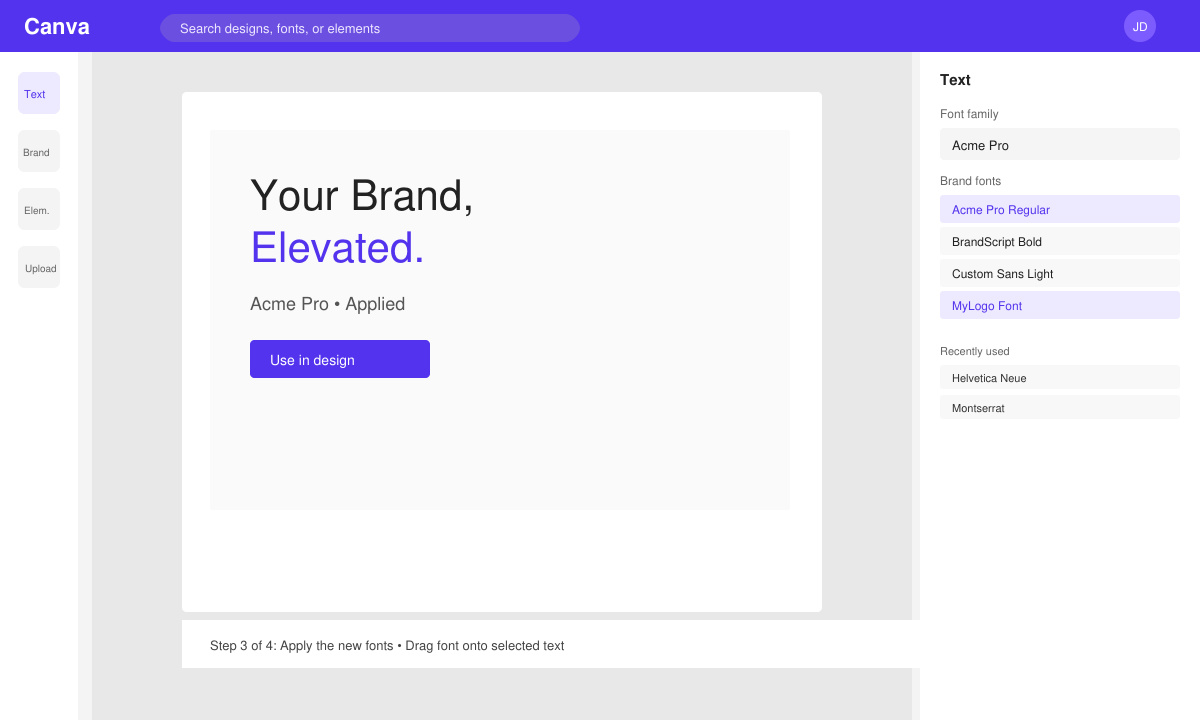
    Design editor view with newly uploaded fonts available in Canva

Common Issues When You Upload Font to Canva

  • Font files larger than 10 MB will fail. Compress or split the family into individual weights before trying again.
  • Some variable fonts do not display correctly. Upload each weight as a separate file instead.
  • If the font does not appear in the editor after upload, refresh the page or log out and back in to clear the cache.
  • Brand Kit fonts are only visible to members of that specific kit. Check sharing settings if teammates cannot see the new fonts.

Frequently Asked Questions

Can I upload fonts on the free Canva plan?

No. The upload font to Canva option is locked behind Canva Pro. Free users can only use the built-in font library.

How many fonts can I upload?

Canva Pro allows up to 100 custom fonts per Brand Kit. You can delete older fonts to free up slots if needed.

Do uploaded fonts work in all Canva templates?

Yes. Once added to the Brand Kit, your fonts appear in every design you create or edit inside that kit, including social media posts, presentations, and print materials.

Conclusion

Following these steps lets you upload font to Canva in under five minutes and keep your brand typography consistent across every project.
Leave a Comment

How to Add Font to Canva

How to Add Font to Canva

Learn exactly how to add font to Canva with this step-by-step guide. Upload custom fonts through Brand Kit to use them across all your designs in minutes.

How to Use Skype

How to Use Skype

How to Use Skype for free video calls, messaging, and screen sharing. Follow this complete guide to install the app, set up your account, and start communicating in minutes.

How to Clear Google History

How to Clear Google History

Learn how to clear Google history quickly to protect your privacy. This step-by-step guide shows you how to delete search activity from your Google account on any device.

How to Delete History on Chromebook

How to Delete History on Chromebook

Learn exactly how to delete history on Chromebook to protect your privacy. Follow these precise steps to clear browsing data, cookies, and cached files on your device.

How to Find a Server on Discord

How to Find a Server on Discord

Learn how to find a server on Discord with this clear walkthrough of the built-in Discovery tool and other reliable methods. Join active communities fast.

How to Change Search Engine in Chrome

How to Change Search Engine in Chrome

How to Change Search Engine in Chrome takes just a few clicks in Settings. Switch your default provider to Google, Bing, DuckDuckGo or another option and improve search results instantly.

How to Cast Netflix to Chromecast

How to Cast Netflix to Chromecast

Learn exactly how to cast Netflix to Chromecast from your phone or computer. Follow these steps to stream movies and shows to your TV in minutes.

How to Set Google as Your Homepage on Chrome

How to Set Google as Your Homepage on Chrome

Learn exactly how to set Google as your homepage on Chrome in under a minute. Follow the precise steps in Chrome Settings to make google.com load when you click the home button.

How to Add Pictures to Canva

How to Add Pictures to Canva

Learn how to add pictures to Canva in just a few clicks. This guide shows the fastest ways to upload your own photos or use Canva's library for any design project.

How to Create a QR Code in Canva

How to Create a QR Code in Canva

How to create a QR code in Canva is simple with the built-in generator. Follow these exact steps to add a working, customizable QR code to any design in under two minutes.