Add Fonts to ONLYOFFICE Document Server: Docker vs Linux
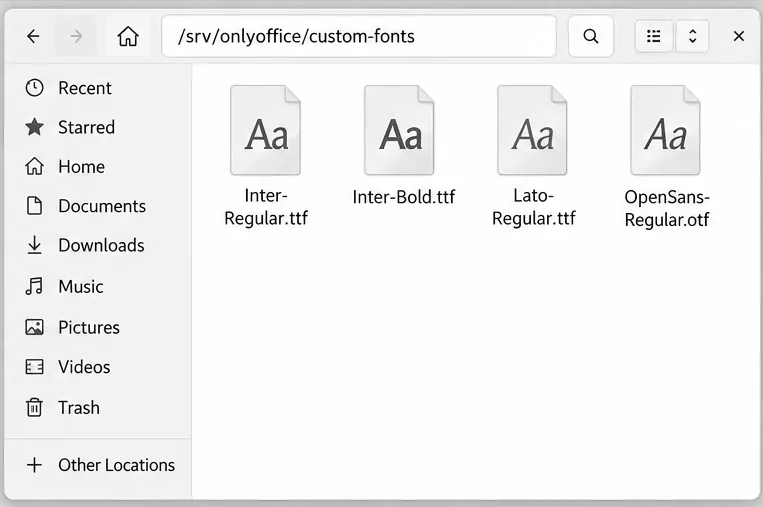
Install custom fonts in ONLYOFFICE Document Server, compare persistent Docker mounts with direct copies, rebuild the font list, and verify the result.
How to Use Canva starts with a free account and quickly moves into building polished graphics, social posts, and presentations. The platform removes the need for expensive software by offering drag-and-drop editing and thousands of ready templates. This guide walks through the exact process so you finish your first project without frustration.
Canva works in any modern browser and also offers dedicated apps for desktop and mobile. You only need an email address to create an account. Prepare any photos, logos, or brand colors you want to include so you can upload them in one session.
Free accounts already include a large library of elements and templates. Paid plans add more premium assets and team features, but beginners can complete most tasks without upgrading.
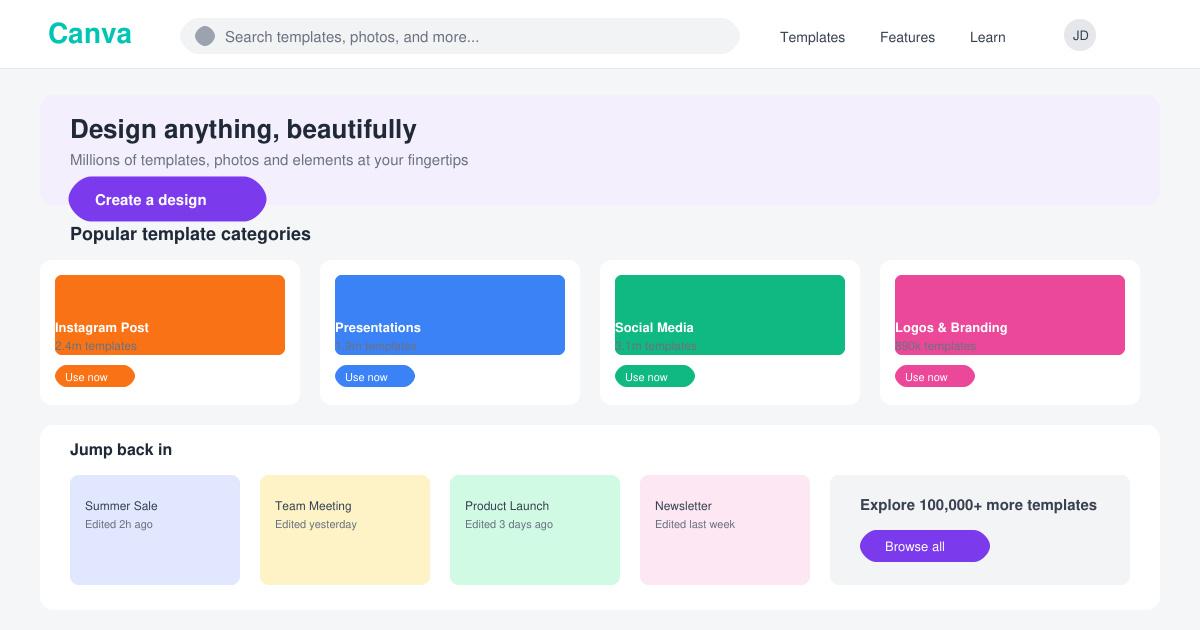
Go to canva.com and click the Sign up button. Choose Google, Facebook, or email registration. After confirming your email, click the purple Create a design button in the top right and select a format such as Instagram Post or Presentation.
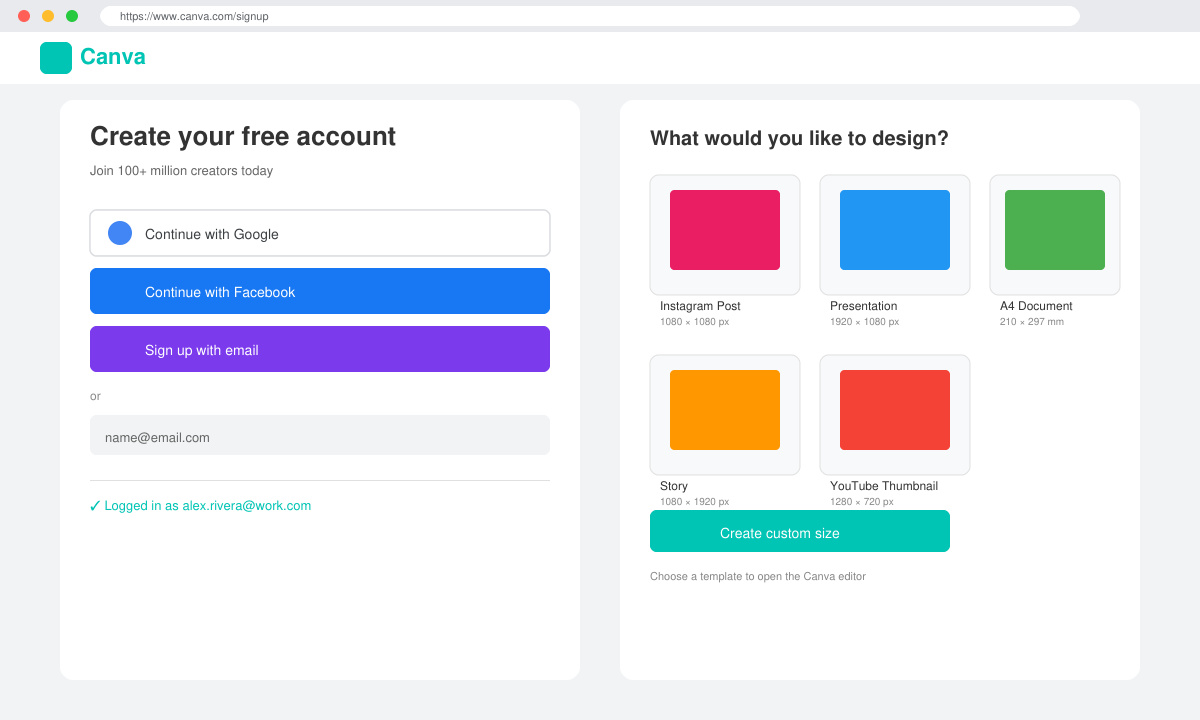
Browse the suggested templates for your chosen size. Click any thumbnail to load it. If you prefer a completely empty canvas, select the blank option at the top of the template list. The editor opens with a left sidebar of design tools.
Double-click any text box to edit the words. Highlight the text and type your own content. To swap an image, click it then choose Replace in the top toolbar. Upload your own photo from the Uploads tab or search Canva's free stock library.
Select any element and use the color picker or font menu in the top bar. Drag elements to reposition them. Use the alignment guides that appear automatically to keep spacing even. Add new elements by clicking the Elements tab on the left and searching for icons, shapes, or illustrations.
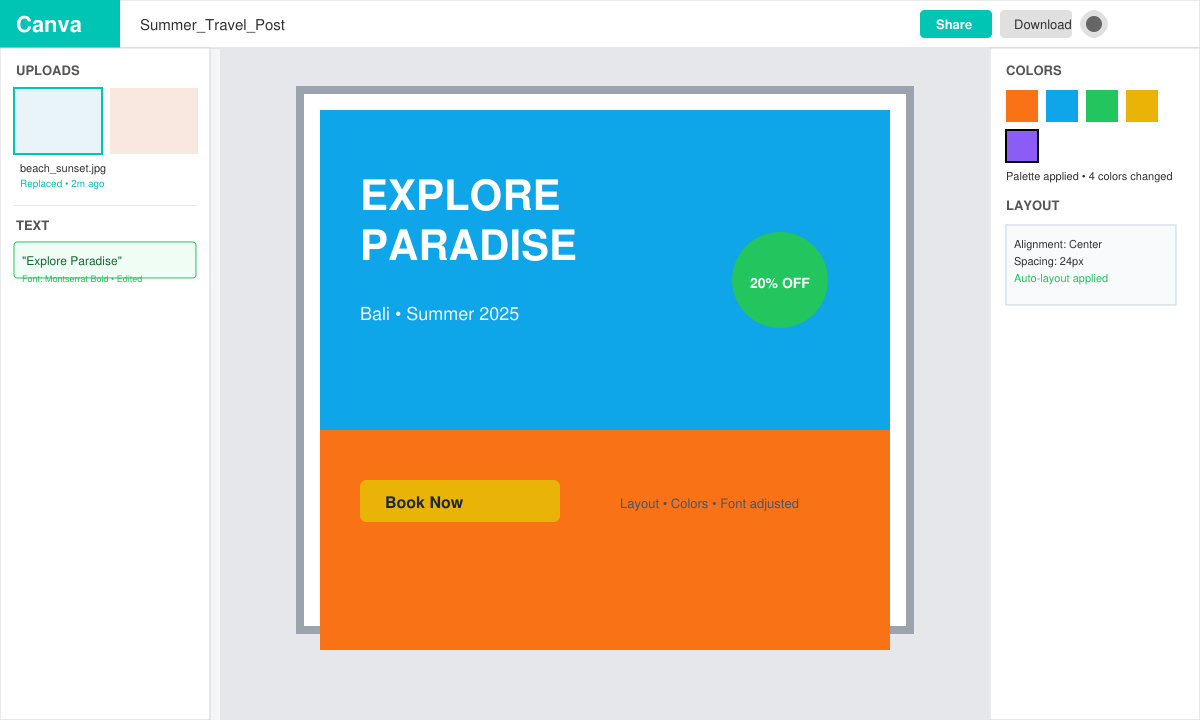
Click the Share button in the top right. Choose Download to save a PNG, JPG, or PDF. Select the correct file type for your use case, such as PDF Print for posters. You can also generate a shareable link or invite teammates directly from the same menu.
Canva requires an internet connection for most features. The desktop app offers limited offline editing only after you have opened a design while online.
Yes. Designs save to your cloud account every few seconds. You can also manually click the title at the top to rename and force a save.
Free accounts show watermarks only on certain premium elements. Replace those elements with free alternatives or upgrade to Canva Pro to unlock them without watermarks.
Once you complete the steps above you can repeat the process for any new project in under ten minutes. Consistent practice with Canva's tools quickly turns beginners into confident designers.
Install custom fonts in ONLYOFFICE Document Server, compare persistent Docker mounts with direct copies, rebuild the font list, and verify the result.
Choose where TLS should terminate, mount a trusted certificate and private key safely, and verify HTTPS access to a Dockerized ONLYOFFICE Docs server.
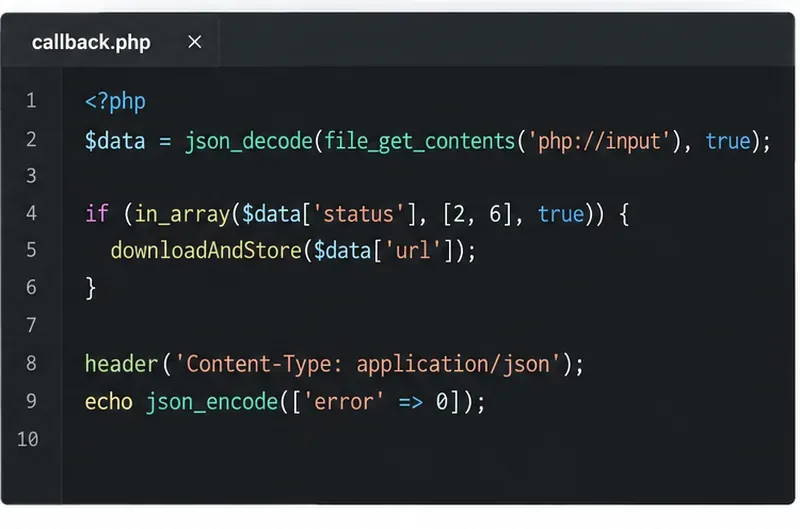
Embed the ONLYOFFICE editor in your PHP app, sign its configuration with JWT, and save edited files through a secure callback.
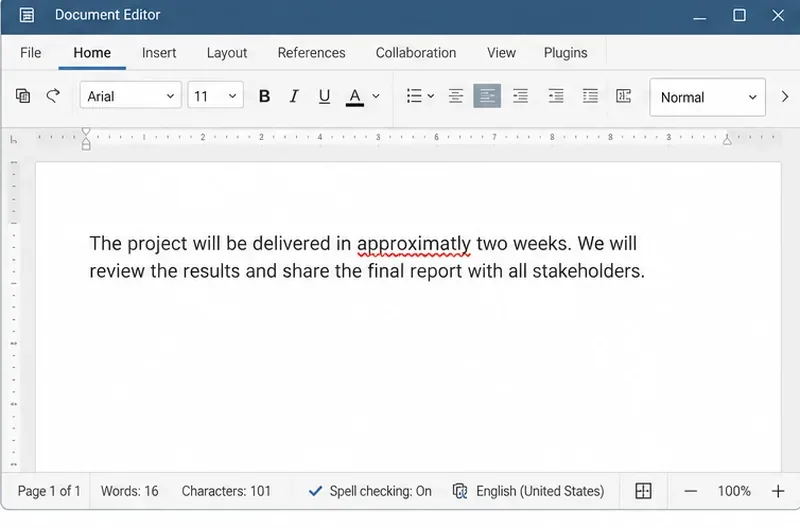
Set the proofing language for the whole document or selected text, confirm spell checking is active, and identify when a server dictionary is missing.
Enable persistent Track Changes for everyone in one ONLYOFFICE document, verify edits are recorded, and understand the limits of this setting.
Find whether Nginx, Docker networking, or an internal ONLYOFFICE service is returning 502, then verify the corrected upstream and health check.
Diagnose failed ONLYOFFICE saves by checking the Nextcloud callback route, proxy redirects, and storage logs, then verify the edited file persists.
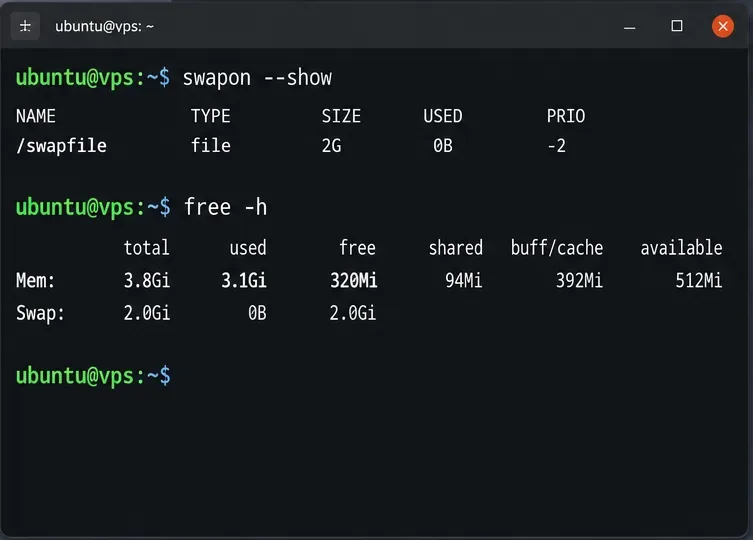
Find the cause of ONLYOFFICE memory crashes, check Docker limits, size VPS RAM correctly, add swap safely, and verify that documents open and save.
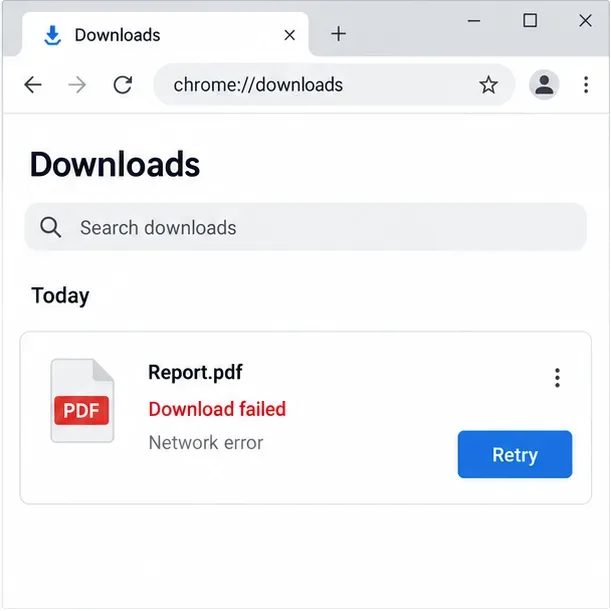
Separate browser download problems from server-side conversion errors and use the right log or access check to get your PDF export working.
Match the JWT secret used by ONLYOFFICE Docs and Nextcloud, apply it safely for Docker or Linux installs, and verify the connection without weakening authentication.