The Image function in Google Sheets is used to insert images online, meaning you can immediately use existing image links - URLs without having to download images and then upload them like we usually do. How to use the Image function in the Google Sheets office application is quite simple. You can completely adjust the display size of the image through the index parameters entered by the user in the formula that the Image function adds. Below Download.vn will guide you in detail how to insert images using the Image function with URL.
How to use the Image function in Google Sheets
Image function formula: =IMAGE(URL; [mode]; [height]; [width])
In there:
- URL: is the image path.
- Mode: is the size adjustment mode for images with values 1, 2, 3, 4.
- Height: height size.
- Width: horizontal size.
The Mode parameter in the Image function has the following meaning:
- =image(“URL to image”,1) – image resizes itself to fit the cell.
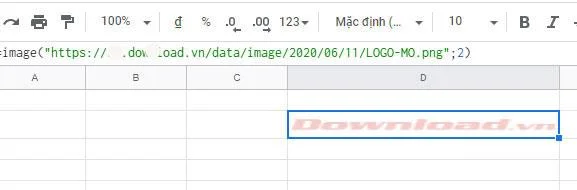
- =image(“URL to image”,2) – image expands to fill the box.
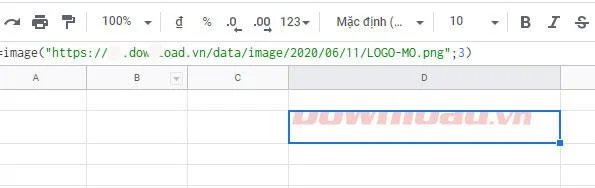
- =image(“URL to image”,3) – image retains its original size.
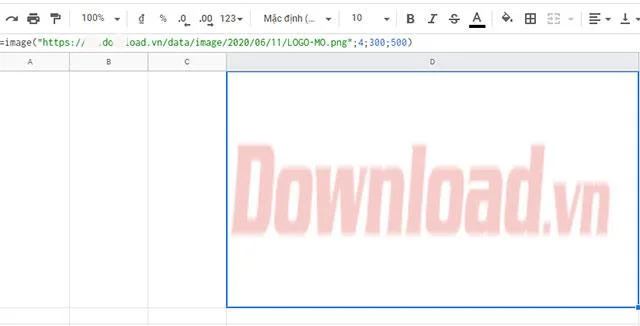
- =image(“URL to image”,4) – image with custom size.
Example illustrating inserting images by URL with the Image function
Open the Google Sheets spreadsheet in your browser and log in to your Google account.
Accordingly, with images with URL: https://s.dowload.vn/data/image/2020/06/11/LOGO-MO.png we do the following:
=image("https://s.dowload.vn/data/image/2020/06/11/LOGO-MO.png";1)
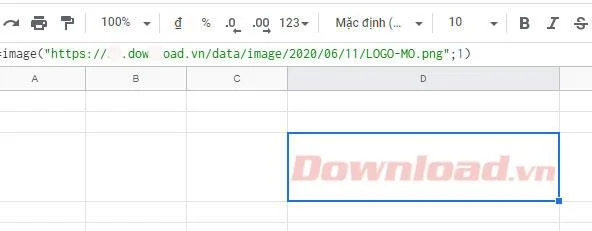
The image resizes itself to fit the cell
=image("https://s.dowload.vn/data/image/2020/06/11/LOGO-MO.png";2)

The image expands to fill the box
=image("https://s.dowload.vn/data/image/2020/06/11/LOGO-MO.png";3)

The photo retains its original size
=image("https://s.dowload.vn/data/image/2020/06/11/LOGO-MO.png";4;400;700) - The image is fixed to a specific size of width 400 , length 700

Photo with custom size