How to Use Microsoft Edge Read Aloud Feature for PDFs

Imagine diving into lengthy PDFs without straining your eyes or lifting a finger. That's the power of the Microsoft Edge Read Aloud feature for PDFs! This built-in gem transforms your browser into a personal narrator, perfect for multitasking, studying, or relaxing. Whether you're reviewing reports, textbooks, or articles, Microsoft Edge Read Aloud delivers natural-sounding speech with customizable options. Ready to experience it? Let's jump right in! ➡️

Why Choose Microsoft Edge Read Aloud for PDFs?

Edge's Read Aloud shines for PDFs because it handles complex layouts, tables, and images flawlessly. No extra apps needed—it's free, fast, and integrated. Boost productivity while commuting, cooking, or resting your eyes. Accessibility win! ✨

Prerequisites: Get Started in Seconds

  • ✅ Update to the latest Microsoft Edge (download from Microsoft Edge).
  • ✅ Any PDF file (drag-and-drop or open via File Explorer).
  • ✅ Windows, macOS, or Linux—works everywhere Edge does.

Step-by-Step: How to Use Microsoft Edge Read Aloud Feature for PDFs

  1. 👆 Open Your PDF in Edge
    Double-click the PDF or right-click > "Open with Microsoft Edge." It renders instantly like a webpage. Pro tip: Pin tabs for quick access to multiple docs.
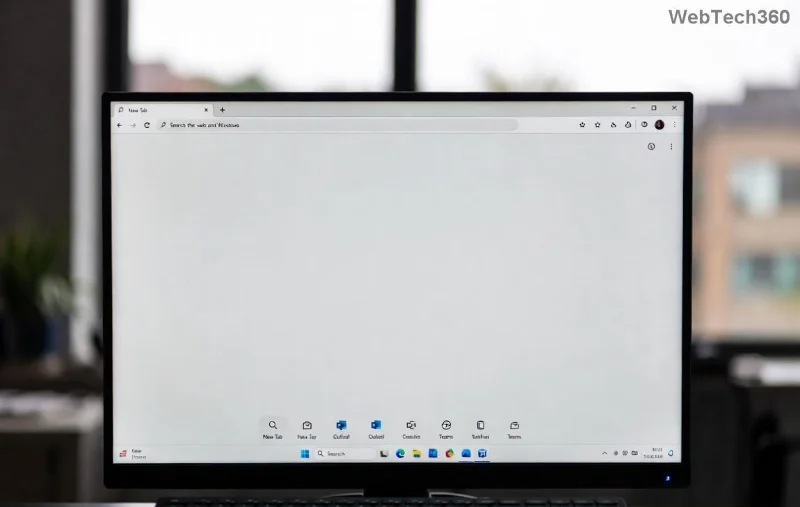
  2. Microsoft Edge opening PDF with Read Aloud icon highlighted
  3. 🎤 Activate Read Aloud
    Spot the Read Aloud button in the top toolbar (speaker icon). Click it, or use shortcut Ctrl + Shift + U (Windows) / Cmd + Shift + U (Mac). Boom—narration starts from the top!
  4. Navigate Seamlessly
    Use playback controls: ⏸️ Pause/Play, ⏩ Skip forward/back, 🔇 Mute. Jump to sections by clicking text—highlight turns blue for easy spotting.

Customize for Perfection: Voices, Speed & More

Tailor Microsoft Edge Read Aloud to your vibe. Click the gear icon in the Read Aloud panel:

Option How to Adjust Best For
Voice Choose from 100+ natural voices (e.g., Jenny, Guy) Regional accents or genders
Speed Slider: 0.5x to 5x Quick scans or slow study
Volume Independent slider Quiet environments
Auto-scroll Toggle on Follow-along reading
Microsoft Edge Read Aloud customization panel for PDFs

Neural voices sound incredibly human—try them for immersive sessions! 😊

Troubleshooting: Quick Fixes for Smooth Sailing

Encounter hiccups? Here's your rescue kit:

  • ❌ No sound? Check system volume and Edge audio permissions.
  • ❌ Choppy reading? Ensure stable internet for cloud voices (offline mode available for basics).
  • ❌ PDF not responding? Convert scanned PDFs to text via Edge's built-in OCR.
  • ❌ Still stuck? Restart Edge or visit Microsoft Support.

Pro Tips to Supercharge Your Experience

Level up Read Aloud for PDFs:

  1. ⭐ Combine with Immersive Reader (Aa icon) for focus mode—removes distractions.
  2. 📱 Sync via Microsoft account for cross-device continuity.
  3. 🔄 Extensions like "Read Aloud Everywhere" expand to web pages.
  4. 🎧 Pair with Bluetooth headphones for on-the-go bliss.
  5. 📊 Track progress: Pause/resume saves your spot automatically.

Bonus: For huge PDFs, split files first using Edge's print-to-PDF trick. Efficiency unlocked! 🚀

Ready to Transform Your PDF Routine?

With Microsoft Edge Read Aloud feature for PDFs, reading becomes effortless and enjoyable. Multitask like a pro, save your eyes, and absorb info faster. Dive in today—what PDF will you narrate first? Share your wins in the comments! 👏

Stay tuned for more Edge hacks to boost your digital life.
Leave a Comment

How to Use Microsoft Edge Read Aloud Feature for PDFs

How to Use Microsoft Edge Read Aloud Feature for PDFs

Master the Microsoft Edge Read Aloud feature for PDFs with this step-by-step guide. Enjoy customizable voices, speeds, and multitasking bliss for seamless reading. Perfect for students, professionals, and accessibility needs.

How to Fix Microsoft Edge Acrylic Effect Not Showing

How to Fix Microsoft Edge Acrylic Effect Not Showing

Discover how to fix Microsoft Edge Acrylic Effect not showing. Step-by-step guide with hardware acceleration tweaks, flags, and updates for that stunning blur effect back in seconds. Works on latest Edge versions!

Troubleshooting Edge Browser Security Plugin Errors

Troubleshooting Edge Browser Security Plugin Errors

Struggling with Edge browser security plugin errors? Discover proven fixes for common issues like crashes, blocks, and conflicts. Step-by-step troubleshooting to restore smooth browsing instantly.

Complete List of Microsoft Edge Keyboard Shortcuts

Complete List of Microsoft Edge Keyboard Shortcuts

Unlock peak productivity with the complete list of Microsoft Edge keyboard shortcuts. From tabs and navigation to developer tools, master every essential hotkey for faster browsing in the latest Edge version. Boost your workflow today!

Solving Microsoft Edge Internal Mic Static Sound Fix

Solving Microsoft Edge Internal Mic Static Sound Fix

Tired of annoying static buzz from your internal mic in Microsoft Edge? Follow our proven step-by-step guide to fix Microsoft Edge internal mic static noise permanently. Quick fixes, advanced tweaks, and prevention tips for crystal-clear calls and recordings.

How to Fix Microsoft Edge Capture Card No Signal 60FPS

How to Fix Microsoft Edge Capture Card No Signal 60FPS

Struggling with Microsoft Edge Capture Card No Signal at 60FPS? Discover step-by-step fixes to restore smooth 60FPS video capture, from quick tweaks to advanced troubleshooting. Get your setup working flawlessly today!

How to Manage Microsoft Edge Extensions and Permissions

How to Manage Microsoft Edge Extensions and Permissions

Unlock the full potential of your browser with this expert guide on how to manage Microsoft Edge extensions and permissions. Step-by-step tips for security, speed, and control—start optimizing today!

Troubleshooting Microsoft Edge Msi Error 1722 Win 11

Troubleshooting Microsoft Edge Msi Error 1722 Win 11

Stuck with MSI Error 1722 when installing or updating Microsoft Edge on Windows 11? Follow our expert troubleshooting guide with simple, effective fixes to get Edge running smoothly again. No tech skills required!

How to Change Your Microsoft Edge Profile and Personal Data

How to Change Your Microsoft Edge Profile and Personal Data

Discover step-by-step guide on how to change your Microsoft Edge profile and personal data. Switch profiles effortlessly, manage sync settings, and protect your privacy with the latest Edge features for ultimate control.

Troubleshooting Microsoft Edge HSTS Error and Security Attacks

Troubleshooting Microsoft Edge HSTS Error and Security Attacks

Stuck with Microsoft Edge HSTS Error? Get step-by-step troubleshooting fixes, uncover security attack risks, and secure your browsing. Proven solutions for the latest Edge updates – no tech skills needed!

How to Fix Microsoft Edge Unable to Connect to Proxy Server

How to Fix Microsoft Edge Unable to Connect to Proxy Server

Struggling with Microsoft Edge "Unable to Connect to Proxy Server" error? Discover proven, step-by-step fixes to get back online fast. No tech skills needed – resolve it in minutes!

How to Fix Microsoft Edge Login Screen Background Blur

How to Fix Microsoft Edge Login Screen Background Blur

Tired of the blurry Microsoft Edge login screen background? Get step-by-step fixes to restore sharp, clear visuals on your Windows PC. Proven methods for the latest Edge versions.

How to Fix Microsoft Edge Update Stuck at 0% or 100%

How to Fix Microsoft Edge Update Stuck at 0% or 100%

Frustrated with Microsoft Edge update stuck at 0% or 100%? Discover simple, effective fixes to resolve the issue fast and update smoothly without losing data. Step-by-step guide for Windows users.

How to Fix Microsoft Edge Clock Ahead Error

How to Fix Microsoft Edge Clock Ahead Error

Tired of the frustrating Microsoft Edge "Clock Ahead" Error blocking your sync? Discover step-by-step fixes, from clock sync to Edge reset, for instant relief and smooth browsing. Updated with latest solutions!

How to Install Microsoft Edge on Linux (Ubuntu & Fedora)

How to Install Microsoft Edge on Linux (Ubuntu & Fedora)

Discover how to install Microsoft Edge on Linux effortlessly! Step-by-step guide for Ubuntu & Fedora users. Get Chromium power, speed, and security on your distro now. Official methods, troubleshooting tips included.