Struggling to fit more content on your Chromebook screen or fix an overly zoomed webpage? Knowing how to zoom out on Chromebook helps you regain full visibility without changing device settings permanently. This guide covers the fastest methods available in Chrome OS.
Understanding Zoom on Chromebook
Chromebooks handle zoom at both the browser level and the system level. Browser zoom affects individual tabs while system zoom changes the entire display scaling. Most users need browser-level adjustments first, but system settings become useful when apps or the desktop feel too large. Before starting, ensure your Chromebook runs the latest Chrome OS version for consistent shortcut behavior.
Keyboard shortcuts provide the quickest results and work in Chrome, Files, and most web-based apps. If shortcuts fail, fall back to menu options or touchpad gestures.
How to Zoom Out on Chromebook Using Keyboard Shortcuts
-
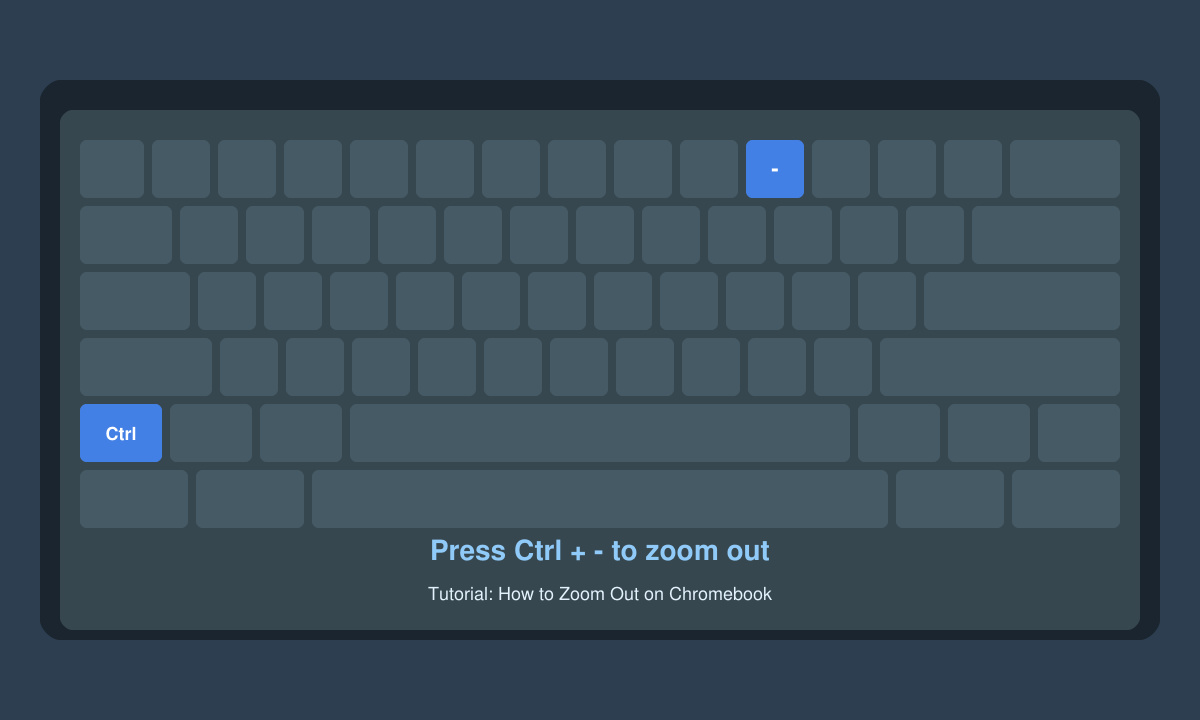
Press the primary shortcut combination
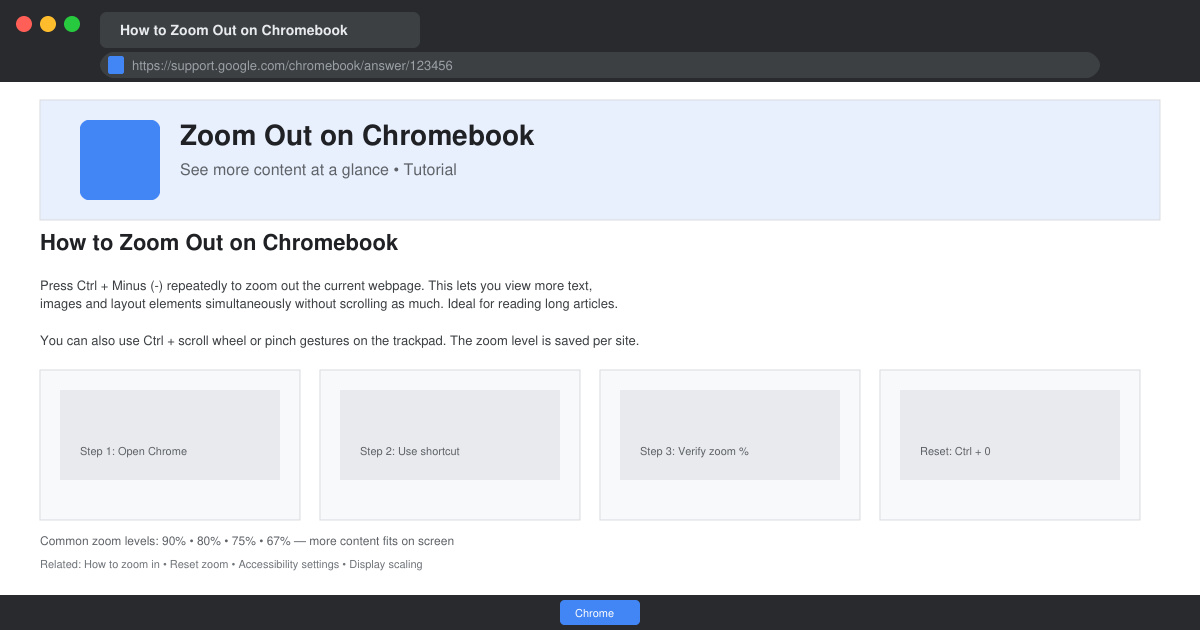
Open the Chrome browser or any web page. Hold the Ctrl key and tap the minus (-) key repeatedly until the page reaches your desired zoom level. Each press reduces magnification by 10 percent. Release both keys when finished.
-
Reset zoom to 100 percent if needed
Press Ctrl + 0 at any time to instantly return the current tab to default size. This single shortcut prevents over-zooming and restores normal view without multiple adjustments.
-
Apply zoom to all tabs if required
Chrome OS does not offer a global browser zoom button by default. Instead, repeat the Ctrl + minus shortcut in each open tab or use the three-dot menu at the top right, select the minus icon under Zoom, and adjust manually for that session.
-
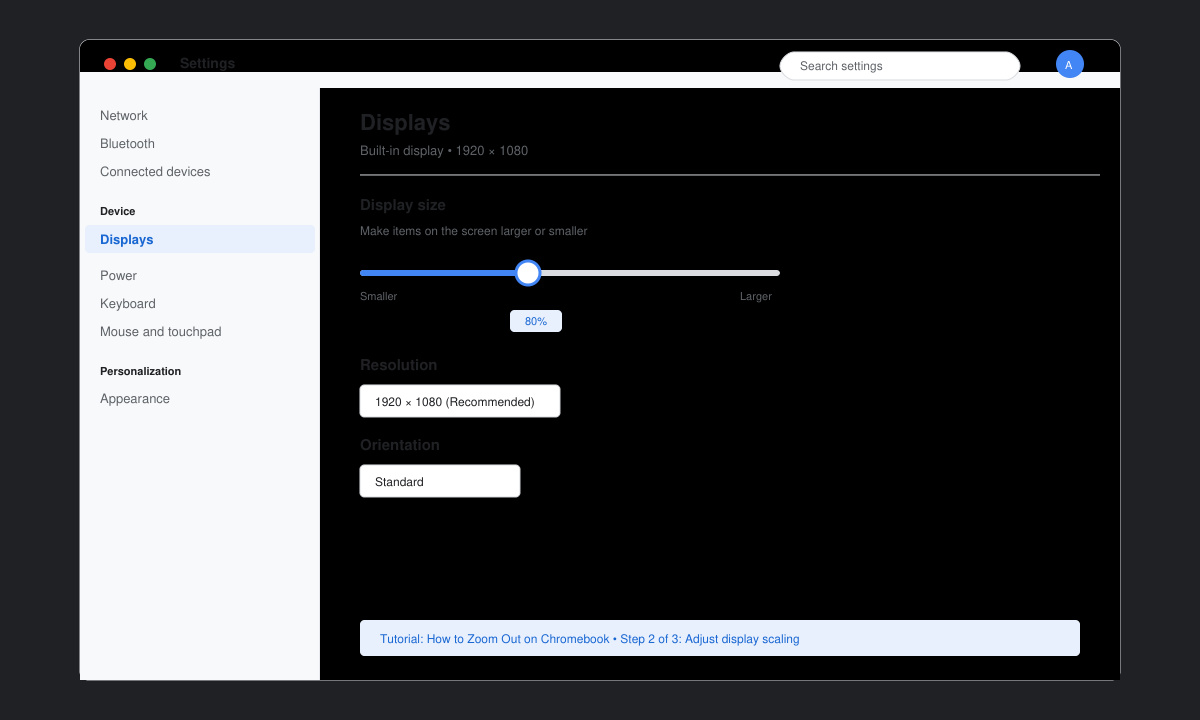
Change system display scaling
Click the time in the bottom-right corner, select the gear icon, then navigate to Device followed by Displays. Adjust the Display size slider leftward to make everything smaller across the entire desktop and apps.
Troubleshooting Common Zoom Problems on Chromebook
- If shortcuts stop working, restart your Chromebook or sign out and back in to refresh the session.
- Touchpad pinch-to-zoom requires two fingers moving inward on the trackpad while viewing supported apps or websites.
- Some Android apps ignore browser zoom. Open the app settings inside the Play Store and look for its own zoom or display options.
- External monitors may need separate scaling adjustments through the same Displays menu listed above.
- Clear Chrome cache if pages remain stuck at high zoom after using Ctrl + minus multiple times.
Frequently Asked Questions
Does how to zoom out on Chromebook work the same in tablet mode?
Yes, but use the on-screen keyboard or pinch gestures on the touchscreen instead of physical keys.
Can I set a permanent zoom level for specific sites?
Chrome remembers zoom per site. After zooming out with Ctrl + minus, the setting stays until you reset it manually.
Why does my Chromebook zoom change after updates?
Chrome OS updates occasionally reset display scaling. Revisit the Displays menu to restore your preferred size.
Conclusion
Mastering how to zoom out on Chromebook takes only a few seconds once you know the shortcuts and menu paths. Apply these steps whenever content feels cramped or hard to read.