Instructions for backing up and restoring Windows 10 computer data

If you are looking for a way to recover your lost stone data, this article will show you the System Image tool, a tool called System Image with the ability to backup and restore Windows 10 computer data  in case the system encounters a problem will help you to solve the above problem. So do shrewd to use this tool? Let's find out with WebTech360 in this article.

Instructions for backing up Windows 10 computer data with the System Image tool

System Image  allows users to store a copy on the computer with all data stored in the hard drive, folders. Note that before use, this device needs to have the corresponding size as well as suitable for the hard drive. Because only the right fit will ensure the effectiveness and safety of the device.

And to perform the backup process, users need to fully follow the steps as follows:

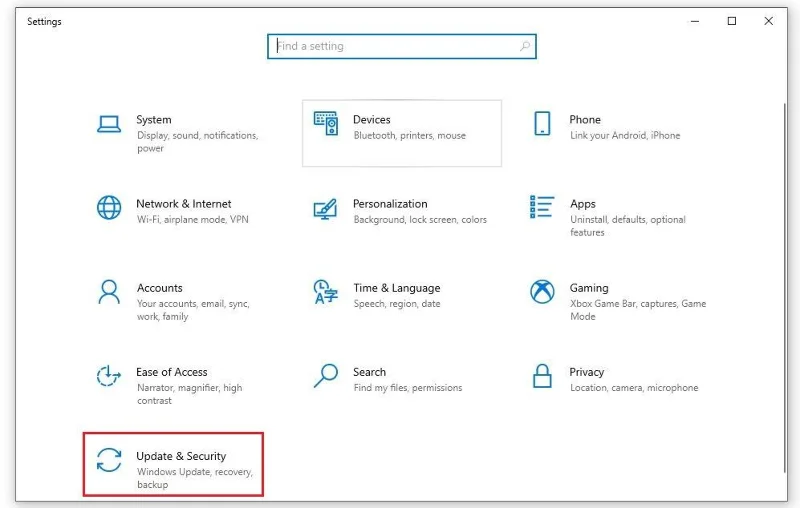
Step 1: First of all, click on the “Settings section on your computer.

Step 2: Then click “ Update and security

Instructions for backing up and restoring Windows 10 computer data

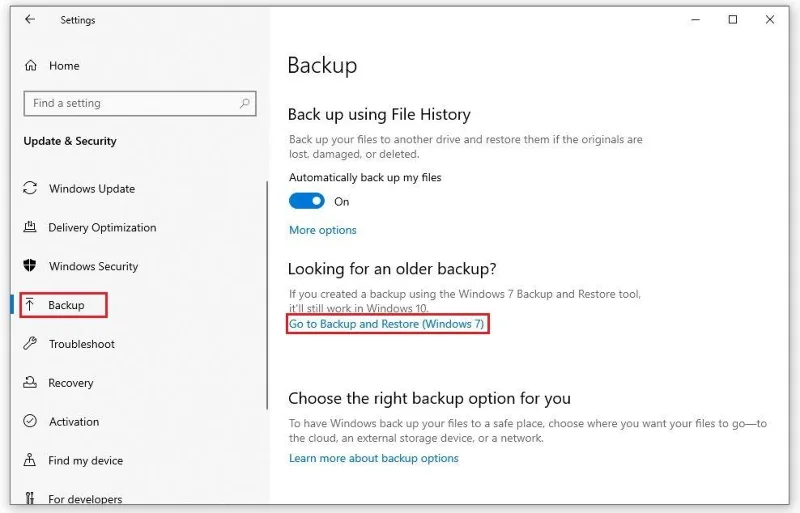
Step 3:  Click Backup. In the section Looking for an older backupSelect the bottom blue text that says " Go to Backup and Restore (Windows 7)"

Instructions for backing up and restoring Windows 10 computer data

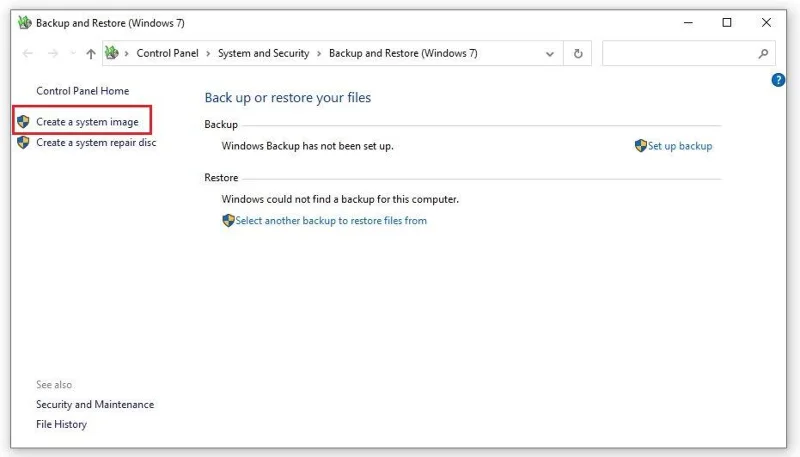
Step 4: Next, click on the first line “ Create a system image ”.

Instructions for backing up and restoring Windows 10 computer data

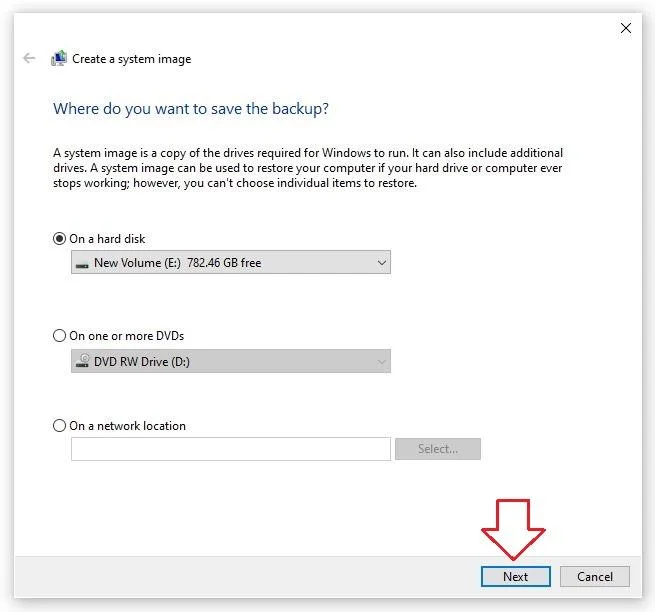
Step 5: When the user performs the operation to create a data system, the screen will show where do you want to store the Backup "Where do you want to save the backup ?", then click " On a hard disk" ” (hard drive), make sure your computer has selected your hard drive as a backup location.

Instructions for backing up and restoring Windows 10 computer data

After completing the selection of the hard drive for backup, the user presses the " next " button at the bottom of the screen and proceeds to search for some addresses you want to save more copies here such as drive C, D, E Then continue. continue to the next step.

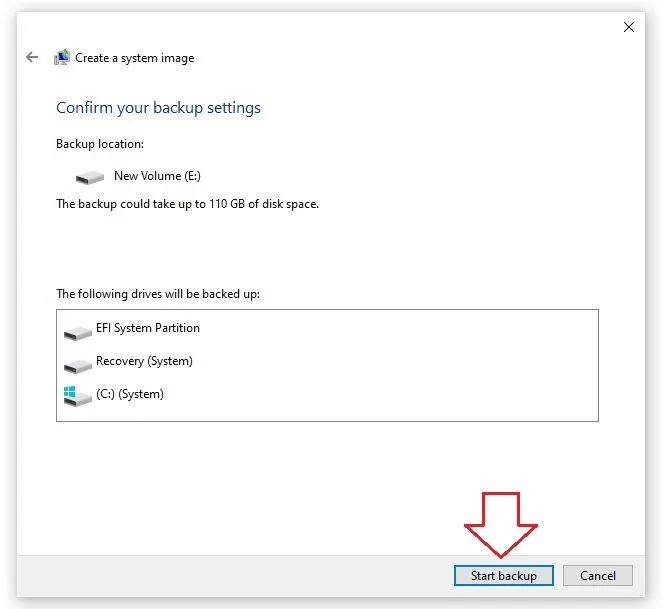
Step 6:  Click the Start backup button .

Instructions for backing up and restoring Windows 10 computer data

The screen will display the backup addresses you choose, if you agree, click “Start backup ”. So the user has completed the installation of the Windows 10 computer data backup system with the System Image tool. In addition, keep the external hard drive (the address where the copy is located) carefully in a safe place.

Instructions for recovering Windows 10 computer data with the System Image tool 

In case the computer has a problem that leads to the machine being unable to boot or replacing the main hard drive, at this time, users need to restore Windows 10 computer data with previous backups for the state to work. return to normal. 

If the computer can still work, go to Windows settings then press " Update & Security ", the next step is to enter recovery on the left and select " Restart now " to restart the whole system. , rest assured that all information on your computer is still fully protected.

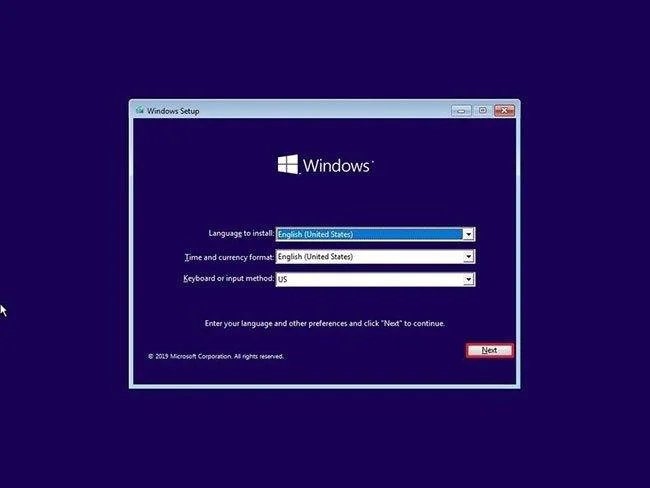
The second case is when you can't access the machine and have a Recovery hard drive next to it. The first step if you encounter this situation is to connect the computer to the backup hard drive. Next, use a bootable windows 10 USB with a compatible device and boot. At this time, the windows setup page will appear, please do the following steps in turn:

1. Connect the backup drive to the computer.

2. Insert the bootable Windows 10 USB stick (or system repair file disc) into the device.

3. Start the device.

Quick Tip: If the computer won't boot into the Windows Setup wizard, you'll need to change your system's Basic Input/Output System (BIOS) or Unified Extensible Firmware Interface (UEFI) settings . You can use this guide to get into BIOS/UEFI . However, these settings vary by manufacturer and even by device model. So check your computer manufacturer's support website for more specific details.

4. On the Windows Setup page , click the Next button .

Instructions for backing up and restoring Windows 10 computer data

5. Click the Repair your computer option in the lower left corner.

6. Click the Troubleshoot option .

7. Click the System Image Recovery option .

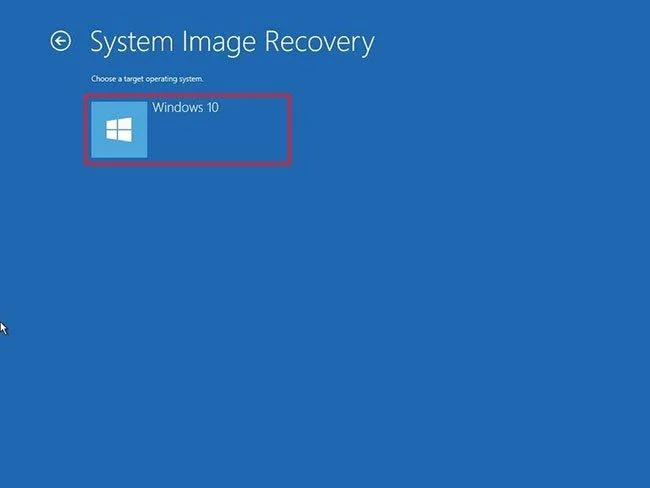
8. Click Windows 10 to select it as the target operating system.

Instructions for backing up and restoring Windows 10 computer data

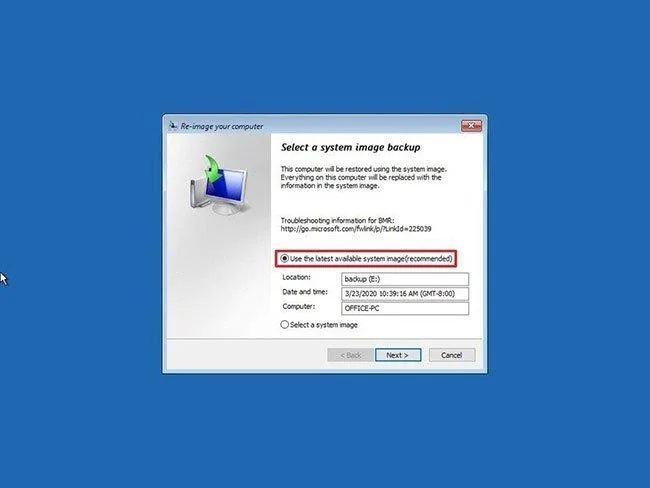
9. On the Re-image your computer page , select the Use the latest available system image option .

Instructions for backing up and restoring Windows 10 computer data

Quick tip: You can use the Select a system image option , if you have multiple backups and are trying to restore an old copy.

10. Click the Next button.

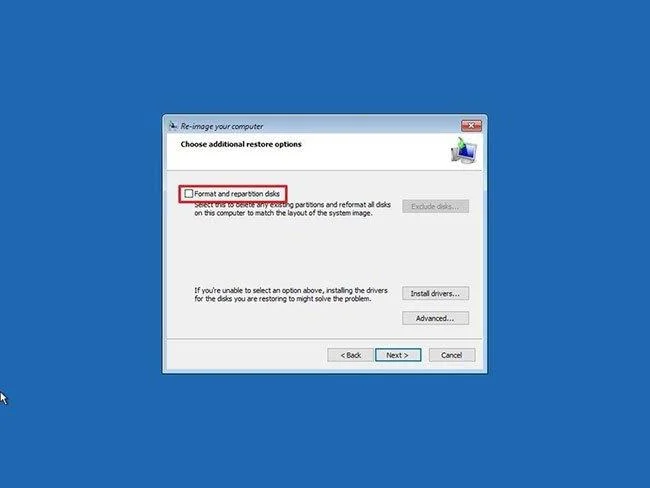
11. (Optional) If you are restoring a backup to a new hard drive, you can also carefully select the Format and repartition disks option before restoring the backup.

Instructions for backing up and restoring Windows 10 computer data

Quick Tip: If you're going to choose this option, you can also use the Exclude disks option to prevent formatting other data drives already connected to the computer.

12. Click the Next button .

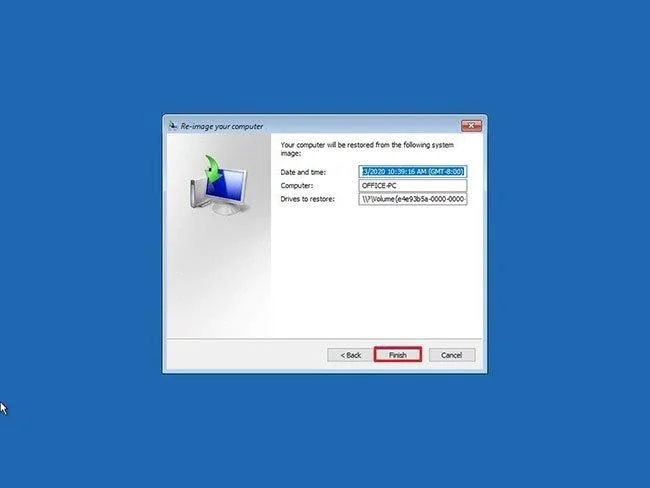
13. Click the Finish button .

Instructions for backing up and restoring Windows 10 computer data

After you complete the steps, the process of restoring the device using a previous backup will begin. The time it takes to complete the restore will depend on the amount of data and your hardware configuration.

When restoring a device from a backup, you must be aware that any interruptions or errors may prevent the process from completing, rendering the system unusable. To minimize the possibility of problems, make sure the laptop is connected to a power source, and in the case of a desktop computer, make sure it is connected to a backup battery.

Once the restore has completed, if it's been a while since you last created a full backup, you should go to Settings > Update & Security > Windows Update and click the Check for Updates button to download it. Latest security patches.

Above is the information about the Windows 10 computer data backup and recovery process  that you need to know. WebTech360 hopes that through some sharing in this article, now computer users will no longer worry when the documents they are working on are suddenly disconnected as well as understand the instructions to solve this problem. .
Leave a Comment

How to run old programs on Windows 11

How to run old programs on Windows 11

Have you ever tried to run an old program on Windows 11 and encountered an error code that you didn't understand? Luckily, Windows has some compatibility settings that can help you solve this problem.

3 Extremely Effective Ways to Fix Dead Laptop Battery

3 Extremely Effective Ways to Fix Dead Laptop Battery

Your computer is always running out of battery and cannot be recharged, the computer has a damaged battery. Join WebTech360 to learn about how to fix a dead laptop battery!

5 Ways To Fix MSVCP140.Dll Is Missing Error On Windows 10, 7 Simple And Fast

5 Ways To Fix MSVCP140.Dll Is Missing Error On Windows 10, 7 Simple And Fast

To know how to handle it at home, read WebTech360's sharing on how to fix MSVCP140.Dll Is Missing on Windows 10.7.

Instructions for Cleaning Computer Mouse Correctly

Instructions for Cleaning Computer Mouse Correctly

To answer the question, does a computer mouse need cleaning? and know how to properly clean? Please refer to the article shared by WebTech360!

Instructions for Fixing Api-Ms-Win-Crt-Runtime-L1-1-0.Dll Error On Windows

Instructions for Fixing Api-Ms-Win-Crt-Runtime-L1-1-0.Dll Error On Windows

When using a computer, you will experience interruptions in opening a program on Windows. Let's help WebTech360 fix api-ms-win-crt-runtime-l1-1-0.dll error on Windows

Top 5 Professional, Free MP3 Cutter Software 2023

Top 5 Professional, Free MP3 Cutter Software 2023

5 professional and free MP3 cutting software in this article will be a powerful support tool for you to edit audio files perfectly.

Top 5 Best Free CD, DVD, Blu-Ray Burning Software 2023

Top 5 Best Free CD, DVD, Blu-Ray Burning Software 2023

With a comprehensive article on free CD, DVD, Blu-ray burning software, the best 2021 will definitely not disappoint you.

Top 5 Best Free Folder Lock Software 2023

Top 5 Best Free Folder Lock Software 2023

If you want the data on your computer to be secure, you can't ignore the top 5 best free folder lock software in this article.

A Guide To Self-Taught Basic Graphic Design From A - Z

A Guide To Self-Taught Basic Graphic Design From A - Z

Many of you want to become a designer but don't know where to start. This article will guide you to learn basic graphic design by yourself.

The Secret To Conquering How To Draw Perfect Lines And Curves In Photoshop

The Secret To Conquering How To Draw Perfect Lines And Curves In Photoshop

Adobe Photoshop software gives us two great tools Line Tool and Pen Tool to draw lines and curves become precise and simple.

5 Ways To Merge Layers In Photoshop In Just One Note

5 Ways To Merge Layers In Photoshop In Just One Note

You are familiar with Photoshop but do not know how to combine layers. Follow along with 5 ways to combine layers in Photoshop below.

Share 5 Super Fast Ways to Copy Layers in Photoshop for Users

Share 5 Super Fast Ways to Copy Layers in Photoshop for Users

Copying layers is a basic function that Photoshop users need to master in order to master the layer tool. The article will guide you to copy layers very quickly in Photoshop.

4 Simple Steps to Create Text Borders in Photoshop

4 Simple Steps to Create Text Borders in Photoshop

How to use border creation through Photoshop software, WebTech360 would like to share with you how to create text borders in Photoshop, very simple.

How To Draw Arrows In Photoshop With 3 Simple Tools

How To Draw Arrows In Photoshop With 3 Simple Tools

With the article on how to draw arrows in Photoshop with these 5 simple tools, you will easily draw arrows as you want.

Create Text Shadows In Photoshop With Two Simple Styles

Create Text Shadows In Photoshop With Two Simple Styles

Text shading in Photoshop will help you create a more wonderful feeling for your text, avoiding the boring phenomenon compared to conventional typefaces.

How to Fix Microsoft Edge Youtube Error: Black Screen and Lag

How to Fix Microsoft Edge Youtube Error: Black Screen and Lag

Struggling with Microsoft Edge YouTube error like black screen and lag? Discover step-by-step fixes for smooth playback. Clear cache, toggle hardware acceleration, and more – ultimate guide to resolve black screen and lag issues fast.

How to Completely Uninstall Microsoft Edge from Windows 11 in 2026

How to Completely Uninstall Microsoft Edge from Windows 11 in 2026

Master how to completely uninstall Microsoft Edge from Windows 11 in 2026. Step-by-step, no-trace removal for gamers seeking max performance. Say goodbye to bloatware!

How to Reset Microsoft Edge to Default Settings in 2026

How to Reset Microsoft Edge to Default Settings in 2026

Discover how to reset Microsoft Edge to default settings in 2026 effortlessly. Fix crashes, slowdowns, and pop-ups with proven step-by-step methods for a fresh, blazing-fast browser.

Troubleshooting Microsoft Edge Certificate Not Trusted Warnings

Troubleshooting Microsoft Edge Certificate Not Trusted Warnings

Tired of Microsoft Edge "Certificate Not Trusted" warnings blocking your browsing? Discover proven troubleshooting Microsoft Edge "Certificate Not Trusted" warnings steps to resolve SSL errors securely and regain smooth access. Works on latest Edge versions.

Removing Your Microsoft Edge Profile and Personal Data Safely

Removing Your Microsoft Edge Profile and Personal Data Safely

Discover how to safely remove your Microsoft Edge profile and personal data without risks. Our expert guide ensures a clean slate while protecting your important info – perfect for privacy pros!

How to Change Microsoft Edge Home Page and Startup Settings

How to Change Microsoft Edge Home Page and Startup Settings

Discover simple, step-by-step instructions on how to change Microsoft Edge home page and startup settings. Customize your browser for a faster, personalized experience today!

Troubleshooting Microsoft Edge Update Errors on Windows 11

Troubleshooting Microsoft Edge Update Errors on Windows 11

Tired of Microsoft Edge update errors crashing your Windows 11 browsing? This ultimate guide delivers proven, step-by-step fixes for common issues like 0x80070005, stuck updates, and more. Update Edge effortlessly today!

How to Fix This Site is Not Secure Error in Edge Browser

How to Fix This Site is Not Secure Error in Edge Browser

Struggling with "This Site is Not Secure" error in Edge? Discover step-by-step fixes to restore secure browsing instantly. Clear cache, update certs, and more—no tech skills needed!

How to Fix Microsoft Edge 404 Not Found Browser Error

How to Fix Microsoft Edge 404 Not Found Browser Error

Tired of the frustrating Microsoft Edge "404 Not Found" error? Discover quick, proven fixes to resolve 404 errors in Edge browser. Step-by-step guide with latest tips for smooth browsing.

How to Fix Microsoft Edge Out of Memory Error During Streaming

How to Fix Microsoft Edge Out of Memory Error During Streaming

Tired of Microsoft Edge "Out of Memory" error crashing your streaming sessions? Get step-by-step fixes to resolve it fast, boost performance, and stream smoothly without interruptions. Updated with the latest tips.

Troubleshooting Microsoft Edge Cortana and Copilot AI

Troubleshooting Microsoft Edge Cortana and Copilot AI

Struggling with Troubleshooting Microsoft Edge "Cortana and Copilot" AI? Get proven fixes for crashes, unresponsiveness, and errors in the latest Edge versions. Restore your AI assistant effortlessly!

Solving Edge Browser Clock Behind Error on Windows 11

Solving Edge Browser Clock Behind Error on Windows 11

Struggling with the Edge Browser "Clock Behind" error on Windows 11? Discover proven, step-by-step fixes to sync your clock, clear caches, and restore smooth browsing. Quick solutions that work!

Troubleshooting Microsoft Edge Video Stuttering and Frame Drops

Troubleshooting Microsoft Edge Video Stuttering and Frame Drops

Tired of Microsoft Edge video stuttering and frame drops ruining your streaming? Discover proven troubleshooting steps to restore smooth playback in this comprehensive guide. Fix it fast!

How to Fix Microsoft Edge BitLocker Recovery Loop Error

How to Fix Microsoft Edge BitLocker Recovery Loop Error

Struggling with the Microsoft Edge BitLocker recovery loop error? Discover simple, step-by-step fixes to escape the endless loop and regain access to your PC without data loss. Updated with the latest solutions.

How to Fix Microsoft Edge Core Isolation Settings Error

How to Fix Microsoft Edge Core Isolation Settings Error

Struggling with the Microsoft Edge "Core Isolation" Settings Error? Discover proven step-by-step solutions to resolve it fast, restore smooth browsing, and boost your PC security. Works on latest Windows versions.