SLES 15 KVM Setup: Make Selected VMs Start at Boot
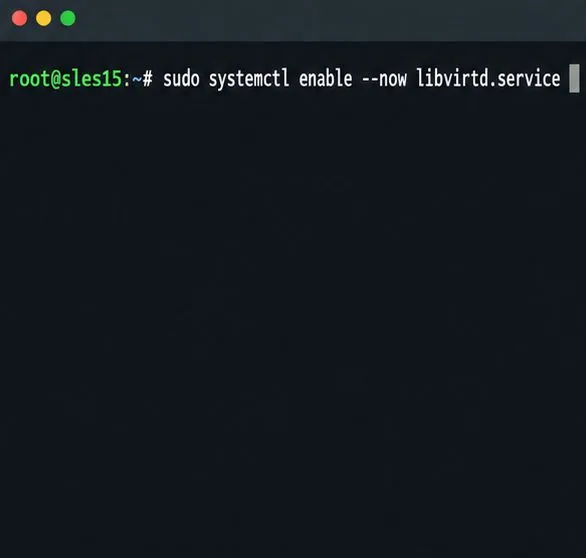
Install the SLES 15 KVM and libvirt tools, enable the right host service, and configure selected virtual machines to start after a reboot.
If you use multiple accounts on your iPhone, changing the default account is essential for seamless syncing across multiple devices. If you have multiple accounts for Apple Notes, you can categorize them based on your needs. For example, you can designate one account for work notes, another for personal notes. Here are instructions for changing the default account for Notes iPhone, Mac.
How to change default account in Note iPhone
Step 1:
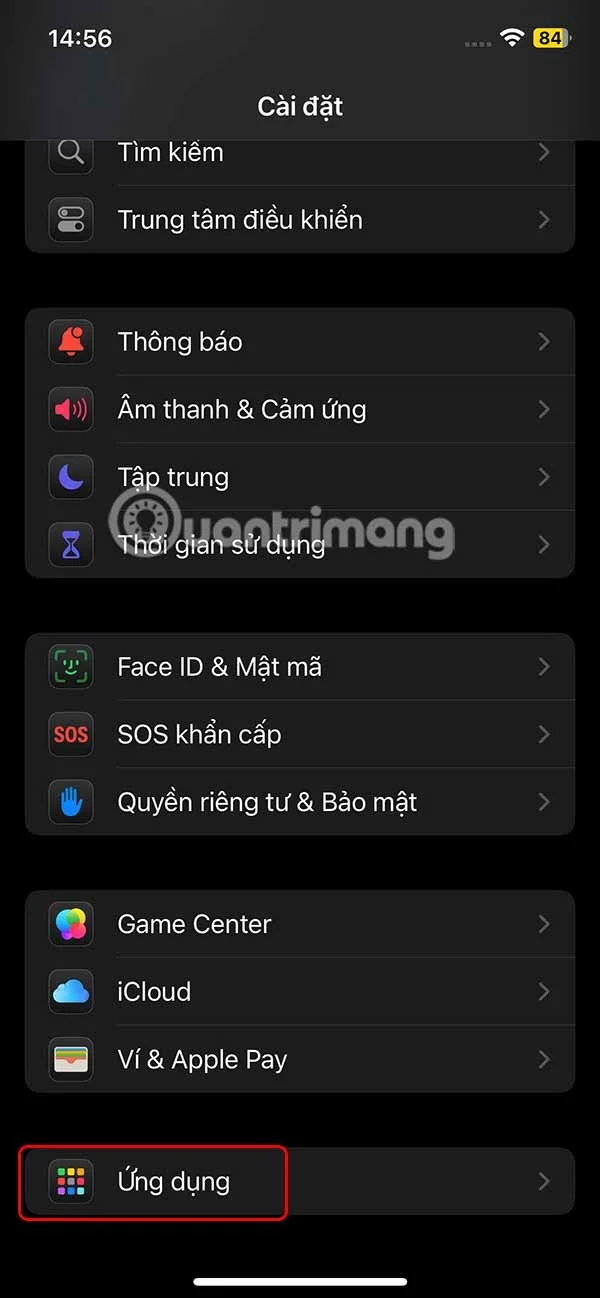
On the iPhone interface, users click on Settings , then click on Applications at the bottom of the list.
Step 2:
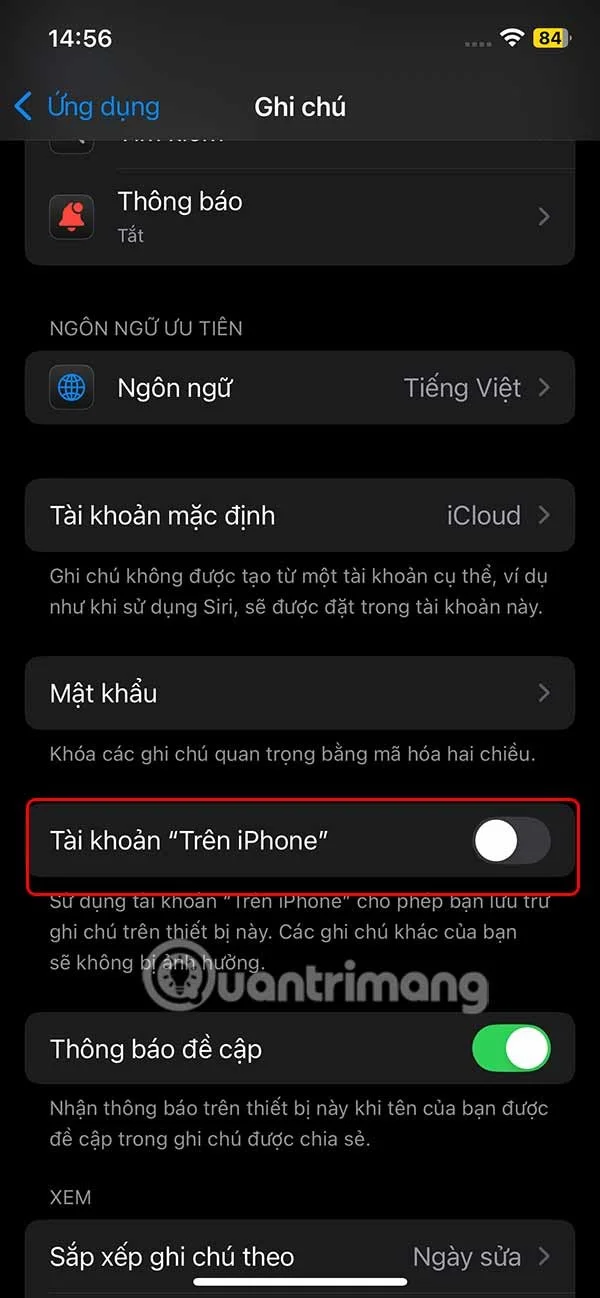
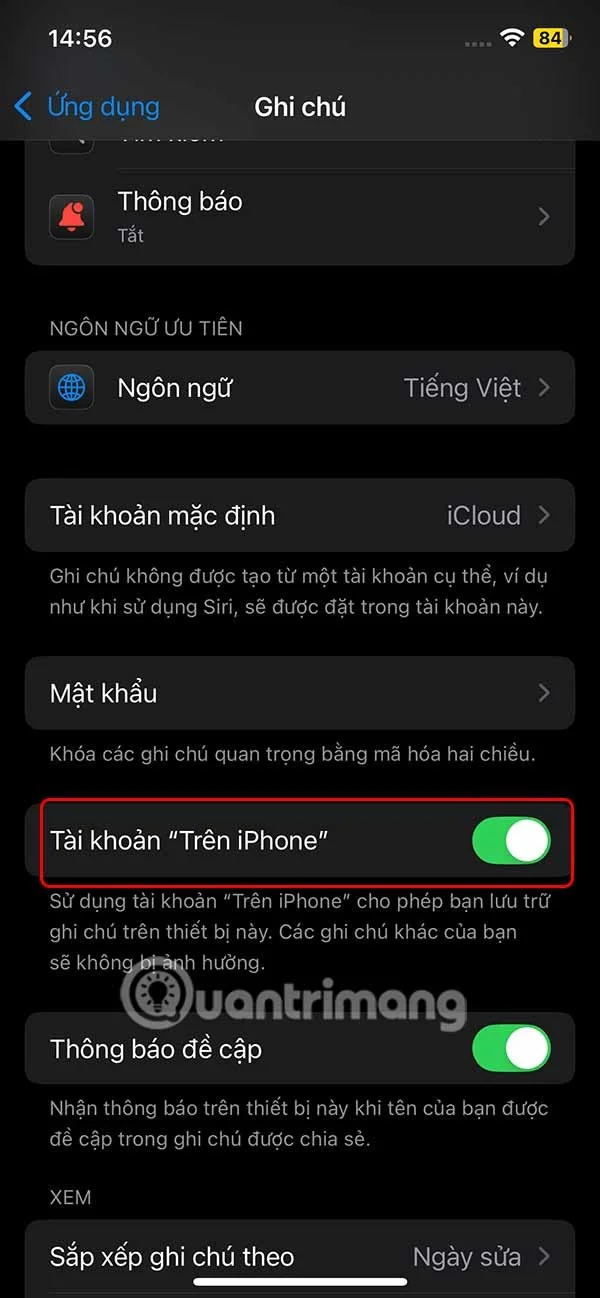
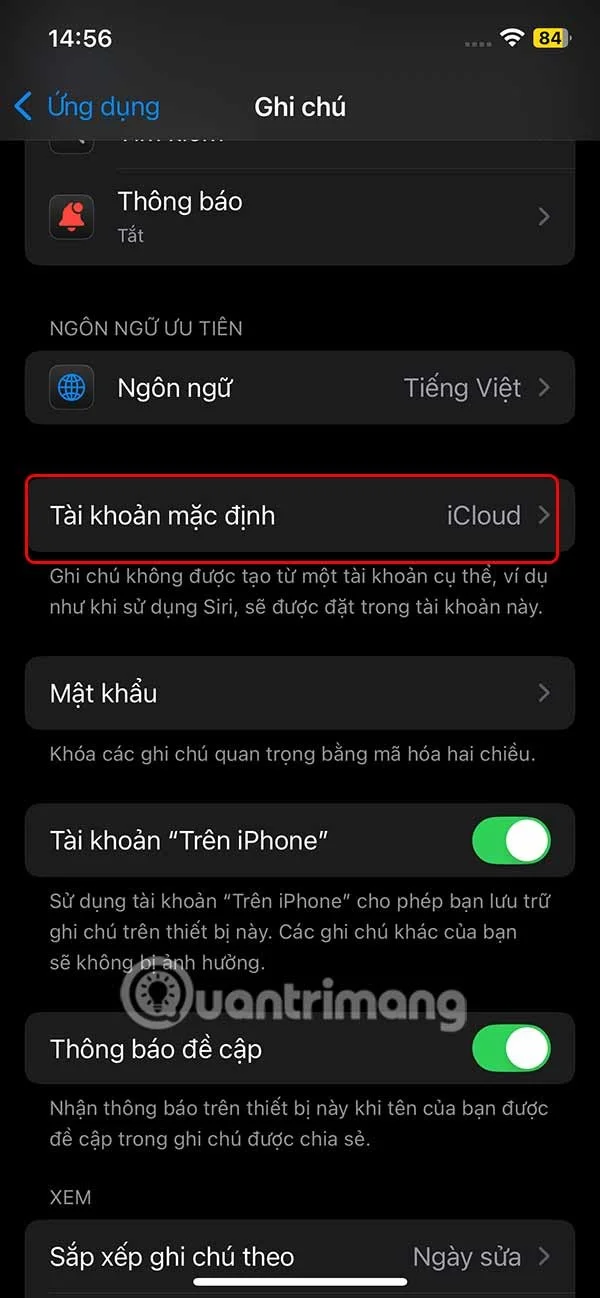
Switch to the application settings interface on the iPhone, you click on the Notes application in the list below. Switch to the settings interface for the Notes application, first we need to activate the Account setting "On iPhone" to use. At this time, the notes will be stored on the phone, if you choose.
Step 3:
Scroll up and tap on the Default Account setting which is set to iCloud to save notes to your iCloud account.
Step 4:
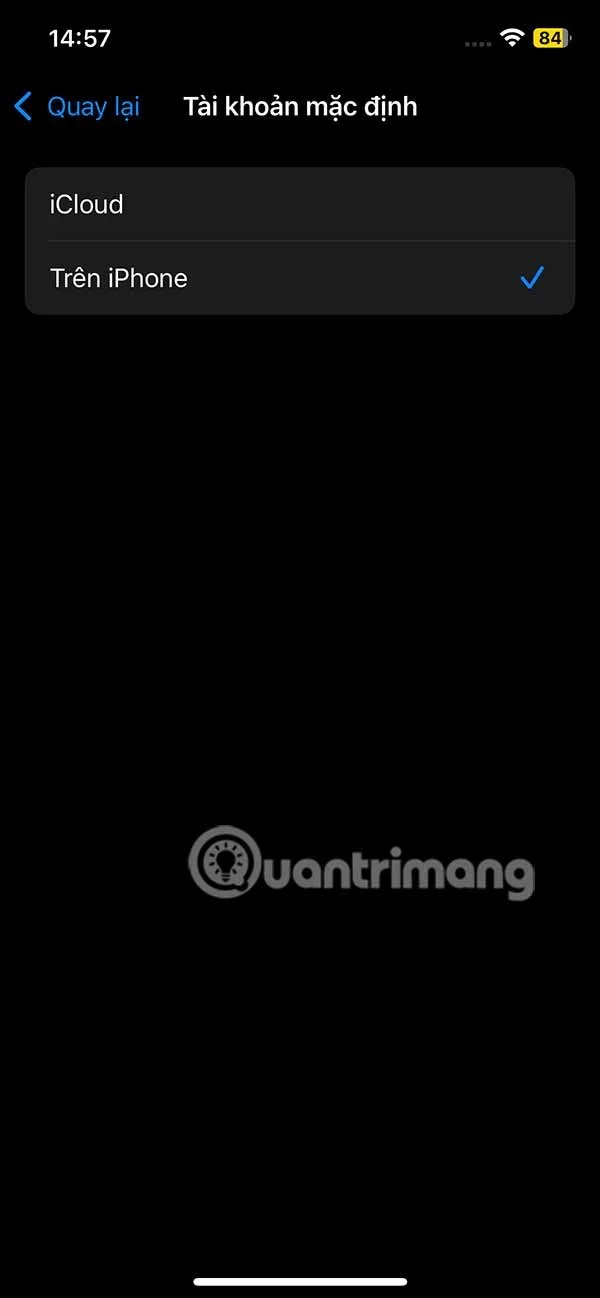
Here you click on the account On iPhone to change the default account in Note iPhone. Or in some cases there is also a Gmail option for you to use if you have added a Gmail account to iPhone.
How to change the default account for Notes on Mac
Step 1:
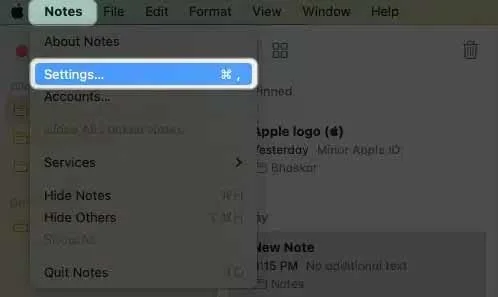
We also open the Note application on the Mac, then click Notes in the menu bar and then select Settings from the drop-down list.
Step 2:
In the setup interface, in the Default account section , click on the arrow icon and select iCloud, Email, or On My Mac from the displayed list.
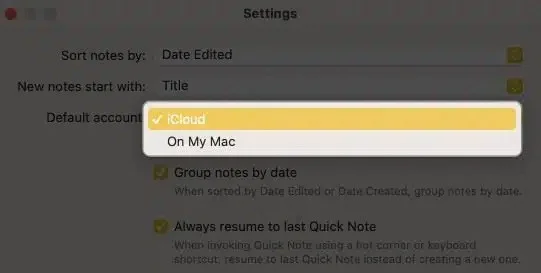
In case you don't see the On My Mac option, go to Settings in the application, then check Enable the On My Mac account.
Install the SLES 15 KVM and libvirt tools, enable the right host service, and configure selected virtual machines to start after a reboot.
Use systemd jobs and the previous boot journal to locate a slow service, mount, or storage dependency, then correct it without masking the cause.
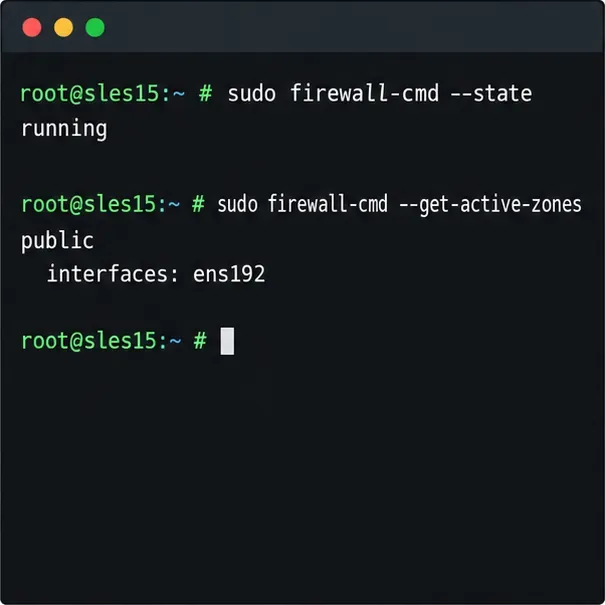
Use firewall-cmd to inspect the active zone, allow HTTP safely, preserve SSH access, and verify that the rule survives a reload on SLES 15.
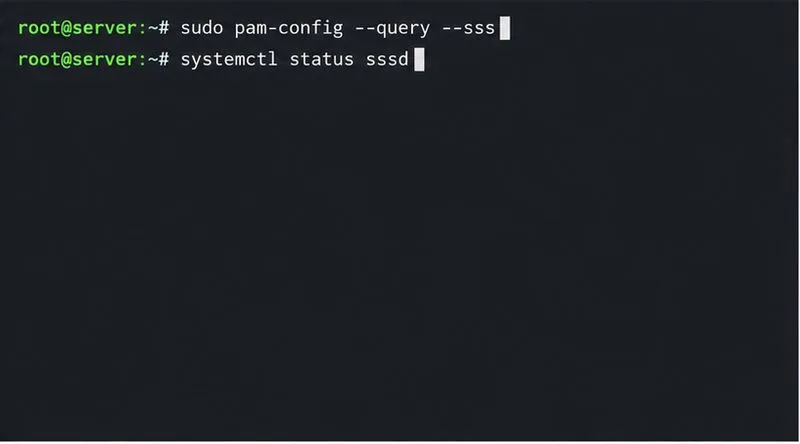
Trace a PAM failure to its service, account policy, or identity provider, then repair the right SLES configuration while preserving a working admin session.
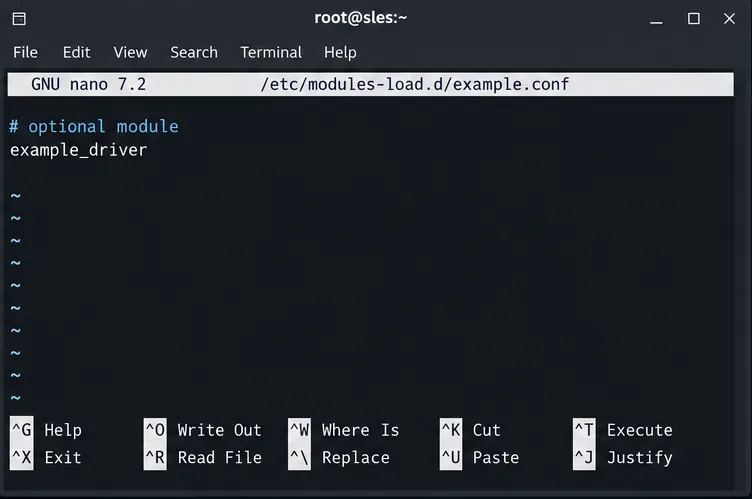
Trace a failed kernel module at SLES startup, correct an obsolete boot entry or repair the required driver, and verify the next boot.
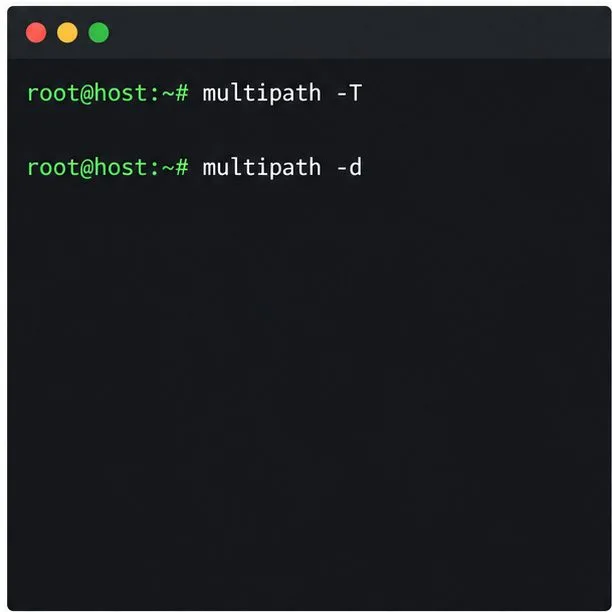
Prepare SCSI SAN paths, enable multipathd, inspect SUSE’s hardware defaults, and verify stable device maps without guessing array settings.
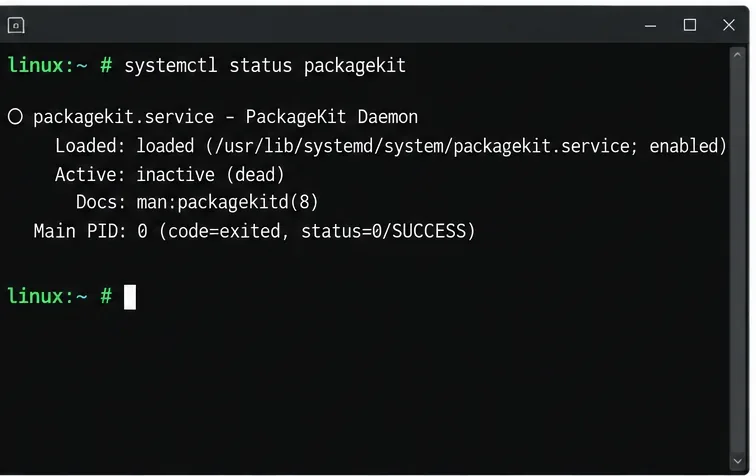
Find the process holding Zypper’s package lock, distinguish process conflicts from package locks, and retry updates without deleting lock files blindly.
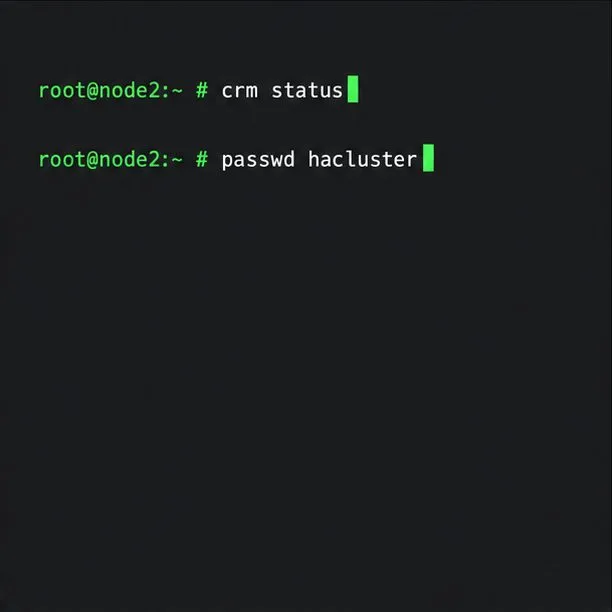
Register SLE HA, bootstrap SLES 15 nodes, then add fencing, quorum, and tested service resources before relying on failover.
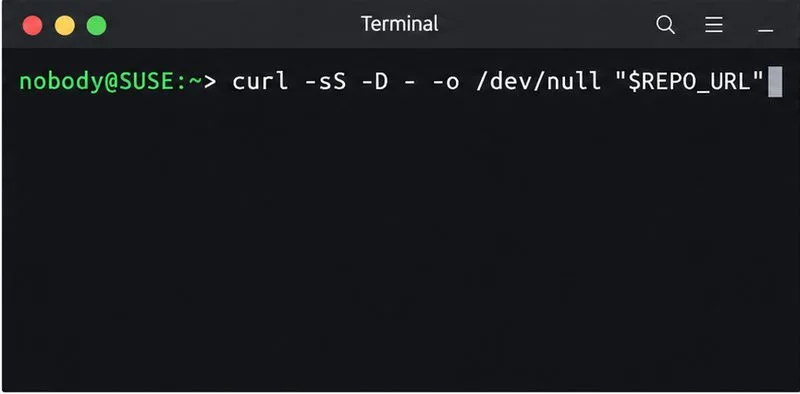
Trace a Zypper refresh error to SUSE, RMT, or a third-party endpoint, then apply the right server-side or cache fix without disabling essential updates.
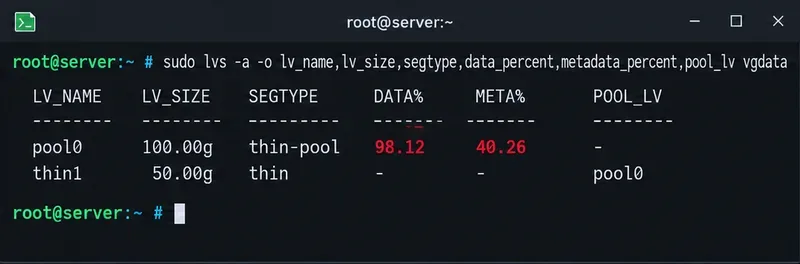
Resolve SUSE LVM thin-pool space errors by checking data and metadata usage, expanding the pool safely, and preventing repeat outages.