Get LibreOffice to Recognize Your Java Runtime

Install a compatible Java runtime, enable it in LibreOffice, and troubleshoot an empty JRE list without changing unrelated settings.
If you're not getting email on Outlook, messages may sit on the server while your inbox stays empty. This happens for many reasons including sync problems, server filters, or account authentication errors. The steps below target the most frequent causes and restore delivery in Outlook desktop, Outlook on the web, and the mobile app.
Outlook relies on continuous server connections using protocols such as IMAP, POP, or Microsoft Exchange. When these connections break, new messages remain on the mail server instead of downloading. Common triggers include expired passwords, full storage quotas, outdated software, or aggressive spam rules that route legitimate mail away from the inbox.
Before changing settings, confirm the issue affects only Outlook by checking the same account in webmail or another client. This isolates whether the problem lies with the account itself or with the Outlook installation.
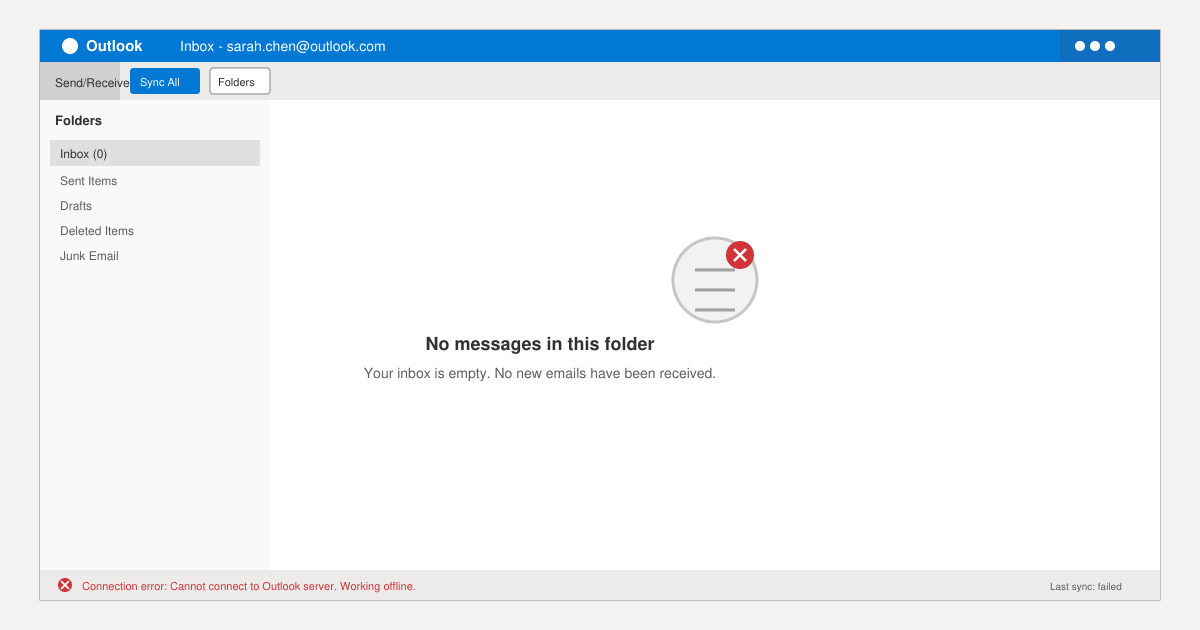
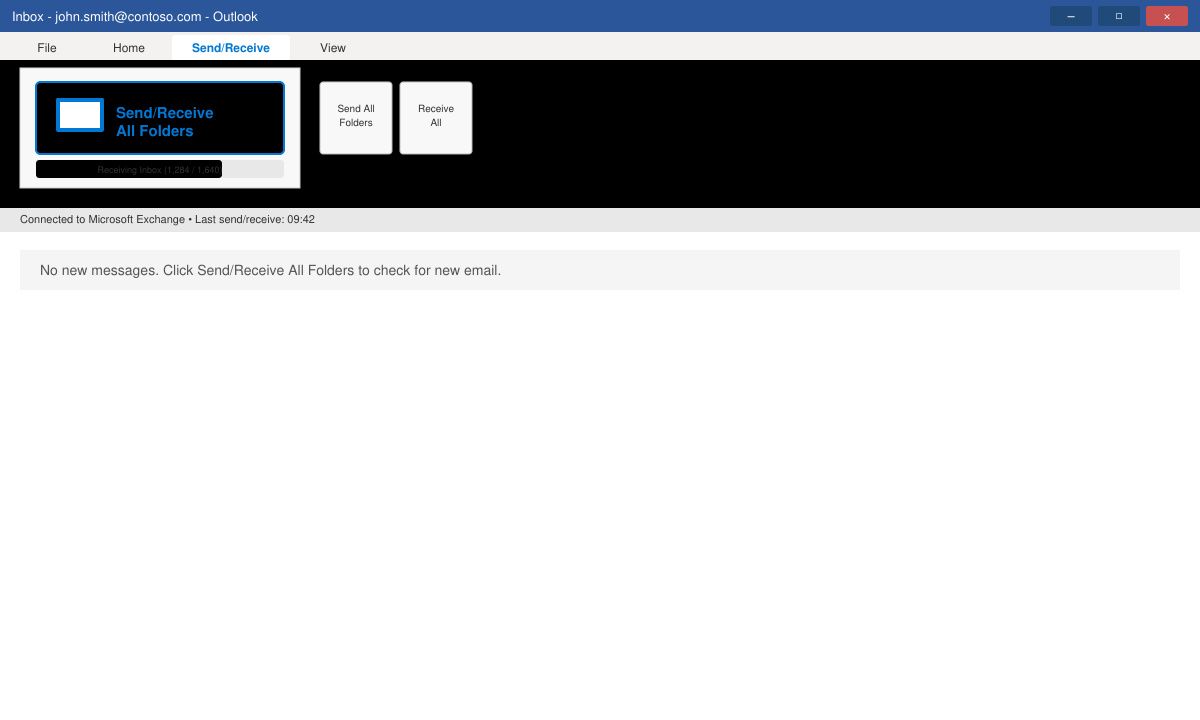
Open Outlook and click the Send/Receive tab on the ribbon. Select Send/Receive All Folders. Watch the status bar at the bottom for any error messages such as “Server unavailable” or authentication failures. If the test fails, restart your router and try again.
Go to File > Info > Account Settings > Account Settings. Double-click the affected email account. Click More Settings > Outgoing Server and ensure “My outgoing server (SMTP) requires authentication” is checked. Return to the main account window, click Repair, and enter your current password when prompted.
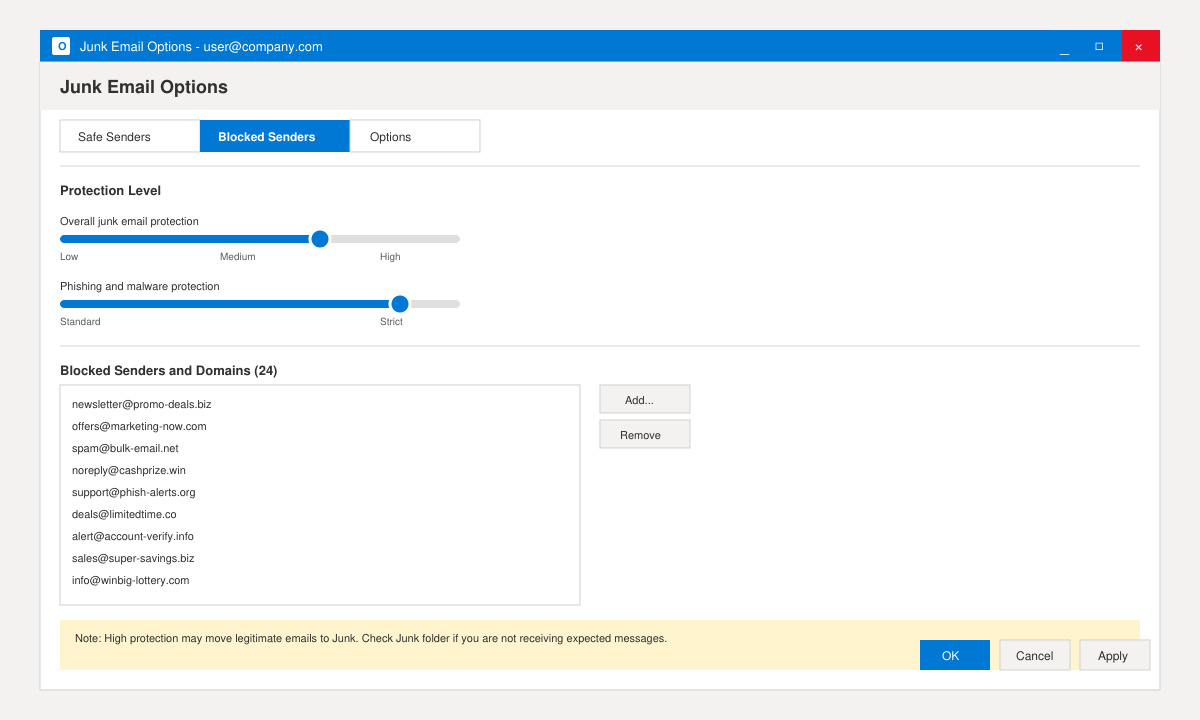
In Outlook desktop, select the Junk Email folder and scan for misplaced messages. Then go to Home > Junk > Junk Email Options and lower the protection level temporarily. On Outlook on the web, open Settings > Mail > Junk email and review blocked sender lists and sweep rules that may auto-delete or move new mail.
Click File > Office Account > Update Options > Update Now. After the update completes, close Outlook completely using Task Manager to end any background processes, then reopen the program and test mail retrieval.
If the inbox still does not update, test the account in Outlook Safe Mode by holding Ctrl while clicking the Outlook icon and confirming Safe Mode. Persistent problems often indicate a corrupted profile; create a new Outlook profile through Control Panel > Mail > Show Profiles and add the account again.
Mobile users should open the Outlook app, tap the account icon, then Settings > Accounts and pull down to refresh. Disable any VPN temporarily, as it can block Microsoft 365 or Exchange server traffic.
The desktop or mobile app is likely experiencing a sync failure. Re-adding the account or repairing the data file usually restores the connection.
Yes. When storage reaches the quota limit, the server stops delivering new messages. Delete old items or increase your mailbox size through your email provider’s admin portal.
Certain real-time scanners interfere with mail protocols. Add Outlook.exe and the Microsoft Exchange server addresses to your antivirus exclusion list to resolve the blockage.
Following the checks above resolves the majority of cases where users report not getting email on Outlook. Test each step in order and the inbox should begin receiving messages again within minutes.
Install a compatible Java runtime, enable it in LibreOffice, and troubleshoot an empty JRE list without changing unrelated settings.
Build a small LibreOffice container, convert office documents without a GUI, and verify PDF output while limiting host-file access.
Reduce oversized LibreOffice presentation files by compressing embedded photos, choosing sensible image settings, and checking slide quality before sharing.
Match LibreOffice’s page dimensions to your printer, check printable margins, and correct scaling before printing a custom-size document.
Replace repeated cell access with bulk range reads and writes, then benchmark the result and protect formulas in large Calc workbooks.
Split a long manuscript into chapters, assemble them in Writer, and keep styles, contents, and export checks consistent.
Use Base’s direct PostgreSQL option to enter your server details, sign in, save an ODB connection file, and troubleshoot common access errors.
Install a font in your Linux user font folder, restart LibreOffice Flatpak, and confirm it appears in Writer without weakening the app sandbox.
Protect your work and isolate network-drive save crashes in LibreOffice on macOS Sonoma with a local-first workflow, permission checks, and targeted tests.
Preserve leading zeros in Calc by setting ID columns to Text during CSV import, checking the preview, and verifying the saved data.








