Get LibreOffice to Recognize Your Java Runtime

Install a compatible Java runtime, enable it in LibreOffice, and troubleshoot an empty JRE list without changing unrelated settings.
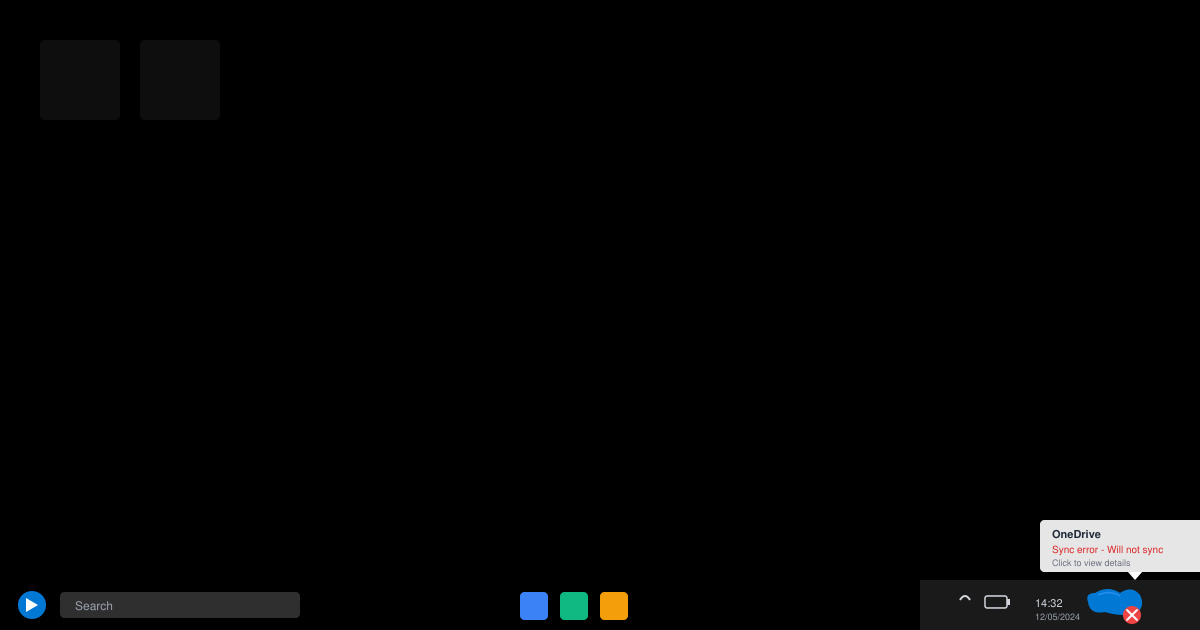
OneDrive Will Not Sync when the client cannot reach Microsoft servers or detects local conflicts. Check your internet connection first, then look for the blue or red sync icon in the taskbar. Large files, special characters in filenames, or exceeded storage quotas also block synchronization.
Before troubleshooting, confirm you are signed in with the correct Microsoft account and that your OneDrive storage has free space. Restarting your computer clears temporary locks on files that prevent uploads.
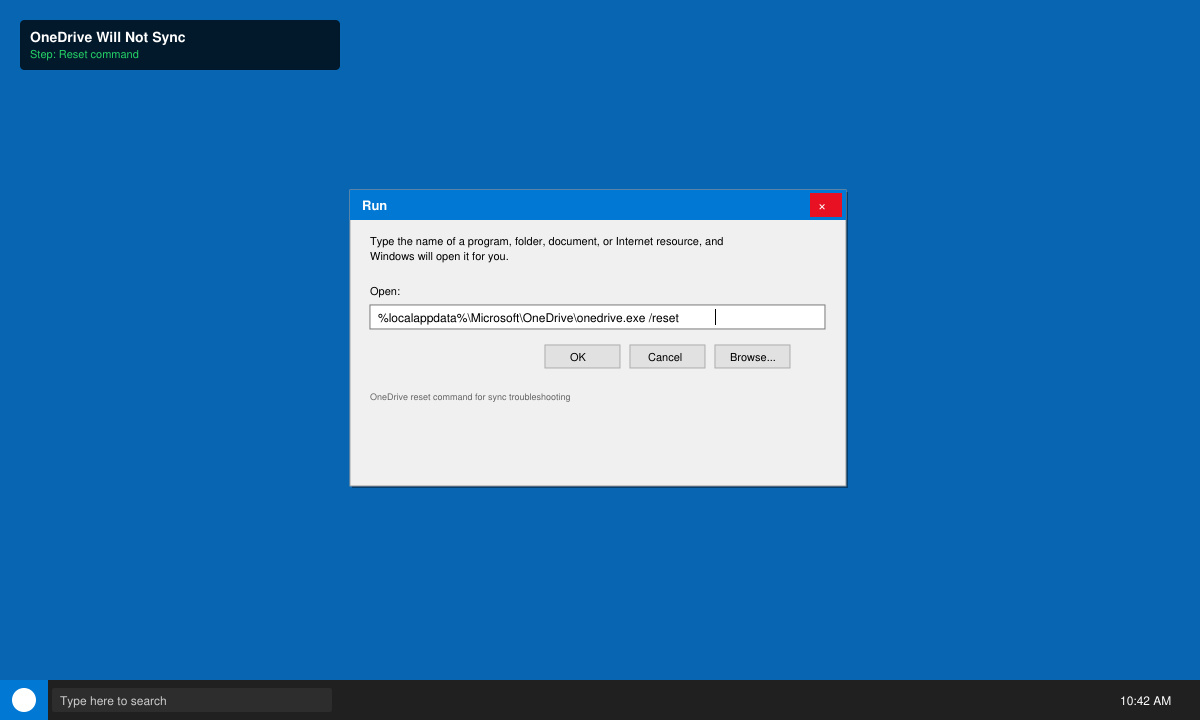
Press Windows key + R, type the command %localappdata%\Microsoft\OneDrive\onedrive.exe /reset and press Enter. Wait two minutes for the process to restart. If the OneDrive icon does not reappear, run the same command again with /reset added.
Right-click the OneDrive cloud icon in the taskbar, select Settings, then open the Account tab. Click Choose folders and make sure the folders you need are selected. Switch to the Office tab and uncheck Use Office applications to sync Office files that I open.
Open Windows Settings, go to Apps > Installed apps, find Microsoft OneDrive, click the three dots, and choose Repair. If that does not work, choose Modify then Repair again. This reinstalls missing components without deleting your files.
Temporarily disable any VPN or proxy. Open Command Prompt as administrator and run netsh winsock reset followed by netsh int ip reset. Restart your computer afterward to clear corrupted network stacks that block OneDrive traffic.
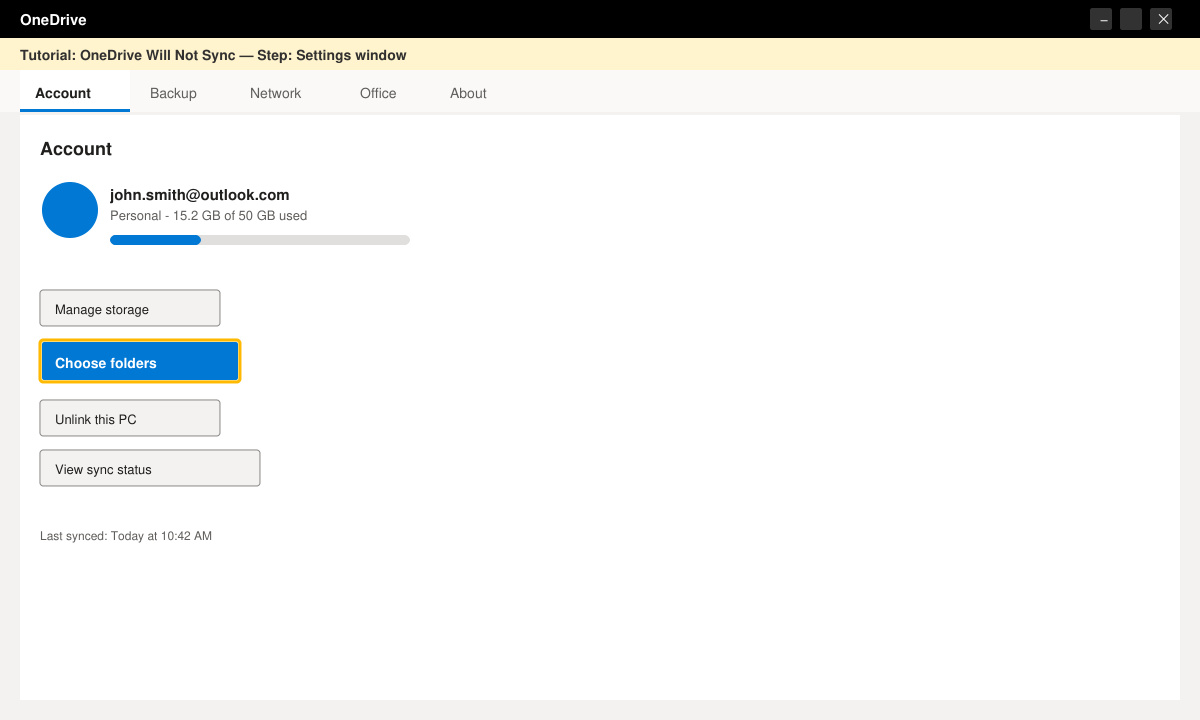
Right-click the OneDrive icon, select Settings > Account > Unlink this PC. Restart your device, then sign in again with your Microsoft account. This forces a fresh connection and often clears cached authentication errors.
If OneDrive Will Not Sync after the steps above, move any files with names longer than 255 characters or containing symbols like & or # into a new folder. Run the OneDrive troubleshooter by searching for "troubleshoot settings" in Windows and selecting Other troubleshooters. On Mac, quit OneDrive from the menu bar, then relaunch it from Applications.
Users on metered connections should go to OneDrive Settings > Network and select Don't use metered connections. Check the activity center inside OneDrive for specific error codes and search those codes on the official Microsoft support site.
A red X usually means the account has been signed out or the folder path has changed. Sign out and sign back in through the OneDrive Settings Account tab to restore the connection.
Yes. Add a second account from OneDrive Settings > Account > Add an account. Each account maintains its own sync folder and settings.
No. Pausing only halts transfers temporarily. Right-click the icon and choose Resume syncing to continue. Scheduled pauses can be adjusted in the Settings Network tab.
Following the reset, repair, and sign-in steps above resolves OneDrive Will Not Sync in most situations. Test synchronization with a small test file after each change to confirm the fix.
Install a compatible Java runtime, enable it in LibreOffice, and troubleshoot an empty JRE list without changing unrelated settings.
Build a small LibreOffice container, convert office documents without a GUI, and verify PDF output while limiting host-file access.
Reduce oversized LibreOffice presentation files by compressing embedded photos, choosing sensible image settings, and checking slide quality before sharing.
Match LibreOffice’s page dimensions to your printer, check printable margins, and correct scaling before printing a custom-size document.
Replace repeated cell access with bulk range reads and writes, then benchmark the result and protect formulas in large Calc workbooks.
Split a long manuscript into chapters, assemble them in Writer, and keep styles, contents, and export checks consistent.
Use Base’s direct PostgreSQL option to enter your server details, sign in, save an ODB connection file, and troubleshoot common access errors.
Install a font in your Linux user font folder, restart LibreOffice Flatpak, and confirm it appears in Writer without weakening the app sandbox.
Protect your work and isolate network-drive save crashes in LibreOffice on macOS Sonoma with a local-first workflow, permission checks, and targeted tests.
Preserve leading zeros in Calc by setting ID columns to Text during CSV import, checking the preview, and verifying the saved data.








