Get LibreOffice to Recognize Your Java Runtime

Install a compatible Java runtime, enable it in LibreOffice, and troubleshoot an empty JRE list without changing unrelated settings.
Many users search for solutions to Outlook email issues today when messages fail to send, folders refuse to sync, or the app shows repeated login errors. Microsoft Outlook remains the default email client for millions of business and personal accounts, so even brief outages or configuration glitches can disrupt an entire workday. The steps below address the most frequent problems reported right now and show exactly how to resolve them without losing data.
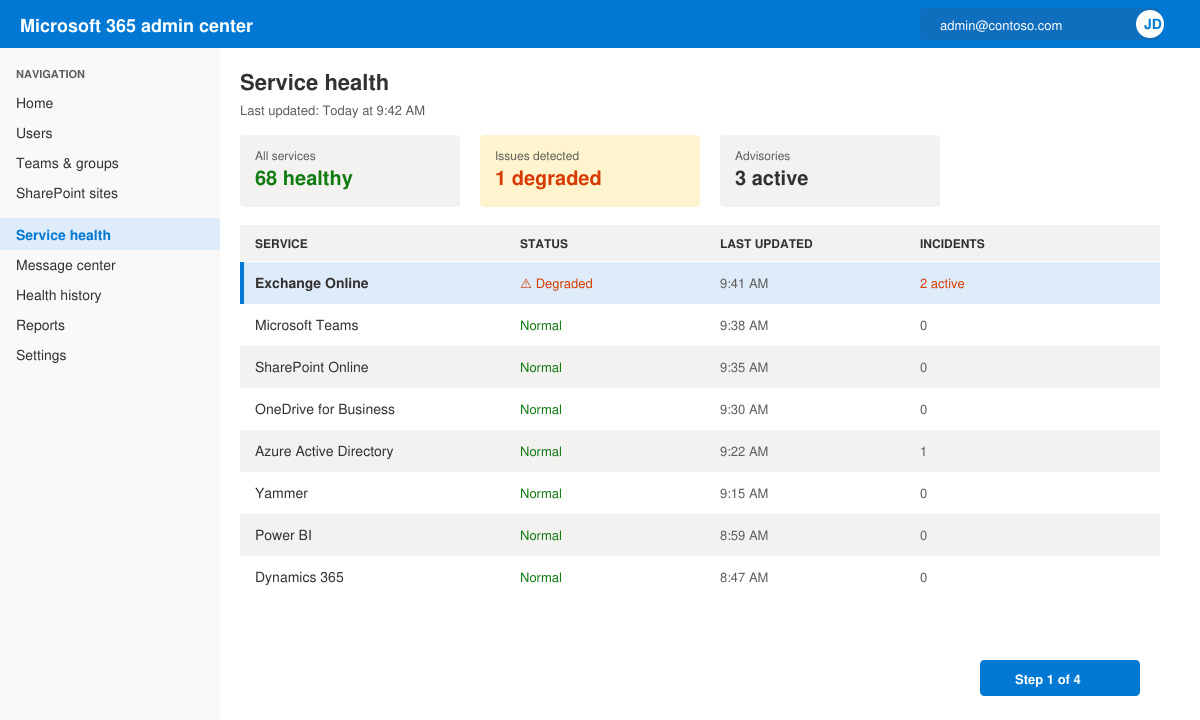
Outlook email issues today often stem from temporary Microsoft 365 service problems, outdated desktop clients, corrupted OST files, or conflicts with two-factor authentication. Before diving into fixes, confirm whether the outage affects only your device or the entire service by checking the official Microsoft 365 service health dashboard. Knowing the root cause helps you choose the correct repair path and avoids unnecessary reinstalls.
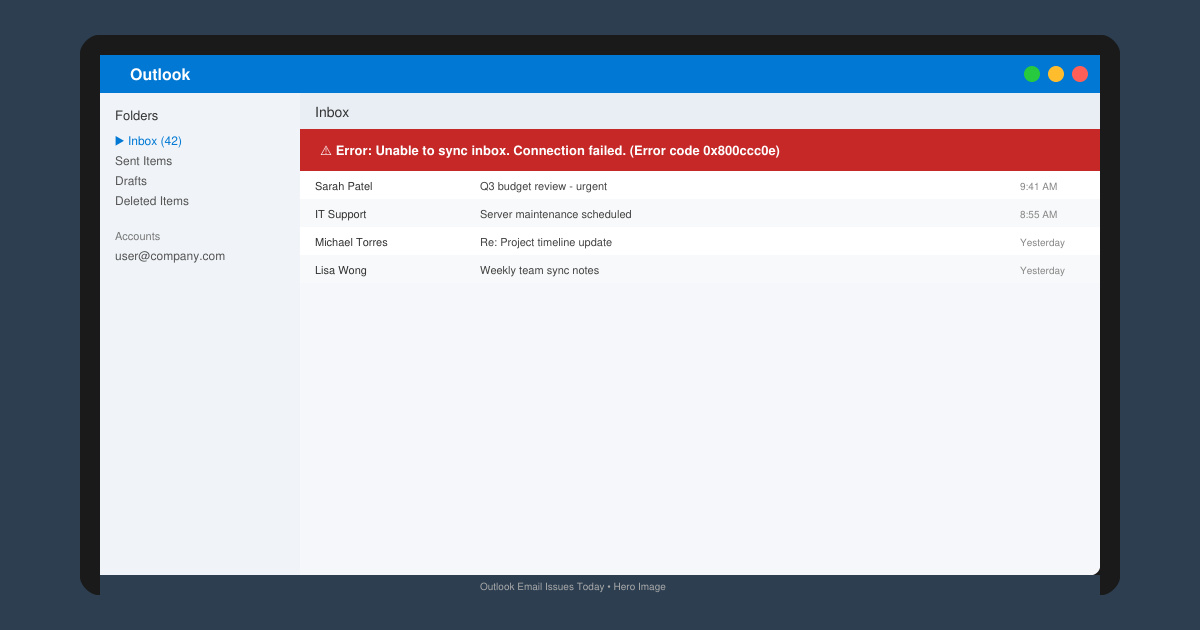
Common symptoms include the classic “Cannot connect to server” message, emails stuck in the Outbox, calendar items that never appear on mobile devices, and repeated prompts for credentials even after entering the correct password. These problems appear across Outlook 2021, Microsoft 365 apps, and Outlook on the web, though the exact menu paths differ slightly between versions.
Open any web browser and load outlook.office.com. If the web version loads and you can send a test message, the issue is local to your desktop app. Next, visit the Microsoft 365 admin center service health page and look for red or yellow alerts under Exchange Online or Outlook. Note the incident ID if one exists; Microsoft usually posts estimated resolution times within 30 minutes of detection.
Close Outlook completely. Hold the Windows key and press R, then type outlook.exe /safe and press Enter. If email flows normally in safe mode, an add-in is the culprit. Return to normal mode, go to File > Options > Add-ins, and disable every COM add-in one by one, restarting Outlook after each change until the problem disappears.
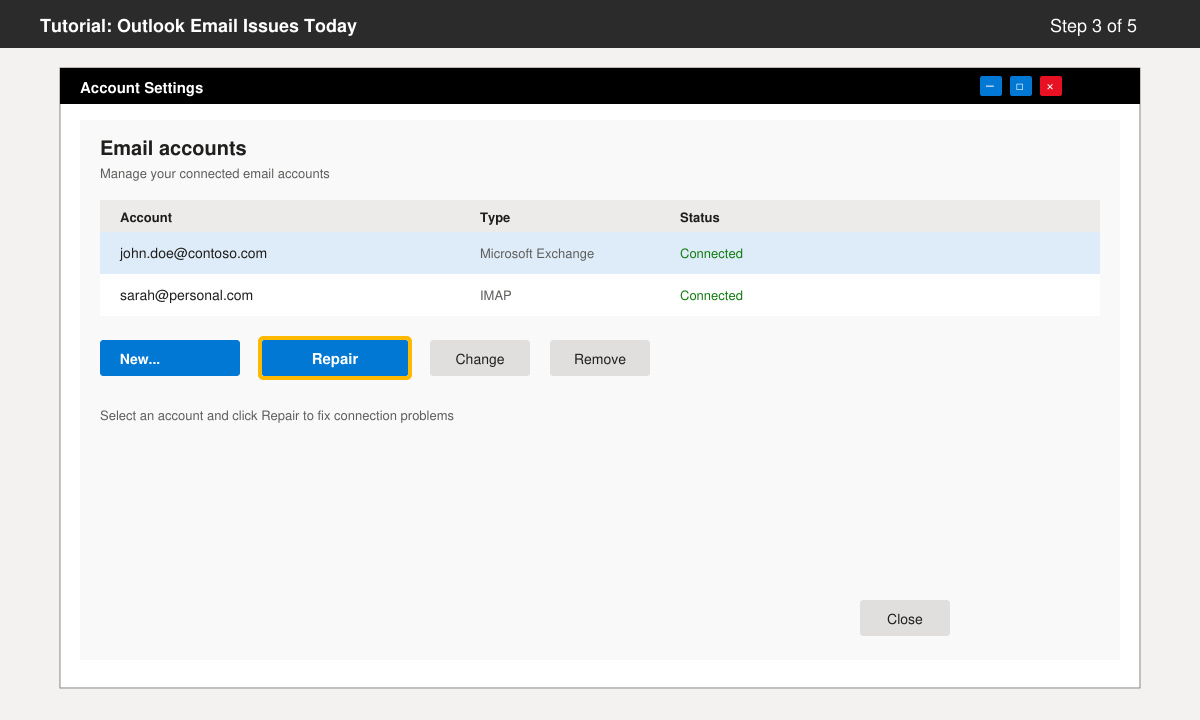
In Outlook, click File > Info > Account Settings > Account Settings. Select the problematic account and click Repair. Let the wizard run; it automatically corrects server names, ports, and authentication methods. When prompted, choose “Let me set up my account manually” only if the automatic repair fails, then enter the correct IMAP or Exchange server addresses listed in your organization’s IT documentation.
Exit Outlook. Press Windows+R, type %localappdata%\Microsoft\Outlook and press Enter. Rename the .ost file for your account to .old. Restart Outlook; it will automatically create a fresh OST file and re-download all mail. This step resolves the majority of persistent sync failures reported during widespread Outlook email issues today.
Open any Office app, go to File > Account > Update Options > Update Now. If updates do not resolve the problem, open Windows Settings > Apps > Installed apps, locate Microsoft 365 or Office, choose Modify, and select the Online Repair option. The process takes 15–30 minutes but restores all core files without deleting your emails.
This usually occurs after a recent Microsoft 365 password change or when modern authentication is disabled. Re-add the account using the “Repair” option described above, or enable modern authentication in the Microsoft Entra admin center if you manage the tenant.
Yes. All repair methods above work on cached copies and re-download data from the server. Your messages remain safe on the Exchange or IMAP server throughout the process.
Check the Microsoft 365 service health dashboard and search recent posts on Downdetector for “Outlook”. If both sources show widespread reports, wait for Microsoft to resolve the incident rather than spending time on local fixes.
Following the sequence above resolves the vast majority of Outlook email issues today within 20 minutes. Start with the service health check, then move through safe mode and account repair before attempting cache or reinstall steps.
Install a compatible Java runtime, enable it in LibreOffice, and troubleshoot an empty JRE list without changing unrelated settings.
Build a small LibreOffice container, convert office documents without a GUI, and verify PDF output while limiting host-file access.
Reduce oversized LibreOffice presentation files by compressing embedded photos, choosing sensible image settings, and checking slide quality before sharing.
Match LibreOffice’s page dimensions to your printer, check printable margins, and correct scaling before printing a custom-size document.
Replace repeated cell access with bulk range reads and writes, then benchmark the result and protect formulas in large Calc workbooks.
Split a long manuscript into chapters, assemble them in Writer, and keep styles, contents, and export checks consistent.
Use Base’s direct PostgreSQL option to enter your server details, sign in, save an ODB connection file, and troubleshoot common access errors.
Install a font in your Linux user font folder, restart LibreOffice Flatpak, and confirm it appears in Writer without weakening the app sandbox.
Protect your work and isolate network-drive save crashes in LibreOffice on macOS Sonoma with a local-first workflow, permission checks, and targeted tests.
Preserve leading zeros in Calc by setting ID columns to Text during CSV import, checking the preview, and verifying the saved data.








