Get LibreOffice to Recognize Your Java Runtime

Install a compatible Java runtime, enable it in LibreOffice, and troubleshoot an empty JRE list without changing unrelated settings.
Microsoft Outlook fails to launch for several predictable reasons. A corrupted OST file, an outdated Office installation, or a third-party add-in that blocks startup are the most common triggers. Before any repair, confirm that your Windows user account has full read-write permissions on the Outlook data folders located at C:\Users\YourName\AppData\Local\Microsoft\Outlook.
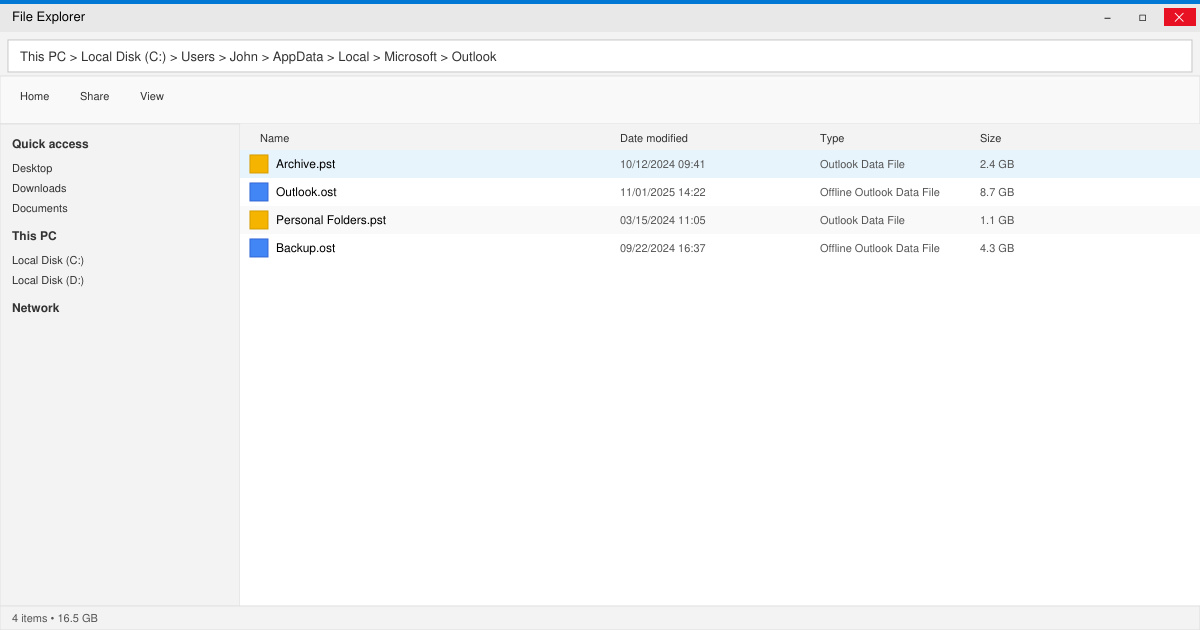
Hold the Ctrl key and click the Outlook icon on the taskbar or Start menu. When prompted, select Yes to start in Safe Mode. If Outlook opens, the problem is an add-in; continue to the next step to disable it permanently.
In Safe Mode go to File > Options > Add-ins. At the bottom of the window select COM Add-ins from the Manage drop-down and click Go. Uncheck every add-in one by one, restarting Outlook after each change until the program launches normally.
Open Windows Settings > Apps > Installed apps. Locate Microsoft 365 or Office, click the three dots, choose Modify, then select Quick Repair followed by Online Repair if the quick option fails. This replaces damaged program files without removing your accounts.
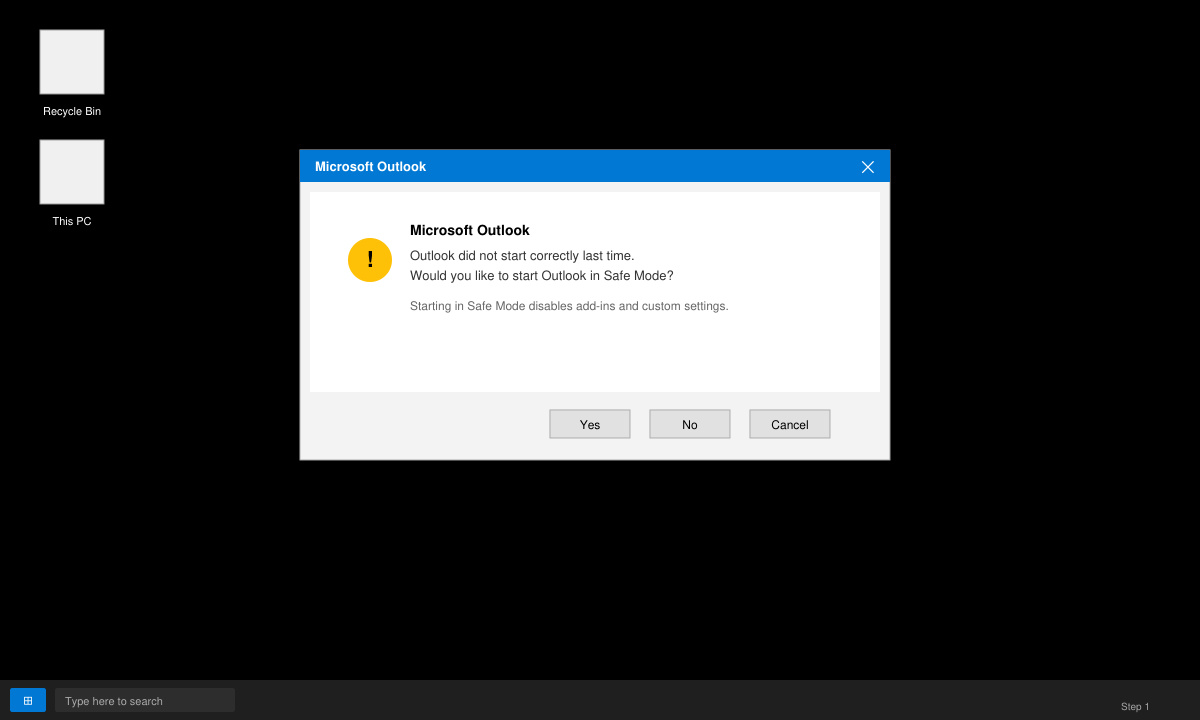
Close Outlook completely. Search for Control Panel and open Mail (Microsoft Outlook). Click Show Profiles, add a new profile with a different name, and set it as default. Re-add your email account through File > Add Account inside the new profile.
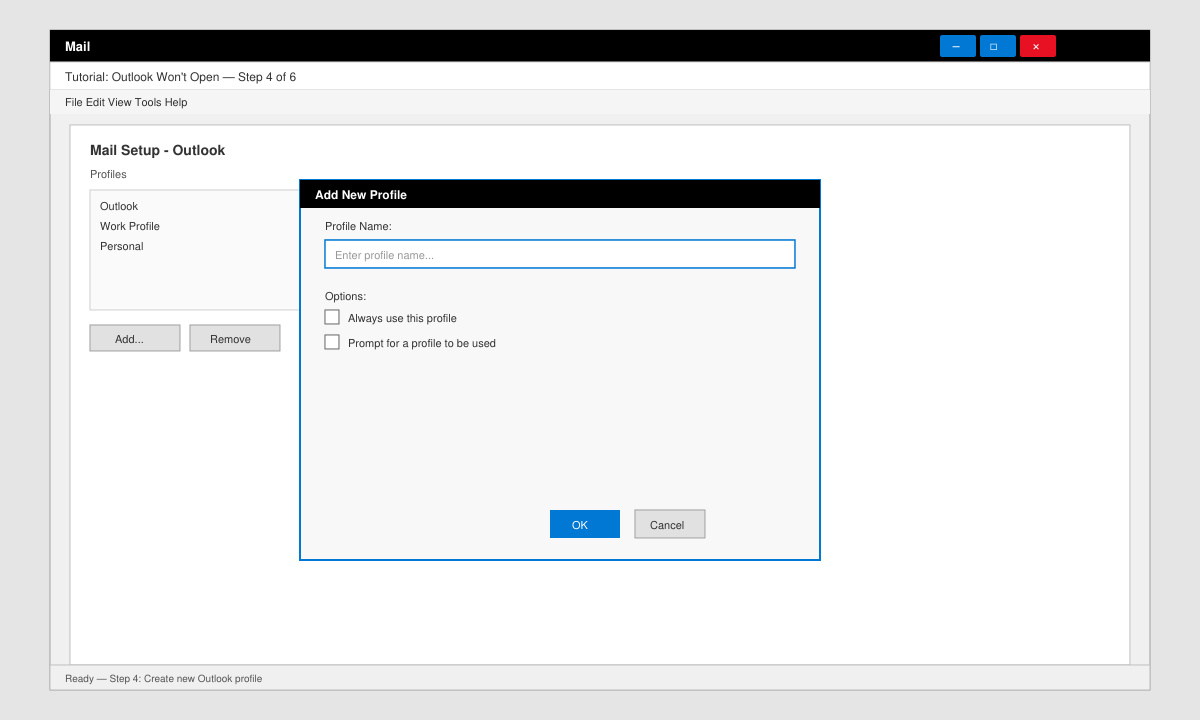
Navigate to %localappdata%\Microsoft\Outlook in File Explorer. Rename the .ost file for your account to .old. Restart Outlook; it will automatically create a fresh OST file from the server.
Update Windows and Office through Settings > Windows Update and the Microsoft 365 app. If the issue continues after a new profile, run the command outlook.exe /resetnavpane in the Run dialog (Win + R) to clear the navigation pane cache. Antivirus programs that scan email folders in real time can also prevent launch; temporarily disable the email shield module to test.
Yes. Recent Windows updates have introduced compatibility conflicts with older Outlook versions. Running Online Repair or installing the latest Microsoft 365 updates usually resolves the conflict.
Your emails remain stored on the Exchange or IMAP server. Once Outlook launches again, they sync automatically. For local PST files, copy the .pst files from the Outlook folder to a backup location before running repairs.
No. The steps above only rebuild local cache files or create new profiles. Server-side data stays intact, and Outlook re-downloads everything after the fix.
Applying the steps in order resolves Outlook Won T Open for the vast majority of users. Start with Safe Mode, then move through the repair tools and profile creation if needed.
Install a compatible Java runtime, enable it in LibreOffice, and troubleshoot an empty JRE list without changing unrelated settings.
Build a small LibreOffice container, convert office documents without a GUI, and verify PDF output while limiting host-file access.
Reduce oversized LibreOffice presentation files by compressing embedded photos, choosing sensible image settings, and checking slide quality before sharing.
Match LibreOffice’s page dimensions to your printer, check printable margins, and correct scaling before printing a custom-size document.
Replace repeated cell access with bulk range reads and writes, then benchmark the result and protect formulas in large Calc workbooks.
Split a long manuscript into chapters, assemble them in Writer, and keep styles, contents, and export checks consistent.
Use Base’s direct PostgreSQL option to enter your server details, sign in, save an ODB connection file, and troubleshoot common access errors.
Install a font in your Linux user font folder, restart LibreOffice Flatpak, and confirm it appears in Writer without weakening the app sandbox.
Protect your work and isolate network-drive save crashes in LibreOffice on macOS Sonoma with a local-first workflow, permission checks, and targeted tests.
Preserve leading zeros in Calc by setting ID columns to Text during CSV import, checking the preview, and verifying the saved data.








