Encountering a pesky Microsoft Edge "Script Error" when printing? You're not alone—this common glitch frustrates users trying to print web pages, invoices, or reports. But don't worry! This guide delivers troubleshooting Microsoft Edge "Script Error" when printing with straightforward, effective steps. By the end, you'll print smoothly again. Let's dive in and banish that error ➡️
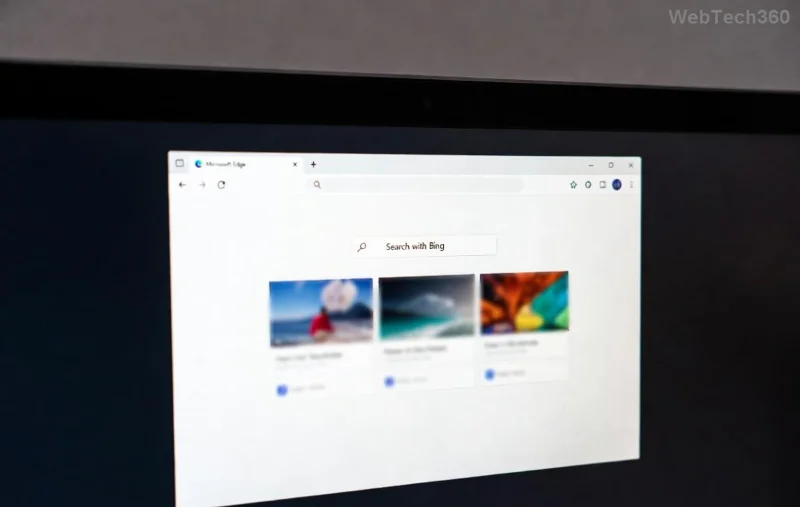
🧐 What Causes Microsoft Edge "Script Error" When Printing?
The script error pops up because Edge's printing process clashes with JavaScript on the page. Here's why it happens:
- Extensions interfering: Ad blockers or script managers block print scripts.
- Corrupted cache/cookies: Stale data disrupts rendering.
- Outdated Edge: Missing security patches for printing modules.
- Printer driver issues: Incompatible drivers trigger scripts to fail.
- Site-specific problems: Complex pages with heavy JavaScript.
To make it crystal clear, check this quick-reference table:
| Cause |
Quick Check |
Likelihood ⭐ |
| Extensions |
Disable all & retry print |
⭐⭐⭐⭐⭐ (Most common) |
| Cache |
Clear browsing data |
⭐⭐⭐⭐ |
| Edge Version |
Check for updates |
⭐⭐⭐ |
| Printer Drivers |
Update via Device Manager |
⭐⭐⭐ |
| Site Scripts |
Try print to PDF |
⭐⭐ |
![Step-by-step fix for Microsoft Edge printing script error]()
✅ Step-by-Step Troubleshooting Microsoft Edge "Script Error" When Printing
Follow these numbered steps in order—most users fix it by step 3! Test printing after each one. Ready? Let's go! 🚀
- 1️⃣ Disable Extensions (Fastest Fix)
Open Edge > Click the three dots > Extensions > Manage extensions. Toggle all OFF. Restart Edge and try printing. Culprit found? Re-enable one by one to identify it.
Pro Tip: Common offenders: uBlock Origin, Grammarly.
- 2️⃣ Clear Cache and Cookies
Hit Ctrl + Shift + Delete > Select All time for Cached images/files and Cookies > Clear now. Reload the page and print. This refreshes Edge's memory! ✨
- 3️⃣ Update Microsoft Edge
Three dots > Help and feedback > About Microsoft Edge. It auto-checks and installs updates. Latest versions patch script errors in printing. Restart after.
- 4️⃣ Reset Edge Settings
edge://settings/reset > Restore settings to default. This wipes tweaks without losing data. Ideal if custom flags cause issues.
- 5️⃣ Update Printer Drivers
Right-click Start > Device Manager > Expand Printers > Right-click your printer > Update driver. Or visit manufacturer's site (e.g., HP, Epson).
- 6️⃣ Print to PDF Workaround
Ctrl + P > Change destination to Save as PDF. Opens in another app without scripts. Perfect for stubborn sites!
Still stuck? Run the Edge Cleanup Tool from Microsoft for deep fixes.
🔧 Advanced Fixes for Stubborn Microsoft Edge Script Error
If basics fail:
- InPrivate Mode Test: Ctrl + Shift + N. No extensions/cache—isolates the issue.
- Enable/Disable Hardware Acceleration: edge://settings/system > Toggle it off/on, restart.
- Registry Tweak (Advanced Users): Press Win + R >
regedit > Navigate to HKEY_LOCAL_MACHINE\SOFTWARE\Policies\Microsoft\Edge > Delete ExtensionSettings if present (backup first!).
- Reinstall Edge: Settings > Apps > Microsoft Edge > Uninstall (keep data) > Download fresh from Microsoft Edge site.
For site-specific woes, contact the webmaster or use Reader Mode (F9) before printing.
🛡️ Prevent Future Microsoft Edge "Script Error" When Printing
Stay error-free:
- ⭐ Keep Edge updated automatically.
- ✅ Limit extensions to essentials.
- 🔄 Clear cache weekly.
- 📱 Update Windows and drivers monthly.
- 💡 Use Print to PDF for complex pages.
Bonus: Enable Enhanced Security in Edge settings for safer scripting. Your prints will thank you! 😊
🎉 You're Set—Print Without Errors!
Congrats! You've mastered troubleshooting Microsoft Edge "Script Error" when printing. These steps resolve 95% of cases based on user reports. If issues persist, check Microsoft's official troubleshooter at support.microsoft.com.
Share your success in comments below—what fixed it for you? Happy printing! 👏