Instructions on How to Turn Off Sleep Mode in Windows 10 Not Everyone Knows

Sleep mode is a way to help your device not turn off completely but only temporarily rest, this will help you continue, but sometimes this sleep mode will go back to sleep.  So WebTech360  wants to show you how to turn off Sleep mode in Windows 10 . Let's learn how to use this useful tool through the article below! 

How to turn off sleep mode in Windows 10 with Windows Settings

To turn off Sleep mode in Windows 10, follow the instructions below:

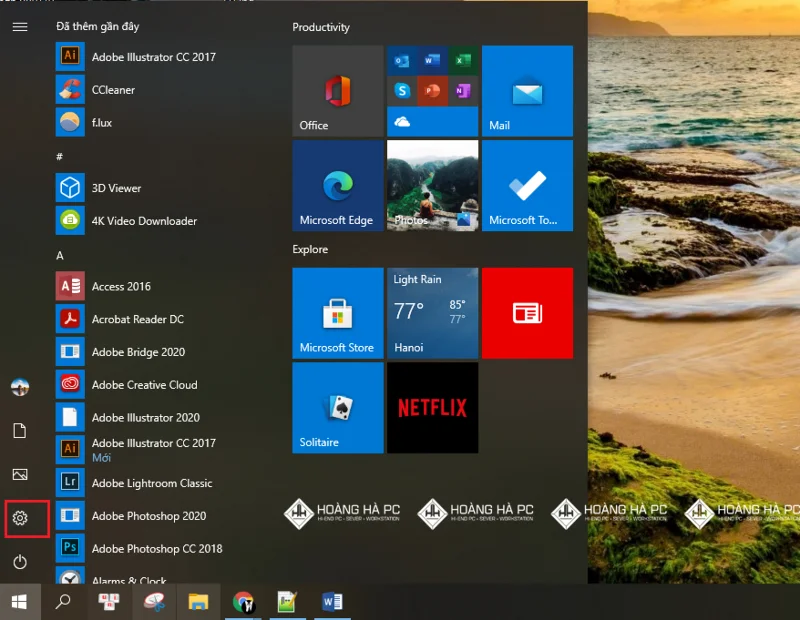
Step 1: First of all, you need to open the Windows Settings Win 10 interface. You just need to go to the Start menu → select Settings (with a gear icon). To open quickly, press Windows key + I .
Instructions on How to Turn Off Sleep Mode in Windows 10 Not Everyone Knows

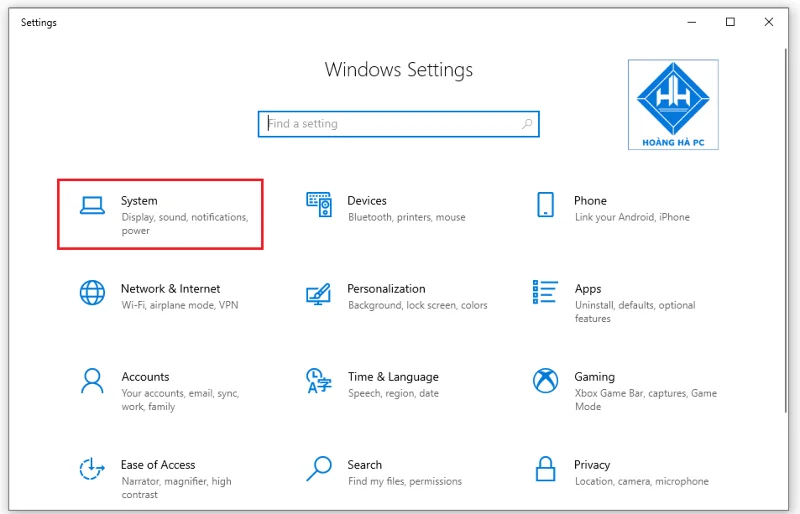
Step 2: In the Windows Setting window , select System to install the system.
Instructions on How to Turn Off Sleep Mode in Windows 10 Not Everyone Knows

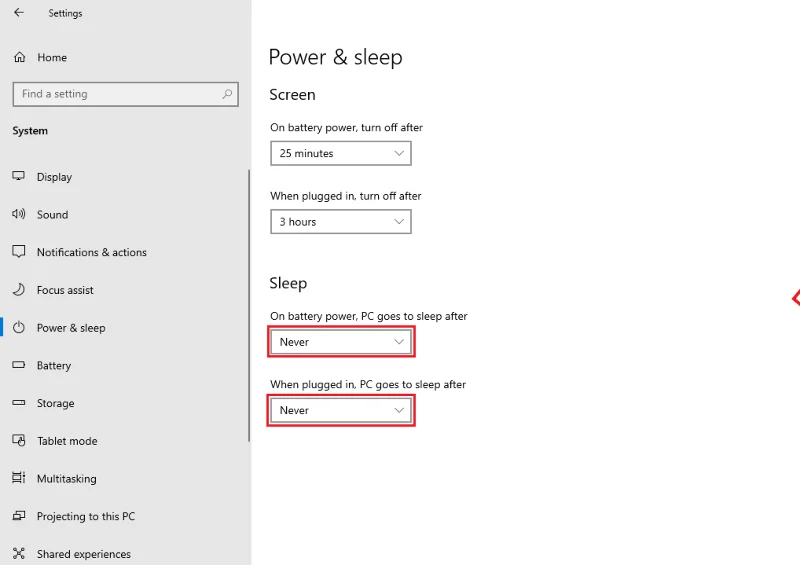
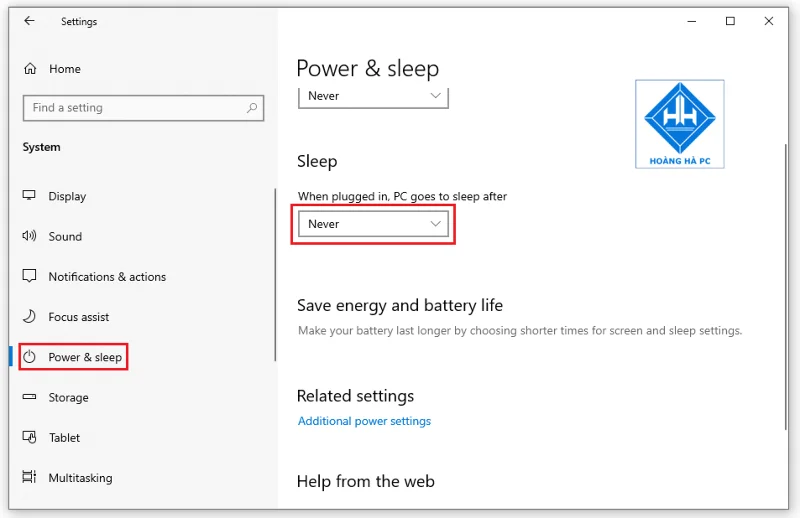
Step 3: A new interface appears, in the left column of the screen, select the Power & Sleep item mode .

Step 4:  Now a new option appears in the Sleep section .

In the Laptop, there are 2 options in the Sleep section:

- On battery Power, PC goes to sleep after: When on battery power, the computer will automatically go to sleep after a period of time...

- When plugged in, PC goes to sleep after: When plugged in, the computer will automatically go to sleep mode after a period of time...
Instructions on How to Turn Off Sleep Mode in Windows 10 Not Everyone Knows

Along with that are the corresponding time periods below each option for you to change as you like. If you want to disable Sleep mode in Windows 10 , select Never for each option. You can also choose to change the length of time you want the computer to go to sleep. Select the appropriate time interval, which is shorter for battery mode and longer for plugged in.

On the PC, an option appears in the Sleep section:

- In the "When plugged in, PC goes to sleep after" section, select the " Never " mode to turn off Sleep mode on Windows 10!
Instructions on How to Turn Off Sleep Mode in Windows 10 Not Everyone Knows

Note: If you're using a PC, you won't see both options as above. PC will not have battery mode (Battery Power). For a new laptop or computer, there will be both as the instructions above.

Turn off sleep mode in Windows 10 with Power Options

Another way to turn off Sleep mode in Windows 10 that WebTech360 wants to show you is by Power Options . For this, do the following:

Step 1: You open Power & Sleep : follow the first three steps of turning off Sleep mode in Windows 10 with Windows Settings .

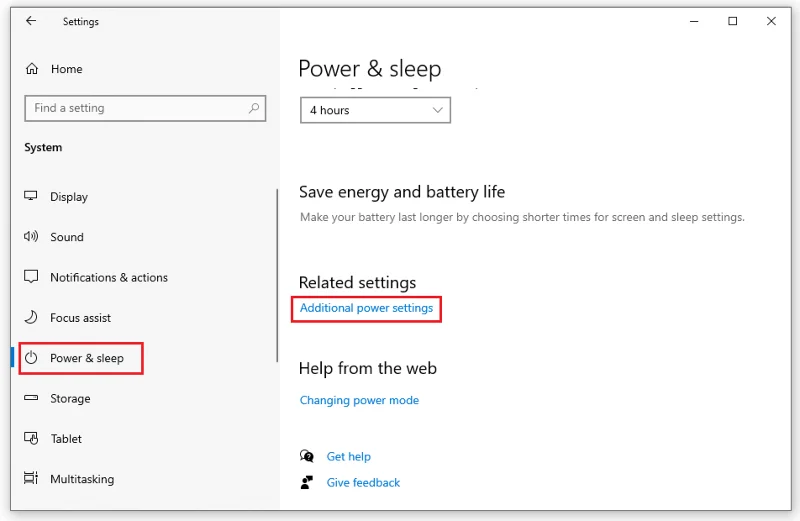
Step 2: In the Related Settings section , select Additional Power Settings .
Instructions on How to Turn Off Sleep Mode in Windows 10 Not Everyone Knows

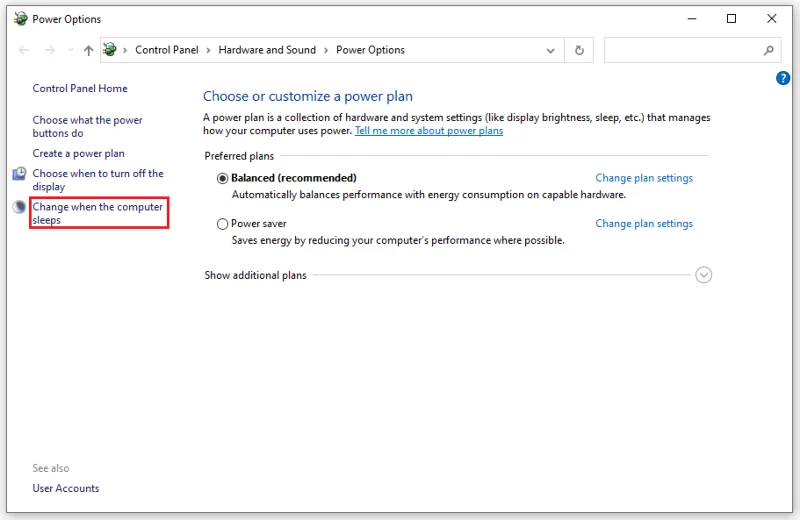
Step 3: The Power Options window appears. You choose Change when the computer sleeps .
Instructions on How to Turn Off Sleep Mode in Windows 10 Not Everyone Knows

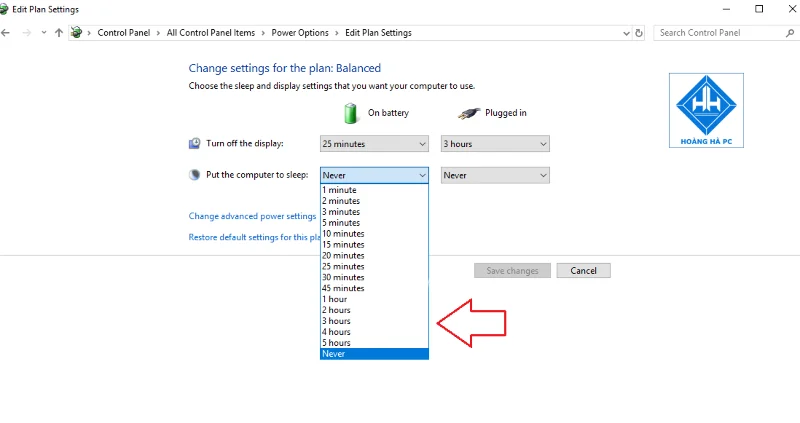
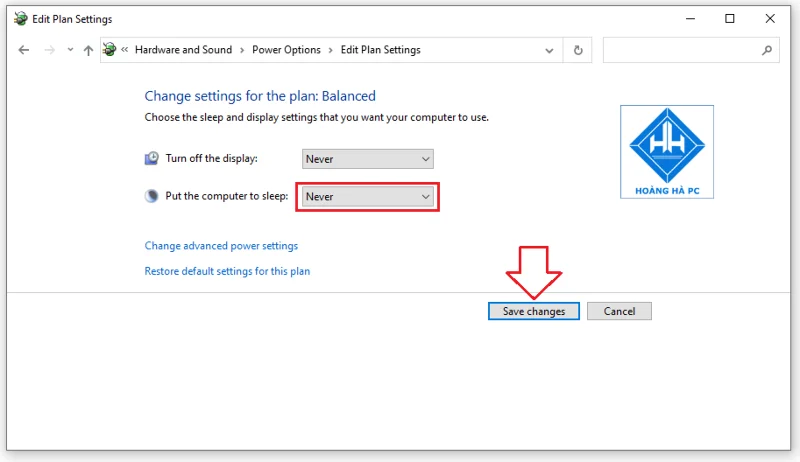
Step 4: In the Edit Plan Settings window that appears.

For Laptop you will also see:

- Two items On Battery (battery use) and Plugged In (plug in power) in the Put the computer to sleep section .

The default state for the two options is Never . If you want to reset the time to go to sleep mode for your computer, you can also customize it.
Instructions on How to Turn Off Sleep Mode in Windows 10 Not Everyone Knows

For PC desktop

- You choose " Never " in the " Put the computer to sleep " section
Instructions on How to Turn Off Sleep Mode in Windows 10 Not Everyone Knows

Step 5: Click Save changes to save the newly changed settings. So you can perform the shutdown of Sleep mode in Windows 10!

Use Shortcut to turn off sleep mode in Windows 10

One of the quick ways to turn off Sleep mode in Windows 10 is to use a shortcut. Here are some simple ways to use shortcuts that you can refer to.

Use the Power User menu shortcut

The essence of this method is to use a quick key sequence. The advantage of this way is that you can use it on many types of applications and work without any settings.

You just need to hold down the Windows + X key combination to open Power User . You press the U key and finally the S key . So your computer has entered the Sleep state easily and quickly. Or if you want to put the computer into hibernation , you just need to select the H key instead of the S key .

Use the Sleep mode shortcut Alt+F4

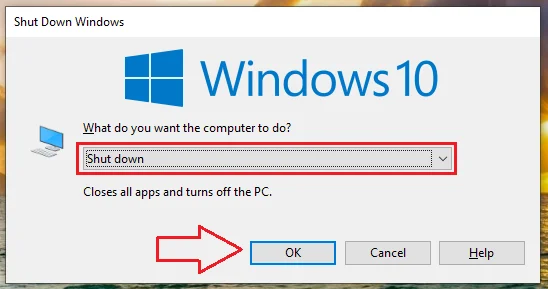
Normally, the Alt + F4 key combination has the function to close the currently used window. However, another function that you may not know is as a shortcut for Sleep mode in Windows 10.
Instructions on How to Turn Off Sleep Mode in Windows 10 Not Everyone Knows

The operation is quite simple. You press the key combination Windows + D . Then, press Alt + F4 to open the Shutdown Windows dialog box . Under What do you want the computer to do? and there will be options below. The default state depending on the system will display Sleep or Shutdown . To turn off Sleep mode in Windows 10, select Sleep and click OK . Or you can also choose other options and click OK .

Create your own shortcut

Although this operation is more complicated than the above methods, you only need to set it up once to be able to use it, saving a lot of time later. You do it in the following order:

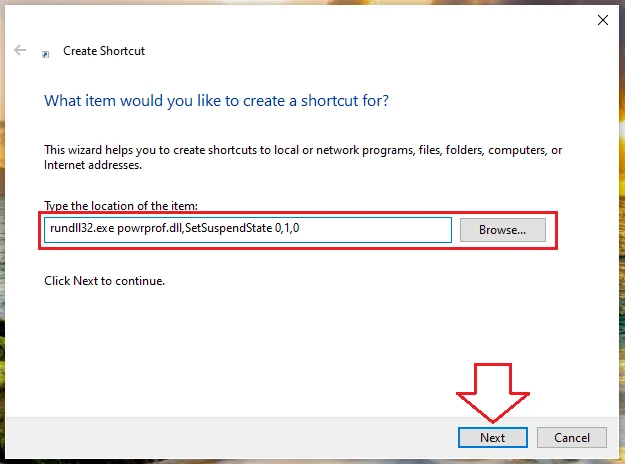
Step 1: At Desktop, right-click, execute NewShortcut command .

Step 2: In the Create Shortcut window, enter the command Rundll32.exepowrprof.dll,SetSuspendState 0,1.0 and then click Next .
Instructions on How to Turn Off Sleep Mode in Windows 10 Not Everyone Knows

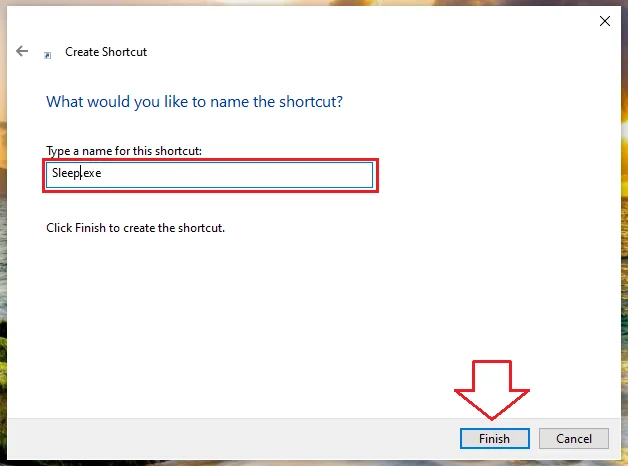
Step 3: You rename this file Sleep and click Finish to finish.
Instructions on How to Turn Off Sleep Mode in Windows 10 Not Everyone Knows

Now a shortcut is created on the desktop. When you want to use it, just double click on this file and you're done.

Note: You can also create shortcuts to shutdown or restart, ... similar to other commands such as:

- Shutdown: Shutdown.exe -s -t 00.

- Restart: Shutdown.exe -r -t 00.

- Lock: Rundll32.exe User32.dll,LockWorkStation.

Hopefully this article gives you many ways to turn  off Sleep mode in Windows 10  to avoid encountering cases where the device automatically goes to sleep. Wishing you success!

Tags: #Blog Tricks

Leave a Comment

1GB Equals How Much MB And How Long Can It Be Used For?

1GB Equals How Much MB And How Long Can It Be Used For?

Discover how many MB is 1GB and understand the data consumption for various activities to optimize your internet usage.

Functions of Thermal Glue, Types of Thermal Glue and Precautions for Use

Functions of Thermal Glue, Types of Thermal Glue and Precautions for Use

The function of thermal paste, types of thermal paste and notes when using will be shared by WebTech360 through the article below.

3 Most Effective Ways to Timer to Shut Down Windows 10 Computer

3 Most Effective Ways to Timer to Shut Down Windows 10 Computer

Have you ever set the time in your computer? WebTech360 will introduce you to the most effective and easiest ways to schedule shutdown in Windows 10.

3 Ways To Set Desktop Wallpaper For Windows 7, 8 And 10

3 Ways To Set Desktop Wallpaper For Windows 7, 8 And 10

Computer wallpaper is boring, want to find a more aesthetic and beautiful computer image. WebTech360 will show you how to set your desktop wallpaper for Windows 7 and 10!

Instructions on How to Find Address And Change Computer IP The Easiest Way

Instructions on How to Find Address And Change Computer IP The Easiest Way

How to find the IP address and change the computer IP? Join WebTech360 to learn about IP addresses and very simple ways to change computer IPs.

3 Simple And Fast Ways To Adjust The Windows 7 Screen Brightness

3 Simple And Fast Ways To Adjust The Windows 7 Screen Brightness

How to adjust screen brightness Win 7 makes it easier for you to adjust the brightness according to your wishes. Let's find out with WebTech360 now!

Which Windows 10 Lightest And Best Version Should I Install For Todays Computer?

Which Windows 10 Lightest And Best Version Should I Install For Todays Computer?

Windows 10 is the most developed operating system with nearly 10 versions. Which version of Windows 10 should be installed is light and best for the computer and suitable for the job.

9 Ways to Deal When Your Computer Wont Shut Down

9 Ways to Deal When Your Computer Wont Shut Down

With the problem that the computer does not turn off during use, WebTech360 will guide you through simple ways to handle the error.

7 Ways To Fix Computer Not Found On LAN On Windows 10

7 Ways To Fix Computer Not Found On LAN On Windows 10

The operating system failed to find the computer in the LAN. WebTech360 shares how to fix Win 10 operating system that cannot connect to LAN.

7 Ways to Fix Clock Error In Computer Running Wrong Time On Windows 10

7 Ways to Fix Clock Error In Computer Running Wrong Time On Windows 10

Clock runs fast or slow wrong time on the computer. WebTech360 shares the reason why the clock in the computer is running wrong and the simplest way to fix it.

Refer to Computer Power Consumption Measurement Software

Refer to Computer Power Consumption Measurement Software

WebTech360 introduces computer power consumption measurement software to help calculate the effective and accurate power consumption that you can refer to.

100+ Best Full HD, 2K, 4K Desktop Wallpapers 2023

100+ Best Full HD, 2K, 4K Desktop Wallpapers 2023

WebTech360 - Share your perfect desktop wallpaper. Our wallpapers come in all sizes, shapes and colors, and they're all free to download.

How to Fix Microsoft Edge Proxy Server Error and Connection Issues

How to Fix Microsoft Edge Proxy Server Error and Connection Issues

Tired of Microsoft Edge Proxy Server Error blocking your browsing? Get proven, step-by-step fixes for connection issues. Restore smooth surfing fast—no tech skills needed!

Solving Microsoft Edge DAW Latency in Web Apps (2026)

Solving Microsoft Edge DAW Latency in Web Apps (2026)

Tired of Microsoft Edge DAW latency ruining your web audio apps? Unlock lightning-fast fixes for 2026 with step-by-step solutions. Slash delays in Digital Audio Workstations and boost performance now!

How to Fix Microsoft Edge Safe Mode Networking Error

How to Fix Microsoft Edge Safe Mode Networking Error

Tired of the frustrating Microsoft Edge "Safe Mode Networking" Error blocking your browsing? Discover proven, step-by-step fixes to restore full networking in Edge safe mode. Works on latest Windows versions – get online fast!

How to Fix Microsoft Edge Video Playback Stuttering

How to Fix Microsoft Edge Video Playback Stuttering

Struggling with Microsoft Edge video playback stuttering? Discover step-by-step fixes to eliminate lag, buffering, and choppy videos. Get smooth streaming today with our expert guide.

Solving Microsoft Edge 0x80072efe Connection Aborted

Solving Microsoft Edge 0x80072efe Connection Aborted

Stuck with Microsoft Edge 0x80072efe Connection Aborted error? Get step-by-step fixes for this frustrating issue, including quick resets, proxy tweaks, and advanced troubleshooting to restore your browsing instantly. Solve it now!

Solving Microsoft Edge Search Paused Indexing Fix

Solving Microsoft Edge Search Paused Indexing Fix

Tired of Microsoft Edge "Search Paused" blocking your tab searches? Get proven, step-by-step indexing fixes to rebuild your index, speed up Edge, and eliminate the error for good. Works on latest versions!

Solving Microsoft Edge Motherboard Driver Compatibility

Solving Microsoft Edge Motherboard Driver Compatibility

Tired of Microsoft Edge crashes from motherboard driver incompatibility? Get step-by-step fixes for smooth browsing, updated drivers, and hardware tweaks. Solve "Motherboard Driver" compatibility in minutes!

How to Enable Hardware Acceleration in Microsoft Edge

How to Enable Hardware Acceleration in Microsoft Edge

Discover how to enable Hardware Acceleration in Microsoft Edge for smoother browsing, faster rendering, and better video playback. Step-by-step guide with tips to boost your Edge performance instantly. Perfect for gamers and power users!

Troubleshooting Microsoft Edge Firewall Blocking Connections

Troubleshooting Microsoft Edge Firewall Blocking Connections

Tired of Microsoft Edge "Firewall" blocking your connections? Follow this expert troubleshooting Microsoft Edge "Firewall" blocking connections guide for quick, reliable fixes. Restore smooth browsing instantly!

How to Fix Microsoft Edge DirectAccess Connectivity Error

How to Fix Microsoft Edge DirectAccess Connectivity Error

Tired of the frustrating Microsoft Edge "DirectAccess" connectivity error blocking your browsing? Discover proven, step-by-step solutions to fix Microsoft Edge DirectAccess error quickly and restore seamless connectivity. Works on latest Windows!

How to Use Microsoft Edge Read Aloud Feature for PDFs

How to Use Microsoft Edge Read Aloud Feature for PDFs

Master the Microsoft Edge Read Aloud feature for PDFs with this step-by-step guide. Enjoy customizable voices, speeds, and multitasking bliss for seamless reading. Perfect for students, professionals, and accessibility needs.

How to Fix Microsoft Edge Acrylic Effect Not Showing

How to Fix Microsoft Edge Acrylic Effect Not Showing

Discover how to fix Microsoft Edge Acrylic Effect not showing. Step-by-step guide with hardware acceleration tweaks, flags, and updates for that stunning blur effect back in seconds. Works on latest Edge versions!

Troubleshooting Edge Browser Security Plugin Errors

Troubleshooting Edge Browser Security Plugin Errors

Struggling with Edge browser security plugin errors? Discover proven fixes for common issues like crashes, blocks, and conflicts. Step-by-step troubleshooting to restore smooth browsing instantly.

Complete List of Microsoft Edge Keyboard Shortcuts

Complete List of Microsoft Edge Keyboard Shortcuts

Unlock peak productivity with the complete list of Microsoft Edge keyboard shortcuts. From tabs and navigation to developer tools, master every essential hotkey for faster browsing in the latest Edge version. Boost your workflow today!

Solving Microsoft Edge Internal Mic Static Sound Fix

Solving Microsoft Edge Internal Mic Static Sound Fix

Tired of annoying static buzz from your internal mic in Microsoft Edge? Follow our proven step-by-step guide to fix Microsoft Edge internal mic static noise permanently. Quick fixes, advanced tweaks, and prevention tips for crystal-clear calls and recordings.