Get LibreOffice to Recognize Your Java Runtime

Install a compatible Java runtime, enable it in LibreOffice, and troubleshoot an empty JRE list without changing unrelated settings.
Windows 10 ships with the Movies & TV app, yet many users encounter unsupported file types or playback stuttering. VLC Video Player for Windows 10 solves these issues through its built-in codec library and hardware acceleration options. The player also includes subtitle support, streaming capabilities, and a minimal interface that does not consume excessive system resources.
Before starting, confirm you have a stable internet connection and administrator rights on your Windows 10 account. Close any other media applications to avoid file conflicts during installation.
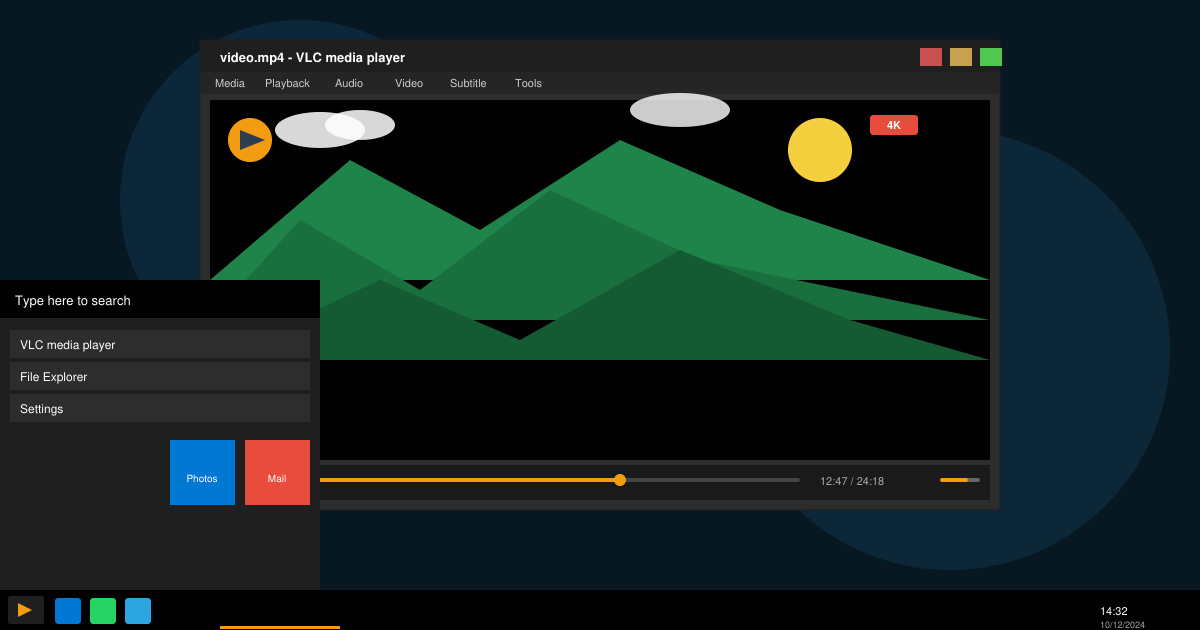
Open your browser and go to videolan.org/vlc. Click the prominent Download VLC button. The site detects Windows 10 automatically and offers the correct 64-bit or 32-bit version. Save the .exe file to your Downloads folder.
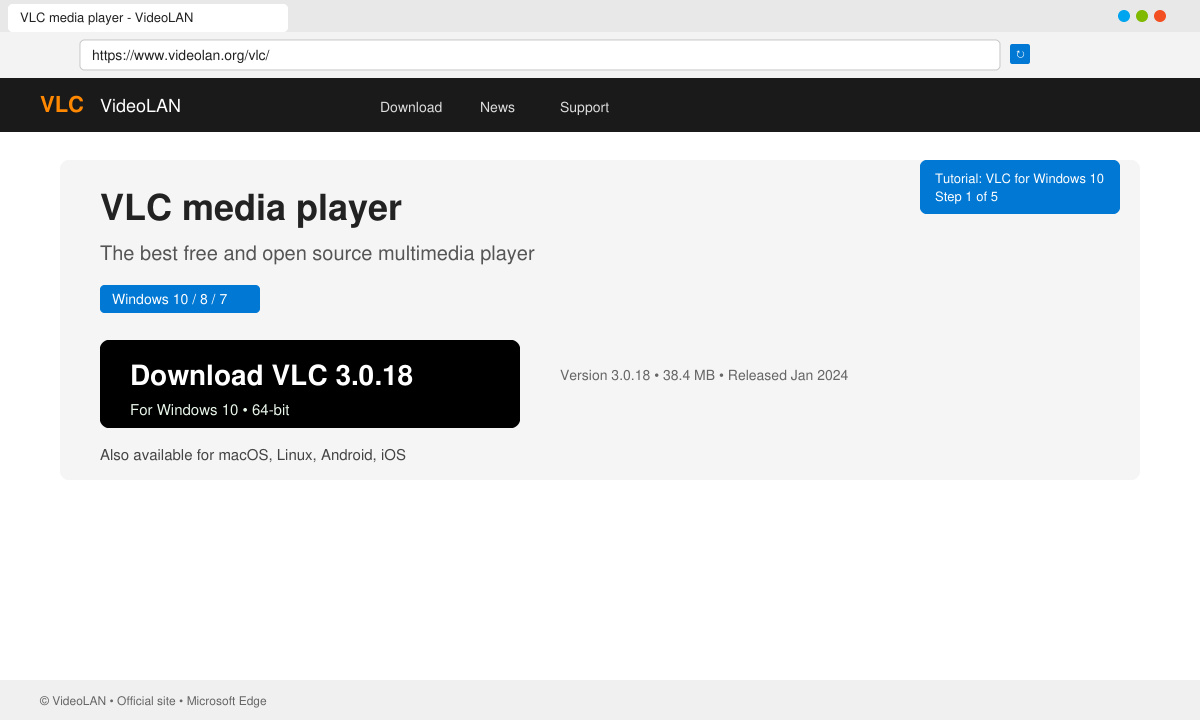
Double-click the downloaded file. When the User Account Control prompt appears, select Yes. On the first screen choose the language, then click Next through the license agreement. Accept the default destination folder and component selections, which include the desktop shortcut and context menu integration.
Click Install and wait for the progress bar to finish. Leave the "Run VLC" checkbox checked at the end and click Finish. The player opens immediately. Go to Tools > Preferences if you want to set it as the default player for common video extensions.
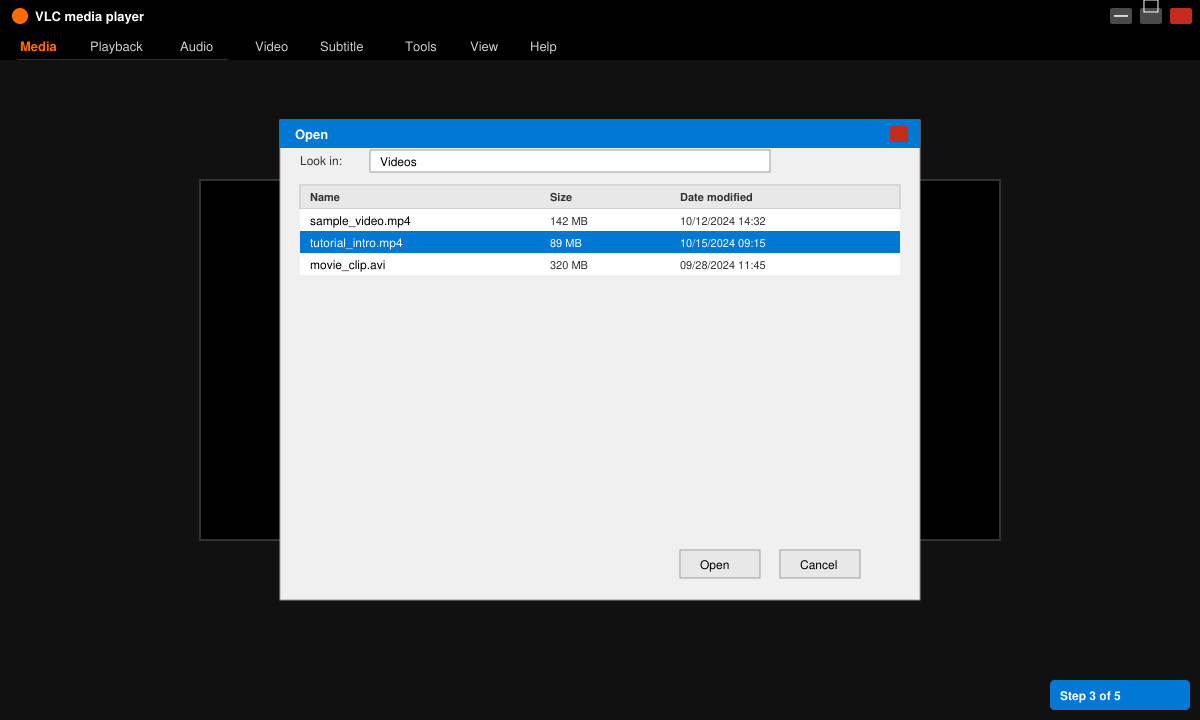
Yes. The only safe source is the official Videolan website. Avoid third-party download portals that bundle extra software.
Standard Blu-ray playback requires additional libraries that are not included for legal reasons. VLC handles most digital files and ISO images without issue.
It runs on most Windows 10 machines, including those with integrated graphics. Disable hardware acceleration in Preferences if you experience stuttering on very low-end systems.
Following the steps above gives you a fully functional VLC Video Player for Windows 10 ready for any media file you encounter.
Install a compatible Java runtime, enable it in LibreOffice, and troubleshoot an empty JRE list without changing unrelated settings.
Build a small LibreOffice container, convert office documents without a GUI, and verify PDF output while limiting host-file access.
Reduce oversized LibreOffice presentation files by compressing embedded photos, choosing sensible image settings, and checking slide quality before sharing.
Match LibreOffice’s page dimensions to your printer, check printable margins, and correct scaling before printing a custom-size document.
Replace repeated cell access with bulk range reads and writes, then benchmark the result and protect formulas in large Calc workbooks.
Split a long manuscript into chapters, assemble them in Writer, and keep styles, contents, and export checks consistent.
Use Base’s direct PostgreSQL option to enter your server details, sign in, save an ODB connection file, and troubleshoot common access errors.
Install a font in your Linux user font folder, restart LibreOffice Flatpak, and confirm it appears in Writer without weakening the app sandbox.
Protect your work and isolate network-drive save crashes in LibreOffice on macOS Sonoma with a local-first workflow, permission checks, and targeted tests.
Preserve leading zeros in Calc by setting ID columns to Text during CSV import, checking the preview, and verifying the saved data.








