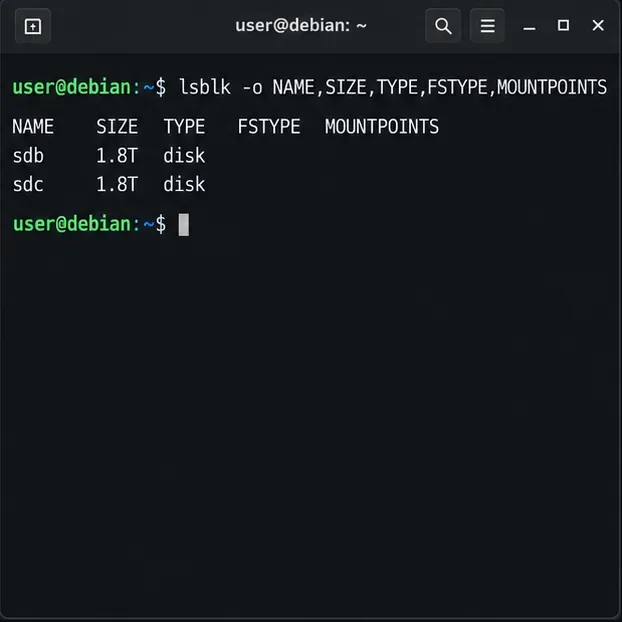
Keep Debian 12 Security Updates Running on a Headless Server
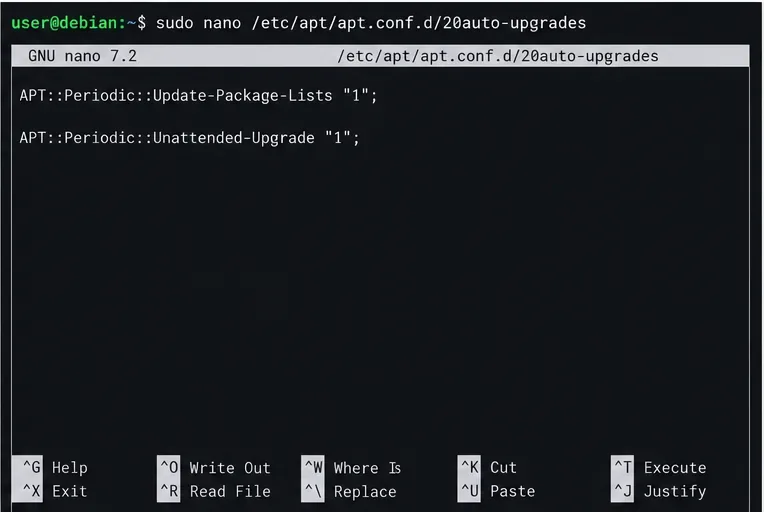
Enable Debian’s unattended security updates over SSH, keep the default package sources, and verify scheduled runs through systemd and APT logs.
Are you curious how to pin to Start in Windows 11? Even if it uses icons instead of live tiles, you can still pin apps to the Start Menu in Windows 11, as well as files, folders, email accounts, or your favorite locations. As you’re about to see, when it comes to pinning to Start Menu, things haven’t changed much in Windows 11. So, if you want your favorite items and locations on hand, this guide lets you know how to pin to Start Menu in Windows 11:
Contents
What does pin to Start mean in Windows 11?
To answer the question “What is Pin to Start?”, just open the Windows 11 Start Menu. The Pinned section is shown under the Search field and lets you quickly access your favorite apps.

Pin to Start in Windows 11 adds icons to the Pinned section
In Windows 11, you can add the icons you need to the Pinned section. When you right-click or press-and-hold on certain items, you can find the Pin to Start option in the subsequent contextual menu.

The Windows 11 Pin to Start option in a contextual menu
Unfortunately, not every type of item on your Windows 11 computer or device comes with the “Pin to Start” option included in the contextual menu. However, as you’re about to see, you can use workarounds to add almost anything to the Pinned section in the Windows 11 Start Menu.
How to pin apps to Start Menu in Windows 11
You can easily pin any app to the Windows 11 Start Menu, whether it’s one you downloaded from the internet or the Microsoft Store. Open the Start Menu and click or tap on the All apps button in the upper-right area.

Access All apps in the Start Menu
Then, scroll through the alphabetical list of apps until you find the one you want. Right-click or press-and-hold on it to open the contextual menu, and click or tap on “Pin to Start.”

How to pin to Start Menu any app installed on your PC in Windows 11
Certain apps create a folder with the same name in the All apps list. Open the folder, right-click or press-and-hold on the app, and then click or tap on the “Pin to Start” option.

Open the containing folder to pin an app to Start in Windows 11
There are some apps in Windows 11, like the Command Prompt, that are not displayed in All apps. Search for the program and then right-click or press-and-hold on the result to reveal the “Pin to Start” option. An alternative is to click or tap on “Pin to Start” from the section on the right.

Search for an app to Pin it to Start in Windows 11
If there’s a desktop shortcut available for your app, you can also right-click or press-and-hold on it to open a contextual menu, where you can click or tap on “Pin to Start.” You can even do this for the Recycle Bin, as seen below.

Add apps from the desktop to the Pinned section in Windows 11
An alternative way to pin a program to the Start Menu is from the contextual menu of its executable file. Open File Explorer and navigate to the location where the app is installed or saved. Then, right-click or press-and-hold on the EXE file to open a contextual menu and click or tap on “Pin to Start.”

How to pin to Start from an app's EXE file
How to pin to Start folders, drives, and other locations from File Explorer
Whether they’re folders, drives, devices, or other locations on your Windows 11 PC, you can always have your favorite locations within reach. Find the folder you want to pin, right-click or press-and-hold on it, and then click or tap on “Pin to Start.”

Add a folder to Start Menu in Windows 11
Any locations in the Quick access menu are just as easily pinned to Start Menu, including This PC, Network, and even Quick access.

Pin Quick access locations to Start
You can also use File Explorer to find and pin network computers, shared folders, devices and drives, and more. Just right-click or press-and-hold on the item you want in the Start Menu, and then click or tap on “Pin to Start” from its contextual menu.
How to pin a file to Start Menu in Windows 11
Most files don’t include a “Pin to Start” option in their contextual menus. However, there is a workaround you can use, which also works for other items without a pinning option. Find the file you want to pin, right-click or press-and-hold on it to open its contextual menu, and then click or tap on “Show more options” at the bottom.

Show more options for a file or item you want to pin
This opens another contextual menu. Go to Send to and then click or tap on “Desktop (create shortcut).”

Create a desktop shortcut for your file
A shortcut for that file is added to the Windows 11 desktop. You can rename it to anything you want.

The shortcut for your file is added to the desktop
The next step is navigating to the location where Windows 11 saves Start Menu shortcuts. You can insert or copy & paste the following into File Explorer’s address bar:
C:\Users\[user account]\AppData\Roaming\Microsoft\Windows\Start Menu\Programs
OR
%APPDATA%\Microsoft\Windows\Start Menu\Programs
Replace [user account] with your Windows 11 account and press Enter.
Insert the path in File Explorer's address bar and press Enter
Next, cut and paste the desktop shortcut you created earlier into the Programs folder.

Move your shortcut to Programs
Open the Start Menu, click or tap on the All apps button (check the previous chapter about pinning apps for more details), and find your shortcut in the list. Then, right-click or press-and-hold on it and click or tap on “Pin to Start.”

Pin your shortcut to Start Menu in Windows 11
You can now see your shortcut displayed in the pinned section. Click or tap on it to open the corresponding file.

Your shortcut is pinned to Start
How to pin email accounts or folders to the Start Menu
In Windows 11, you can also pin your favorite email account or folders to the Start Menu. Open the Mail app and, if the left sidebar is collapsed, press the Expand hamburger button in the top-left corner. Then, right-click or press-and-hold on the name of the account you want to pin. Click or tap on “Pin to Start” from the contextual menu.

Pin to Start an email account in Windows 11
The procedure is the same for the folders displayed on the sidebar. If the folder you want to pin is not shown, click or tap on Folders or More. Then, use the right-click menu to “Pin to Start.”

Pin an email folder to Start in Windows 11
Confirm your choice by clicking or tapping on Yes in the pop-up, and you are done.
How to pin websites or web pages to the Windows 11 Start Menu
Microsoft Edge has a “Pin to Start” option integrated. You can find out more about it and how to pin websites from all your favorite browsers from our guide on pinning a website to the taskbar or the Start Menu.

Pin to Start websites or web pages with Edge
How to pin games to the Start menu
If you’re into Steam games, you can access them faster by pinning them to Start. Our guide on pinning Steam games to Start can help you more with this.

Pin a Steam game to the Start Menu
TIP: You can change a lot of things about the Start Menu. For more details, read our guide on customizing the Windows 11 Start Menu.
Did you pin to Start the item(s) you wanted?
Pinning to Start is a very useful option that increases productivity, especially if you’re using the same apps or files on a regular basis. Before you close this guide, we’re curious what items you wanted to pin to the Start Menu. Did you succeed? Let us know in a comment.
Enable Debian’s unattended security updates over SSH, keep the default package sources, and verify scheduled runs through systemd and APT logs.
Compare mail delivery options, configure smartd on Ubuntu, and verify that disk-health warnings reach your inbox.
Restore DNS lookups on Debian 12 by checking systemd-resolved, repairing resolv.conf when needed, and verifying upstream DNS and application resolution.
Get Ubuntu to detect your monitor or TV as an audio output, select it in Sound settings, and check the connection or PipeWire device list if HDMI is missing.
Resolve Ubuntu APT signature warnings safely by identifying the failing source, refreshing its verified key, and checking the result without disabling security.
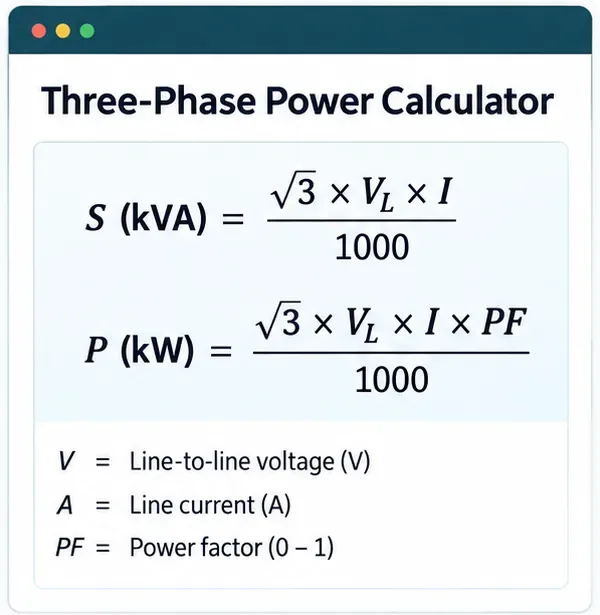
Learn the balanced three-phase formulas and convert line voltage, current, kW, kVA, and power factor step by step, with a worked example and limits to check.
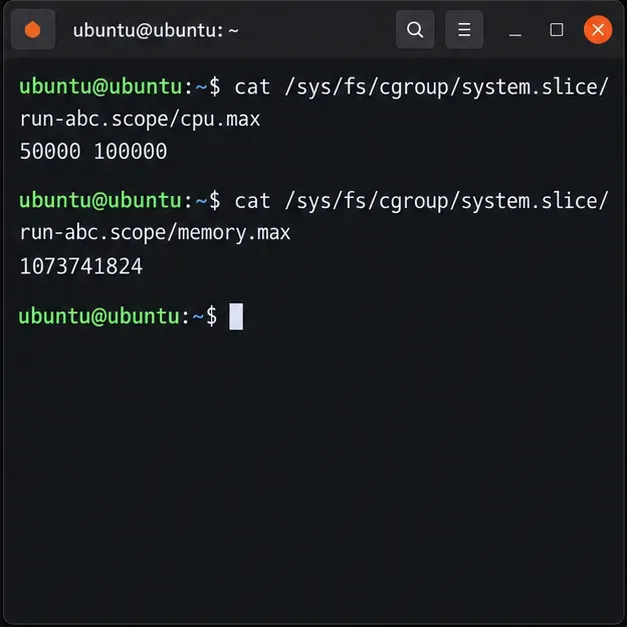
Run a workload inside a systemd scope with CPUQuota and MemoryMax, then verify the limits through cgroup v2.
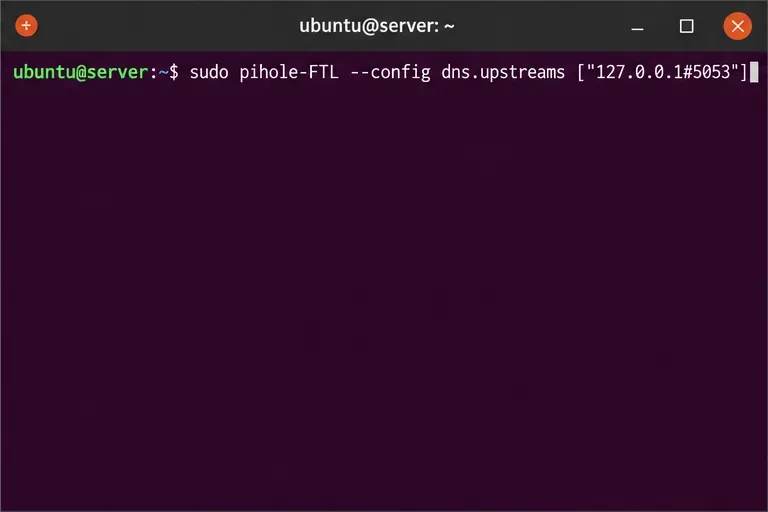
Set up dnscrypt-proxy as Pi-hole’s local DoH bridge on Ubuntu 24.04, with a localhost-only listener, resolver selection, and checks before switching DNS.
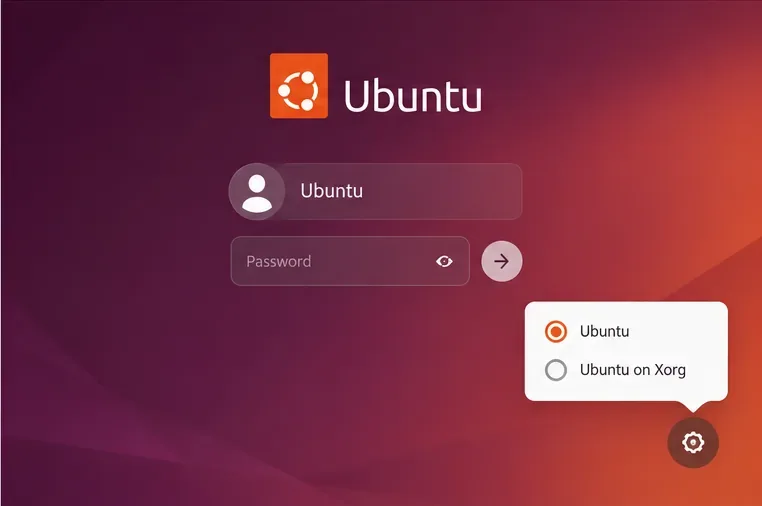
Check Ubuntu’s touchpad settings, confirm Wayland, and test GNOME’s built-in swipes before troubleshooting apps or hardware.
Create and verify a two-disk Debian 12 RAID 1 data array, format it safely, and configure it to assemble and mount after reboot.