Podcasting Trends You Need to Know in 2026: A Beginner’s Roadmap

New to podcasting? Learn the 2026 trends shaping video, discovery, transcripts, AI, analytics, monetization, and a practical launch plan.
Sleep mode is a way to help your device not turn off completely but only temporarily rest, this will help you continue, but sometimes this sleep mode will go back to sleep. So WebTech360 wants to show you how to turn off Sleep mode in Windows 10 . Let's learn how to use this useful tool through the article below!
To turn off Sleep mode in Windows 10, follow the instructions below:
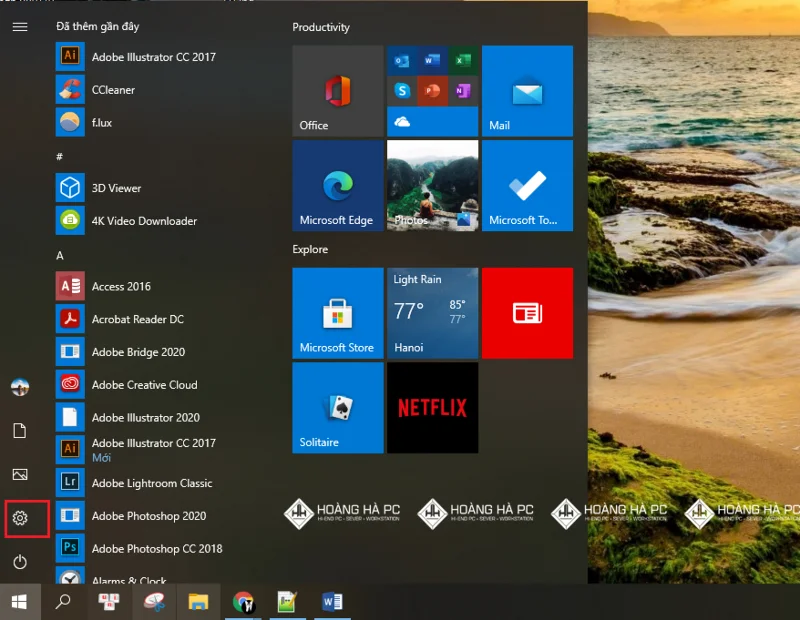
Step 1: First of all, you need to open the Windows Settings Win 10 interface. You just need to go to the Start menu → select Settings (with a gear icon). To open quickly, press Windows key + I .
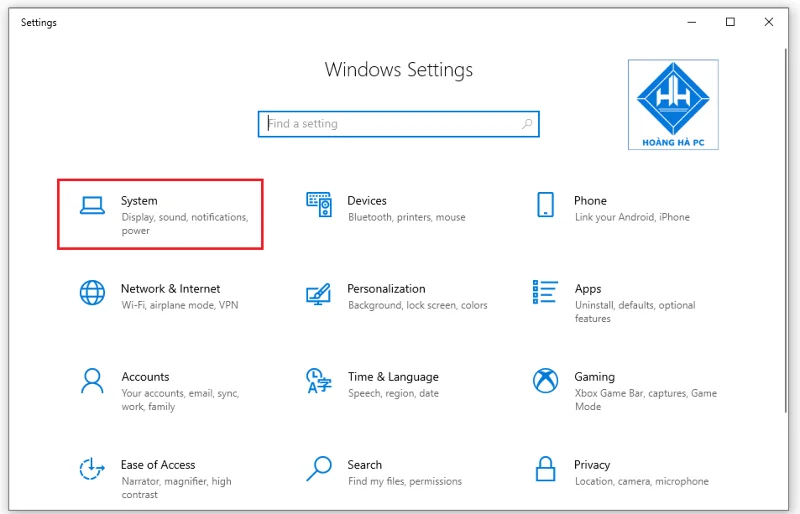
Step 2: In the Windows Setting window , select System to install the system.
Step 3: A new interface appears, in the left column of the screen, select the Power & Sleep item mode .
Step 4: Now a new option appears in the Sleep section .
In the Laptop, there are 2 options in the Sleep section:
- On battery Power, PC goes to sleep after: When on battery power, the computer will automatically go to sleep after a period of time...
- When plugged in, PC goes to sleep after: When plugged in, the computer will automatically go to sleep mode after a period of time...
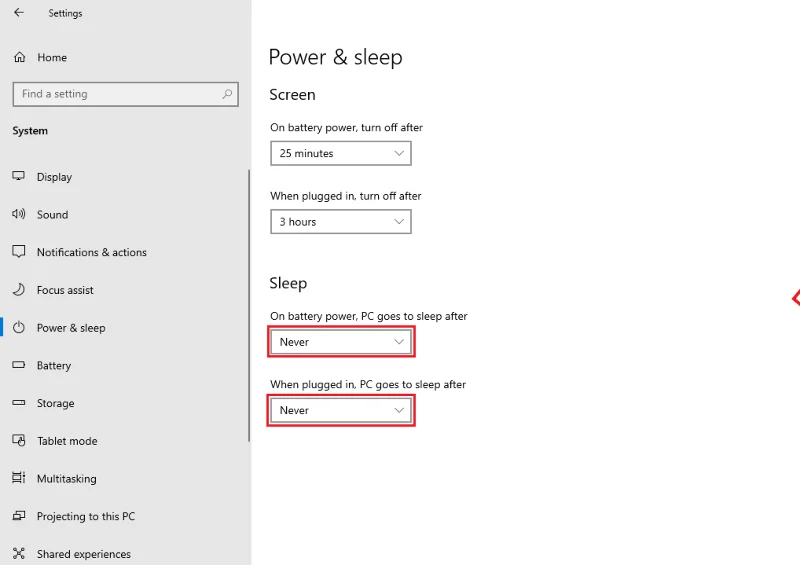
Along with that are the corresponding time periods below each option for you to change as you like. If you want to disable Sleep mode in Windows 10 , select Never for each option. You can also choose to change the length of time you want the computer to go to sleep. Select the appropriate time interval, which is shorter for battery mode and longer for plugged in.
On the PC, an option appears in the Sleep section:
- In the "When plugged in, PC goes to sleep after" section, select the " Never " mode to turn off Sleep mode on Windows 10!
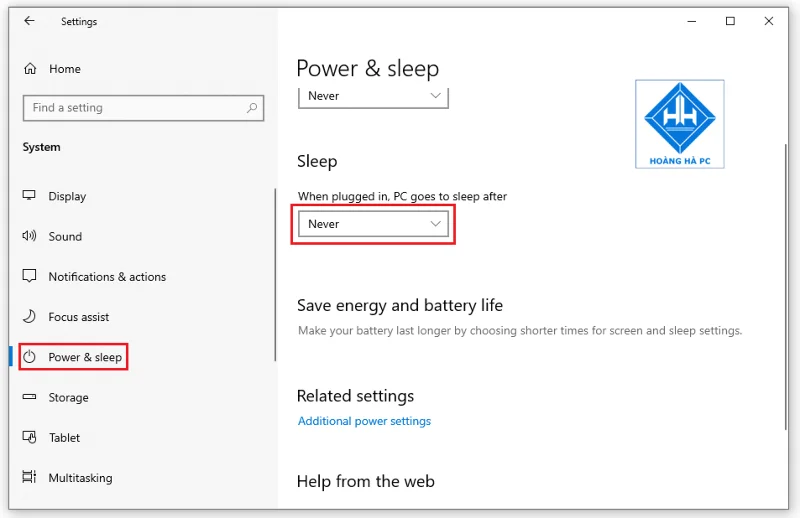
Note: If you're using a PC, you won't see both options as above. PC will not have battery mode (Battery Power). For a new laptop or computer, there will be both as the instructions above.
Another way to turn off Sleep mode in Windows 10 that WebTech360 wants to show you is by Power Options . For this, do the following:
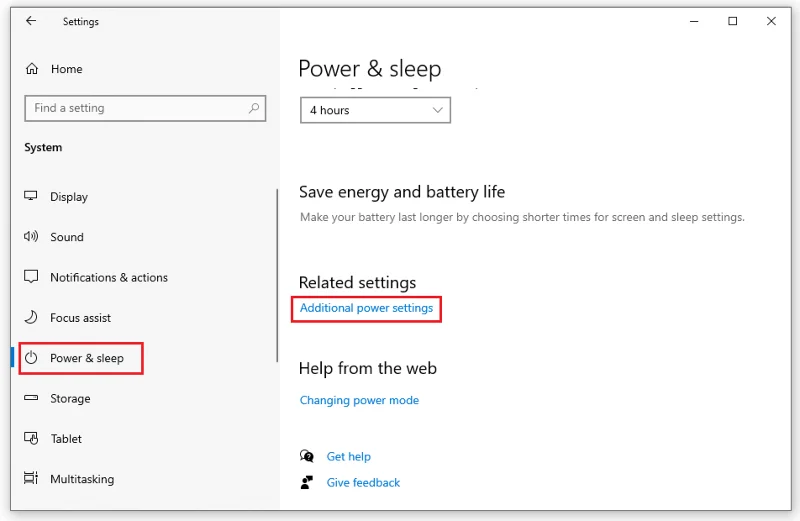
Step 1: You open Power & Sleep : follow the first three steps of turning off Sleep mode in Windows 10 with Windows Settings .
Step 2: In the Related Settings section , select Additional Power Settings .
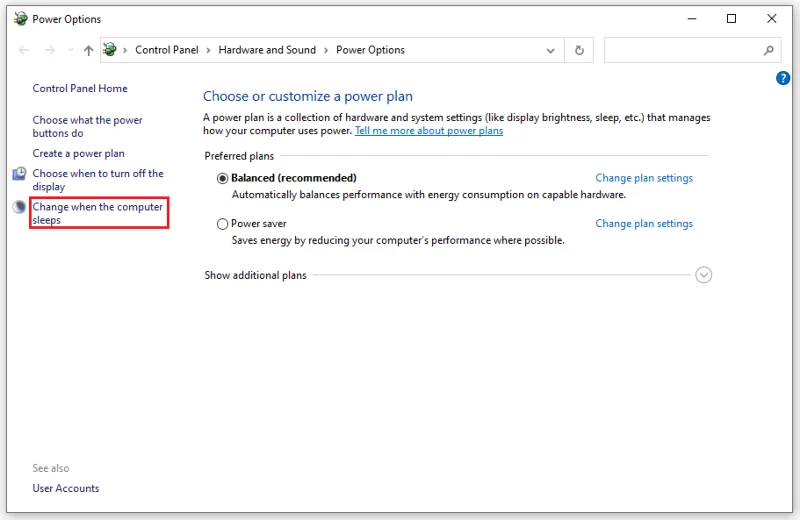
Step 3: The Power Options window appears. You choose Change when the computer sleeps .
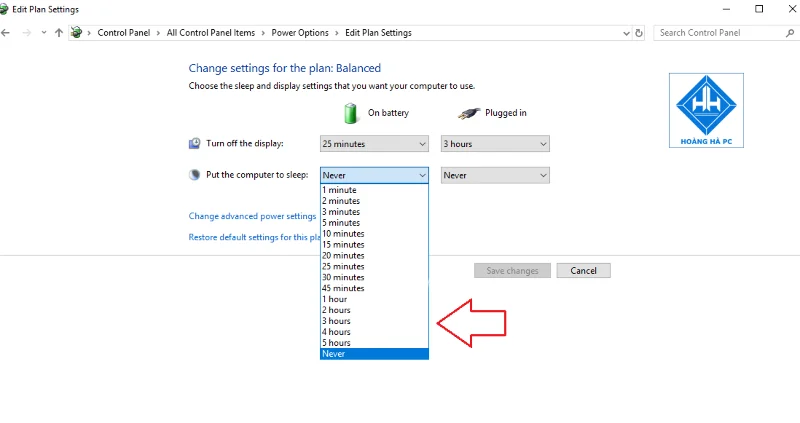
Step 4: In the Edit Plan Settings window that appears.
For Laptop you will also see:
- Two items On Battery (battery use) and Plugged In (plug in power) in the Put the computer to sleep section .
The default state for the two options is Never . If you want to reset the time to go to sleep mode for your computer, you can also customize it.
For PC desktop
- You choose " Never " in the " Put the computer to sleep " section
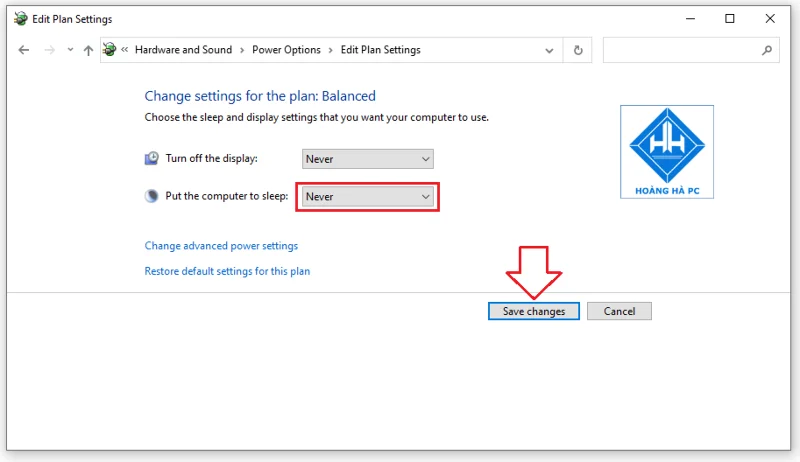
Step 5: Click Save changes to save the newly changed settings. So you can perform the shutdown of Sleep mode in Windows 10!
One of the quick ways to turn off Sleep mode in Windows 10 is to use a shortcut. Here are some simple ways to use shortcuts that you can refer to.
The essence of this method is to use a quick key sequence. The advantage of this way is that you can use it on many types of applications and work without any settings.
You just need to hold down the Windows + X key combination to open Power User . You press the U key and finally the S key . So your computer has entered the Sleep state easily and quickly. Or if you want to put the computer into hibernation , you just need to select the H key instead of the S key .
Normally, the Alt + F4 key combination has the function to close the currently used window. However, another function that you may not know is as a shortcut for Sleep mode in Windows 10.
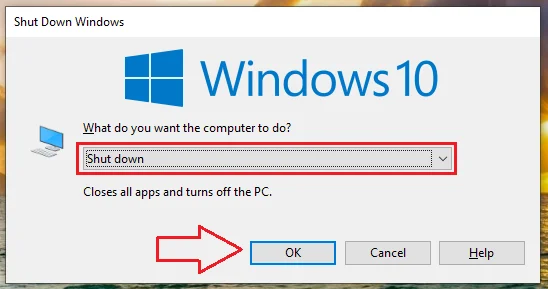
The operation is quite simple. You press the key combination Windows + D . Then, press Alt + F4 to open the Shutdown Windows dialog box . Under What do you want the computer to do? and there will be options below. The default state depending on the system will display Sleep or Shutdown . To turn off Sleep mode in Windows 10, select Sleep and click OK . Or you can also choose other options and click OK .
Although this operation is more complicated than the above methods, you only need to set it up once to be able to use it, saving a lot of time later. You do it in the following order:
Step 1: At Desktop, right-click, execute New → Shortcut command .
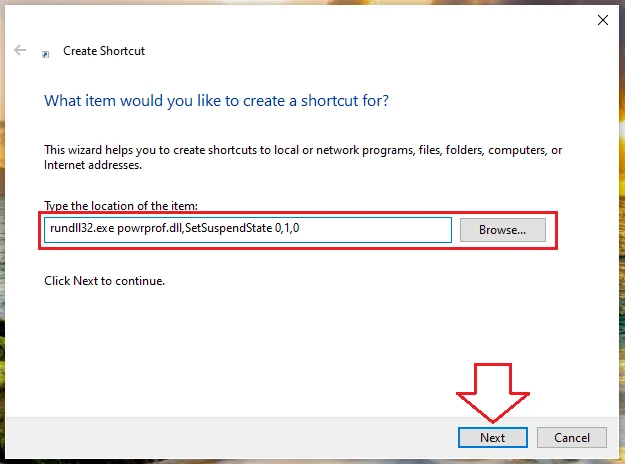
Step 2: In the Create Shortcut window, enter the command Rundll32.exepowrprof.dll,SetSuspendState 0,1.0 and then click Next .
Step 3: You rename this file Sleep and click Finish to finish.
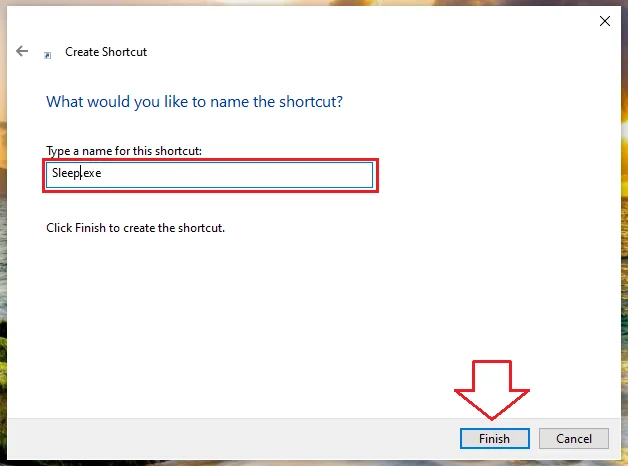
Now a shortcut is created on the desktop. When you want to use it, just double click on this file and you're done.
Note: You can also create shortcuts to shutdown or restart, ... similar to other commands such as:
- Shutdown: Shutdown.exe -s -t 00.
- Restart: Shutdown.exe -r -t 00.
- Lock: Rundll32.exe User32.dll,LockWorkStation.
Hopefully this article gives you many ways to turn off Sleep mode in Windows 10 to avoid encountering cases where the device automatically goes to sleep. Wishing you success!
New to podcasting? Learn the 2026 trends shaping video, discovery, transcripts, AI, analytics, monetization, and a practical launch plan.
A practical UGC masterclass for sourcing, permissioning, briefing, publishing, and measuring customer and creator content without losing authenticity.
Community building can deepen trust, retention, feedback, and advocacy, but it is not a replacement for every marketing channel. Compare the tradeoffs and choose the right model.
Learn what major social platforms have actually confirmed about ranking changes in 2026, what depends on context, and how to adapt without chasing myths.
Learn how to make brand storytelling feel credible, human, and specific—using proof, real tension, ethical customer stories, and a practical authenticity check.
Build a smarter Q4 email strategy by balancing reach, frequency, discounts, automation, deliverability, and measurement for profitable holiday growth.
Learn how to create short-form video that converts by balancing hooks, format, authenticity, CTA, platform fit, and testing across TikTok, Reels, and Shorts.
Why are brands testing KOCs instead of relying only on influencers? Learn what KOCs are, why social commerce favors them, common myths, and how to run a measurable pilot.
Learn a practical TikTok SEO workflow for 2026: find real search demand, match search intent, optimize each video, and measure what improves visibility.
Prepare your e-commerce store for Black Friday with a practical checklist for offers, site speed, checkout, inventory, fulfillment, analytics, security, and support.